


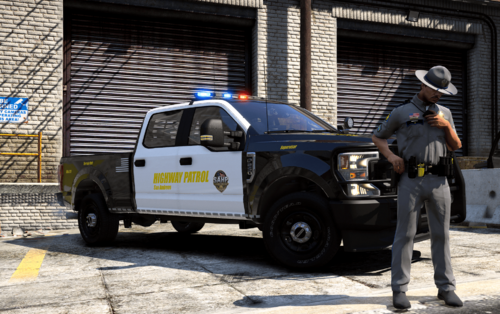
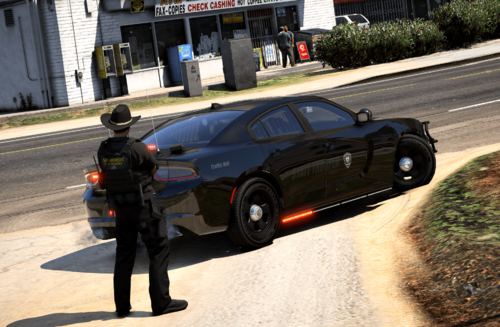
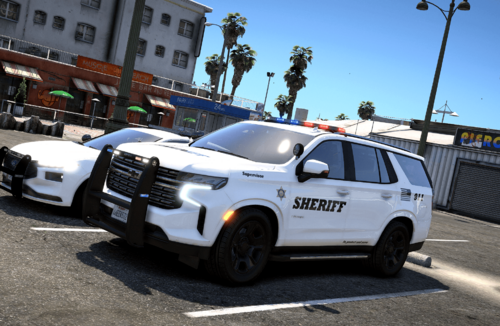
Here are the skins that I've been using for my Highway Patrol/State Trooper units. Fits both Carperino and BxBugs' Chargers.
Pack contains one blue Highway Patrol / Trooper skin and one black H.E.A.T unit skin. Disregard "State Police" on the front bumper of the blue skin in the screenies. I removed it after I realized I had left it on there - having it together with "State Trooper" on the hood was a little redundant. Let me know what you think, or if you would like them for different cars.
What's New in Version 1.0.1
Released
Added H.E.A.T unit
Carperino and Bugs for the awesome Charger models.


![Hanse Modding HMS RTW Vohrführfahrzeug [Lore Friendly] [SKIN]](http://s3-screenshots.int-cdn.lcpdfrusercontent.com/resize/500/-/monthly_2026_05/HMS_RTW_Vohrfhrfahrzeug_01.thumb.png.0fe0f9214e4af6997f54aa7eeb8db863.png)
![Hanse Modding WAS RTW Vohrführfahrzeug [Lore Friendly] [SKIN]](http://s3-screenshots.int-cdn.lcpdfrusercontent.com/resize/500/-/monthly_2026_05/WAS_RTW_Vohrfhrfahrzeug_01.thumb.png.632108b63dd12eb502fbf5d7cfbc5198.png)
![[ELS-Hybrid | DLC/Addon ] Low-Profile z71 Tahoes](http://s3-screenshots.int-cdn.lcpdfrusercontent.com/resize/500/-/monthly_2026_05/25_1(1).thumb.png.7bdf0066d86afe565fac5e2684baa3e8.png)


Recommended Comments
Create an account or sign in to comment