





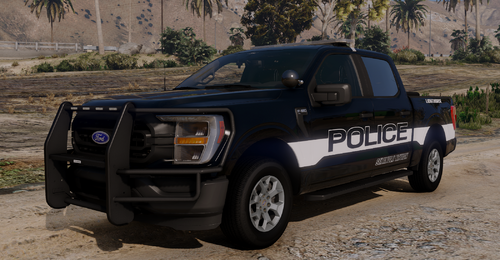
The Rockford Hills Police Department Livery Pack is a lore-friendly vehicle livery expansion for GTA V LSPDFR, designed specifically for Scorpionfam’s Legacy Pack.
Inspired by the elegant and recognizable aesthetics of upscale California municipal policing, particularly the Beverly Hills Police Department, this pack reimagines Rockford Hills as a premium local law enforcement agency serving one of Los Santos’ wealthiest communities.
Featuring sleek black-and-white police graphics, refined vehicle markings, and a unified fleet-wide design language, this pack delivers a believable luxury-city policing experience while remaining fully grounded in GTA V’s San Andreas lore.
Designed for immersive gameplay, cinematic screenshots, and realism-focused patrol scenarios, the Rockford Hills Police Department Livery Pack offers a professional and polished visual identity for players looking to enhance law enforcement operations in the heart of Rockford Hills.
Built exclusively for Scorpionfam’s Legacy Pack, this release is perfect for players seeking a more detailed, lore-friendly municipal police experience in LSPDFR and single-player gameplay.
NOTE: There are no liveries for the Lightning truck, simply because it's deemed unrealistic in RH's environment. But feel free to tell me if you REALLY want one in the comments!
ORIGINAL PACK:
Short Description
AI disclosure
The author has disclosed that AI tools were used in creating the following aspects of this file:
- Description
Original Vehicle Models: Scorpionfam (Legacy Pack)
Design Inspiration: Beverly Hills Police Department




![NPCAI-Spolszczenie [v.1.0.0]](http://s3-screenshots.int-cdn.lcpdfrusercontent.com/resize/500/-/monthly_2026_07/spolszczenieNPCAI.thumb.png.bfcef8825ec8ce431d7ca350eb265fb9.png)


![[ELS][Addon/Replace] Blaine County Sheriff's Office Mega Pack (RSO based)](http://s3-screenshots.int-cdn.lcpdfrusercontent.com/resize/500/-/monthly_2026_07/8.thumb.png.2388dab0d67f3ad202b0f3ef14280a2f.png)


Recommended Comments
Create an account or sign in to comment