


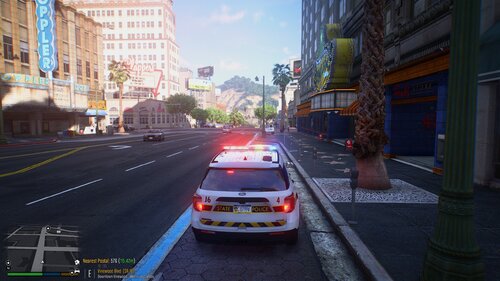
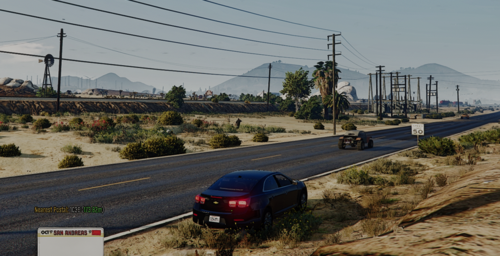
This file contains vehicle liveries and a basic EUP uniform section for Rockford Hills PD. The set is based on the St Paul, MN PD. This is part of my ongoing Minnesota lore friendly update. I have lot more and I will post more if this is interesting. Most of this I have are based on the LSPD Fleet Pack. The screen shots provide a basic view and do not include all that is included in this file. The pack I used was reflective so just replace the reflective livery with the one I provided.
The EUP textures work for both Male and Female (Just replace the texture in the file)
You will have to have a basic knowledge on how to replace textures so you can replace any file you choose as far as the uniforms go. I included both the textures or a drop in to the spot that Rockford Hills uniforms are located.
Please don't claim as your own and please give credit if you use it somewhere.
- used for the skins
https://www.lcpdfr.com/downloads/gta5mods/character/8151-emergency-uniforms-pack-law-order/ - for uniforms and LSPD shaped badge
(Paid)
https://pyrosdevshop.com/products/winter-jacket - Winter Jacket
https://www.thinlinesanctuary.com/collections/law-enforcement/products/fleece-jacket - Fleece Jacket
Short Description
https://www.lcpdfr.com/downloads/gta5mods/character/8151-emergency-uniforms-pack-law-order/ - for uniforms and LSPD shaped badge
(Paid)
https://pyrosdevshop.com/products/winter-jacket - Winter Jacket
https://www.thinlinesanctuary.com/collections/law-enforcement/products/fleece-jacket - Fleece Jacket



![[Non-ELS/DLSv2] LAPD BMW R1200RT-P [Addon/FiveM]](http://s3-screenshots.int-cdn.lcpdfrusercontent.com/monthly_2026_04/1.Thumbnail.thumb.png.ee831bb3bb39882cf936bde4872b0c88.png)







Recommended Comments
Create an account or sign in to comment