





📦 Blaine County Sheriff Vehicle Skins
🔹 Description
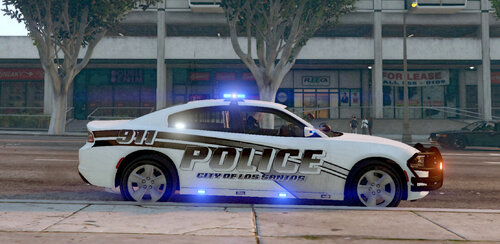
This pack includes Blaine County Sheriff vehicle liveries designed for LSPDFR, inspired by a rural sheriff’s department style suitable for Blaine County patrol operations.
The skins feature a clean, realistic look with accurate markings that fit both patrol and supervisor use. They are intended to blend naturally into Blaine County environments while maintaining high visibility and realism during gameplay.
All liveries are made in high resolution and optimized for LSPDFR use.
Features:
High-quality, realistic sheriff-style markings
Designed specifically for Blaine County–style patrol
Clean layout for immersion and roleplay
Compatible with LSPDFR
📁 Installation
Install the required vehicle models (linked below).
Open OpenIV.
Navigate to the vehicle’s folder location.
Replace the existing texture files with the provided ones.
Launch the game and enjoy.
❗ Notes
This is a texture-only mod
Vehicle models are not included
For LSPDFR use only
👤 Credits
Liveries / Textures: MichaelFive-0
Vehicle Models: RangerZ
Game: Grand Theft Auto V by Rockstar Games
Platform: LSPDFR
🔗 Social Media
YouTube: https://youtube.com/@michaelfive0
Discord: https://discord.gg/EAD7JDCX3z
Patreon: https://patreon.com/michaelfive0
🚓 Vehicles Used
Edited by MichaelFive0
Short Description
Vehicle Models: RangerZ
- TankXking21 and EddyChen11
-
 2
2

![[ELS-Hybrid | DLC/Addon ] Low-Profile z71 Tahoes](http://s3-screenshots.int-cdn.lcpdfrusercontent.com/monthly_2026_05/25_1(1).thumb.png.7bdf0066d86afe565fac5e2684baa3e8.png)




![[ELS][REPLACE] 2020 Skoda Octavia Městská policie Praha (New design)](http://s3-screenshots.int-cdn.lcpdfrusercontent.com/resize/500/-/monthly_2026_05/20260514222354_1.thumb.jpg.dedd1cd5cdf14716666af6abfa71508d.jpg)


.thumb.png.a0f80464539c2dd42ee2519c1bda91f2.png)

![Generic Whelen 2023 F150 B/B [FiveM & Single Player]](http://s3-screenshots.int-cdn.lcpdfrusercontent.com/monthly_2026_05/enb2026_5_13_15_23_48_06.thumb.png.ecbdfb941234f496e3fd959033f602d4.png)

Recommended Comments
Create an account or sign in to comment