


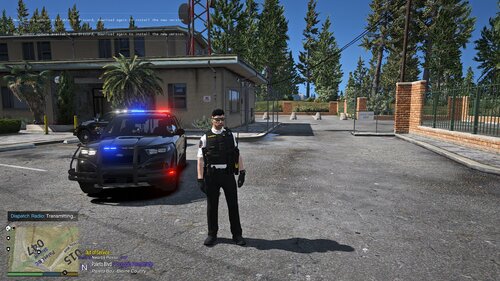
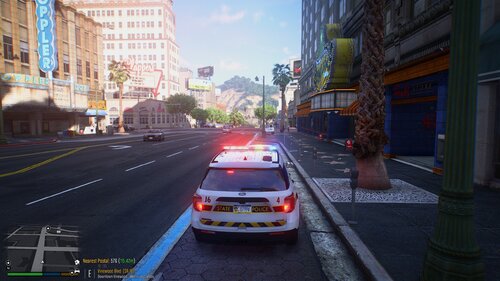
Decided to make a livery for a 2016 FPIU since I found a text font that I liked. It has 5 liveries for normal patrol unit, traffic enforcement, crime scene investigator, K-9 unit, and Supervisor. It is a simple and clean design, if there are any issues please don't hesitate to leave constructive feedback in the comments. I hope you enjoy these liveries as much as I have enjoyed making them! I will also leave the link to the car used in the pics below, however you can use these liveries on any 2016 FPIU made by Officer Underwood. I have included both the ytd for this car as well as the images separate so you can add them to another model you prefer.
To add to your car:
For the car below just drag and drop the ytd file into the FiveM stream folder or replace the ytd in the SP version
To add into another model that uses Officer Underwood's 2016 FPIU just open the ytd in OpenIV and export them into the ytd. Note: you might need to change the name of the image file to fpiu_sign_ so the image can be read as the livery file if exp_sign_ doesn't allow for it to be seen.
Vehicle Link:
Short Description
Officer Underwood - for the livery template




![[Non-ELS/DLSv2] LAPD BMW R1200RT-P [Addon/FiveM]](http://s3-screenshots.int-cdn.lcpdfrusercontent.com/resize/500/-/monthly_2026_04/1.Thumbnail.thumb.png.ee831bb3bb39882cf936bde4872b0c88.png)





Recommended Comments
Create an account or sign in to comment