




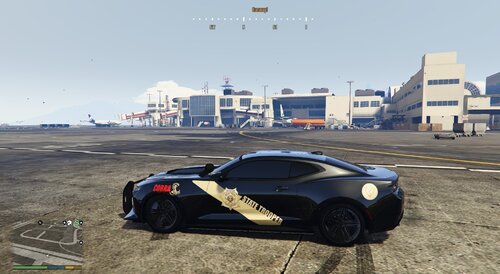
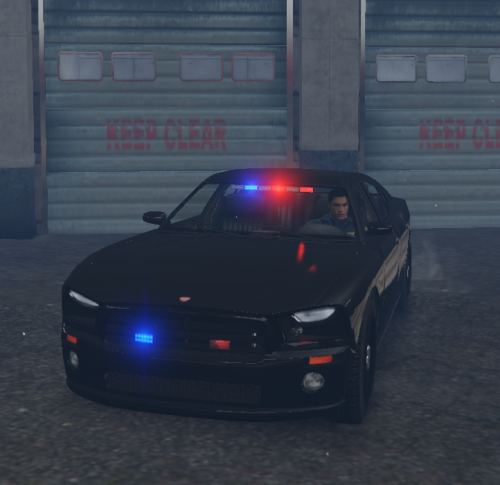
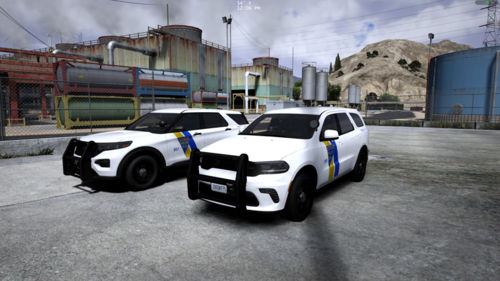
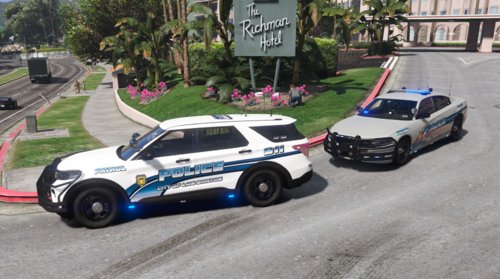
This is a livery I just decided to make when I was thinking about making GTA 5 versions of the Greene County, MO Skins witch are much more amazing in my opinion. Anyway They Turned Out OKAY. This is my first livery I made for LSPDFR/LCPDFR and I hope you guys Enjoy!
INSTALLATION:
1. Download The Vehicle Files From Here: (All Credit Goes To Scuderio For The Amazing Car Model)
2. Drag "police2.ytd" into your main GTA 5 directory.
3. Open "Open IV" And Click "Edit Mode" And Click "YES" (Download OPENIV Here: http://openiv.com/)
4. Find where you put "police2.ytd" in your directory and double click it.
5. On This Page Click The Plus Sign In The Top Left Corner Labeled "Import".
6. Then Find The File In The Folder You Downloaded From This Page And Import "police_sign_1.dds"
7. Click Save Then Put The "police2.ytd" back with "police2.yft" and "police2_hi.yft"
8. Now Your Done Installing The Livery! Just Add The Car Into The Game And Load Livery 1!
Comment On Here To Suggest A New Project For Me To Do!
(For The Record) I don't care if you use this in anything it took like a couple hours to make!
But Make Sure You Credit Scuderio For The Car Model!
Me



.thumb.png.b1ec7fec0728a0ff28d8bdc99fea5415.png)




Recommended Comments
Create an account or sign in to comment