


I mean I could be better, I'll probably make a better version later on (Next week)
First time actually releasing anything on LCPDFR.com, so I mean. Hia
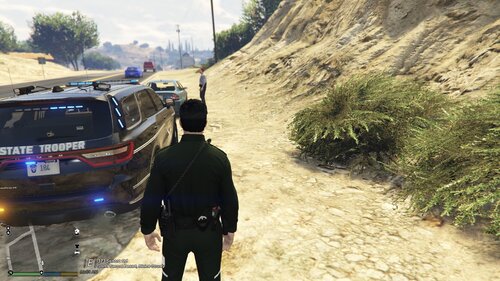
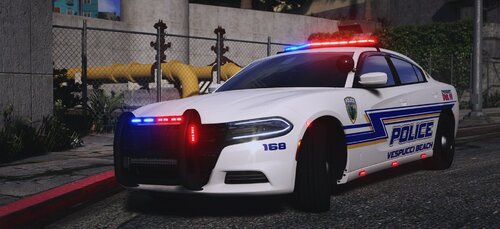
Remember that this was made in a few minutes, I'll make a better version later on, just thought you might want to check it out and see if it is good, if you guys actually like it(doubt it) then I'll make the better version, just also let me know what you would want on the livery as well.
Next version will come w/:
Charger Livery
CVPI Livery
Explorer Liver
Tahoe Liver
_________________________________________
Installation Instructions:
Go to the ELS 1.9 Crown Victoria that you installed and go into the .ytd
Go down till you see the livery for the car at Vicz_sign_(Number)
Hit replace
Click the image you want to replace the original with
Boom, now go have fun
_________________________________________
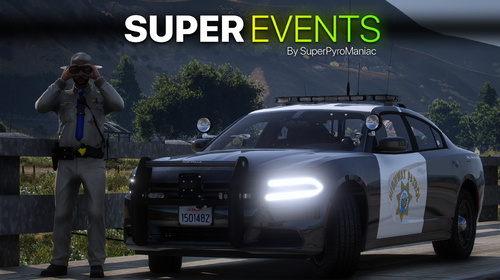
I know it is pretty bad, I did it in 5 minutes due to being bored.
I'll release a better one in the future w/ a pack for tahoes and explorers when more developers comes out with the new ELS working cars.
Did this mainly from scratch, I took the license plate from the owner of the 1.9 CVPI so credits to @Bxbugs123 2011 CVPI 1.9L ELS.

![[ELS][REPLACE] Volkswagen Transporter T6 - Czech Policie](http://s3-screenshots.int-cdn.lcpdfrusercontent.com/resize/500/-/monthly_2026_05/20260510164507_1.thumb.jpg.aef1db29050d914251fc0c541e207566.jpg)
![[ELS][REPLACE] Škoda Kodiaq Czech Police Pack - 3 Variations](http://s3-screenshots.int-cdn.lcpdfrusercontent.com/resize/500/-/monthly_2026_05/20260510160131_1.thumb.jpg.b60712c0fbf03fceec092a81392685d6.jpg)



![[2018] Dodge Demon 170 [LEO] [WM]](http://s3-screenshots.int-cdn.lcpdfrusercontent.com/resize/500/-/monthly_2026_05/9065.thumb.png.3b357adcc6acfa9ae067b9fc7132485f.png)

Recommended Comments
Create an account or sign in to comment