


.png.f74fdcdeeea8a715ea77b6fc97620a79.png)
.png.3e72a61bbd8700392d92dca2c0f1b720.png)
.png.f3d86f38492b8cac5eb3baf0d7a82a0f.png)
.png.557e838913562ff6c41084d61189da50.png)
.png.1da394fb1e1d0ade71eee775b4f7580f.png)
.png.ad398679bb258402a3050edd7ff48244.png)
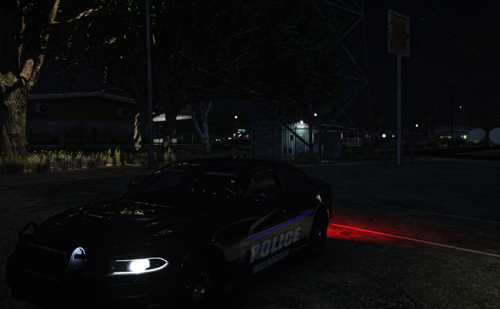
Contra Costa Port Police pack which included 3 different variants of the FPIS
-Accurate Environmental Lighting
-Uses High Quality Parts
-Cool Patterns
-California Steadyburn lights
-Do not sell the vehicle for $$$
-Do not rip parts from the vehicle
-Do not claim the vehicle as yours
!!SIRENSETTING LIMIT ADJUSTER NEEDED FOR LIGHTS TO WORK!!
https://www.gta5-mods.com/scripts/sirensetting-limit-adjuster
Edited by varicaI
Short Description
Contra Costa Port Police FPIS
[BASE]
• Original 2010 Ford Taurus from FM4, revamped, remodeled, and turned into a 2018 Ford Taurus Police Interceptor by GeorgieMoon.
Purchased by varical
• Livery made by Chase
[INTERIOR]
• Havis Integrated Control System FPIS Modeled by Matt/Peralta
Havis Integrated Control System FPIS Textures Made by Getinmybelly and Matt/Peralta
• Motorola APX 6500 Modeled, Textured and UV mapped by Dan with da van
• Federal Signal siren controller modeled and textured by Cj24
• Console Model & Textures by CJ24
Edited by Jakub
• Weapon mount and 870 shotgun modeled and textured by Cj24
• Havis tablet and keyboard modeled and textured by KLE0
• Keyboard Mount modeled by Kanyile
• Setina RP Partition modeled and textured by Jophics
[EXTERIOR]
• Motorola Antenna modeled and textured by Cj24
• PCTEL BMLPV700 Antenna modeled and textured by Rep
• Whelen LED spotlight modeled and textured by Cj24
• Setina PB400 by GeorgieMoon
All wrap arounds were 3D modeled, LOD-ed and given COLs from scratch by Recon#0701
All textures utilized were provided by GeorgieMoon#5797, utilizing his Setina PB400/450L for his FPIS
• FPIS Ready for the Road ION fender mount modeled and textured by KLE0.
[LIGHTING]
• FS Spectralux ILS modeled and textured by Cj24
• FS CN SignalMaster modeled and textured by Cj24
• Whelen ION modeled, textured, and converted by CEO
• Whelen Vertex modeled and textured by Tyler.
• Original 2010 Ford Taurus from FM4, revamped, remodeled, and turned into a 2018 Ford Taurus Police Interceptor by GeorgieMoon.
Purchased by varical
• Livery made by Chase
[INTERIOR]
• Havis Integrated Control System FPIS Modeled by Matt/Peralta
Havis Integrated Control System FPIS Textures Made by Getinmybelly and Matt/Peralta
• Motorola APX 6500 Modeled, Textured and UV mapped by Dan with da van
• Federal Signal siren controller modeled and textured by Cj24
• Console Model & Textures by CJ24
Edited by Jakub
• Weapon mount and 870 shotgun modeled and textured by Cj24
• Havis tablet and keyboard modeled and textured by KLE0
• Keyboard Mount modeled by Kanyile
• Setina RP Partition modeled and textured by Jophics
[EXTERIOR]
• Motorola Antenna modeled and textured by Cj24
• PCTEL BMLPV700 Antenna modeled and textured by Rep
• Whelen LED spotlight modeled and textured by Cj24
• Setina PB400 by GeorgieMoon
All wrap arounds were 3D modeled, LOD-ed and given COLs from scratch by Recon#0701
All textures utilized were provided by GeorgieMoon#5797, utilizing his Setina PB400/450L for his FPIS
• FPIS Ready for the Road ION fender mount modeled and textured by KLE0.
[LIGHTING]
• FS Spectralux ILS modeled and textured by Cj24
• FS CN SignalMaster modeled and textured by Cj24
• Whelen ION modeled, textured, and converted by CEO
• Whelen Vertex modeled and textured by Tyler.
- Slendis and stealth2silent
-
 1
1
-
 1
1



![[PL] Motoambulans - BMW R 1200RT](http://s3-screenshots.int-cdn.lcpdfrusercontent.com/resize/500/-/monthly_2026_05/Zrzutekranu2026-05-24204701.thumb.png.021f3679ae041bf19941ec0436deab39.png)
![[PL] Pojazd Operacyjny ASR (Ambulans Szybkiego Reagowania) - Audi Q7](http://s3-screenshots.int-cdn.lcpdfrusercontent.com/resize/500/-/monthly_2026_05/Zrzutekranu2026-05-24204615.thumb.png.ad7dc0bd99f4aabca3558e39f5f70d11.png)
![Federal Signal Valor 2020 Ford Explorer [N-ELS]](http://s3-screenshots.int-cdn.lcpdfrusercontent.com/resize/500/-/monthly_2026_05/Screenshot2026-05-24114013.thumb.png.8741ddf467a66c5b080784c21c365c95.png)
![[PL] Pojazd Operacyjny ASR (Ambulans Szybkiego Reagowania) - Volvo XC90](http://s3-screenshots.int-cdn.lcpdfrusercontent.com/resize/500/-/monthly_2026_05/Zrzutekranu2026-05-24172326.thumb.png.88057a1bfb4a88be5cd2e8c4568a5271.png)
![[PL] Pojazd Ratowniczy GOPR - Volkswagen Amarok](http://s3-screenshots.int-cdn.lcpdfrusercontent.com/resize/500/-/monthly_2026_05/Zrzutekranu2026-05-24165655.thumb.png.ba50fc8bd539ba5d7c995f61b6bea61c.png)
![[PL] Pojazd Operacyjny LPR (Lotnicze Pogotowie Ratunkowe) - Volvo XC90](http://s3-screenshots.int-cdn.lcpdfrusercontent.com/resize/500/-/monthly_2026_05/Zrzutekranu2026-05-24164319.thumb.png.42cbc81ed73b0b6a6b914dbb1d664ebe.png)
![[PL] Polski Ambulans - Volkswagen Transport](http://s3-screenshots.int-cdn.lcpdfrusercontent.com/resize/500/-/monthly_2026_05/Zrzutekranu2026-05-24162709.thumb.png.ea7671a4d962299cfa6678024fb16aee.png)
![[PL] Polski Ambulans - Mercedes Sprinter](http://s3-screenshots.int-cdn.lcpdfrusercontent.com/resize/500/-/monthly_2026_05/Zrzutekranu2026-05-24161527.thumb.png.496ea823ecf0277eda9a42bd0dfc50e4.png)
Recommended Comments
Create an account or sign in to comment