


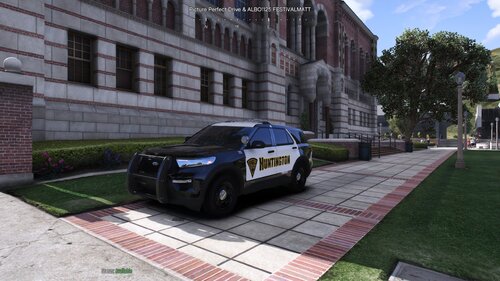
This is the second addition to the LSPD mini-pack following the 2018 Dodge Charger. If you have any questions, need support, or are interested in more, join my discord here! Enjoy! https://discord.gg/FXNubcGHyF
Extra 1: ProGard Rambar
Extra 2: Rear Mounted Whelen Dominator
Extra 3: Whelen Legacy Lightbar
Extra 4: Whelen Inner Edge Duo XLP
Extra 5: Driver Side Spotlight (UP)
Extra 6: Passanger Side Spotlight (UP)
Extra 7: Passanger Side Spotlight (DOWN)
Extra 8: Driver Side Spotlight (DOWN)
Extra 9: Interior Radar
Extra 10: Front Plate
Extra 11: Bug Deflector
Extra 12: Mudflaps
Edited by EPICxJustice
Short Description
This is a completely lore friendly, LSPD Chevy Tahoe
CEO
Frost88
Chungah
Steinberg
Five0
Frost88
Chungah
Steinberg
Five0

![Los Santos Transit Police EUP [SP/FiveM]](http://s3-screenshots.int-cdn.lcpdfrusercontent.com/resize/500/-/monthly_2026_06/LOGO.thumb.png.87eb35d6634bad9a16689f0bdd04b485.png)

.thumb.png.e3e66e49fc2fbfb99cfb553875b27e7e.png)
![Jed's Mega-Garage Sale [ELS]](http://s3-screenshots.int-cdn.lcpdfrusercontent.com/resize/500/-/monthly_2023_03/BCRP15Charger(3).thumb.jpg.335a5c2afffd469b763c8cb47d7219f9.jpg)

.thumb.png.0b1306bf9de4d0e31da6fe32fb8c4708.png)
Recommended Comments
Create an account or sign in to comment