


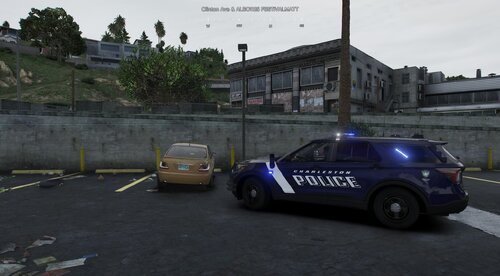
A couple of Metro State vehicles I quickly threw together to mess around with in our server once in a while.
Non-els setup and ready for FiveM.
I didnt spend too much time on these vehicles, so there will be a few minor bugs here and there, nothing game breaking at all, just some textures or no light mounts, etc. For vehicles that my server will only use once in a while very rarely to mess with the cops, the vehicles arent worth spending a lot of time on trying to make perfect.
This is motor2 and motor3. These light setups are based mostly on Metro States YT video that includes a vehicle tour.
I do plan on adding Motor1 in the near future, of course, however, for not it is just the Tahoe and Charger.
Now your server can pretend to pretend!
(NVE used for graphics and lights)
Feel free to use these vehicles in your servers, convert them to LSPDFR if you want, just ensure proper credits are given for whatever you do, and do not reupload this pack to this site or any other site
Short Description
Vehicles:
- DEV 2016 Dodge Charger PPV
- Base model extracted by DMN from Forza Horizon 2
- Converted and textures by Thehurk
- Converted to PPV By Thehurk
- AWD Rims scratch modeled and converted By RoegonTV
- AWD Logo by IronicRainbow
- DEV 2008 Chevy Tahoe
- RAZ3R / Officer Ten Penny
Equipment/Lights:
- M7 by MattDavidJ
- Avengers, Fenix Dash, Cod3XTP6, Fenix Puck, Lower Edges, Whelen TAC8 by RAZ3R / Officer Ten Penny
- Whlen Dominator by Five0
- Setinas by Twurtleee and Matt
- Unity Spotlight by Panzos_zaf
- Whelen T-ions by (No credit info included, let me know if these are yours so I can update credits)
- Whelen 4 Round by Panzos_zaf
- Whelen Liberty by RoegenTTV, CEO, FiveO and Otaku
- Whelen M2 by Five0
- WhelenION by CEO
- Console by CJ24 and Jakub
- Coban EDGE by Dan with da van
- Motorola APX 6500 by Dan with da van
- Cencom Controller by Krul
- APX8500 by Otaku
- Boot Equipment by Billyjmodification
- Window Bars by tomcat8492
- Partitions by (No credit info included, let me know if these are yours so I can update credits)
- Toughbook by CJ24
*IF I MISSED ANYONE, PLEASE LET ME KNOW SO I CAN UPDATE AND ENSURE PROPER CREDIT IS GIVEN*
- Models, carcols, and liveries by SK 116





![Civ Country Outfit [FiveM Ready]](http://s3-screenshots.int-cdn.lcpdfrusercontent.com/resize/500/-/monthly_2026_07/ProductRender.thumb.png.cc96d42af8e65a2524d9c2a8479244c8.png)


![[ELS] [REPLACE] SAHP 2023 Dodge Charger [Florida Highway Patrol Based]](http://s3-screenshots.int-cdn.lcpdfrusercontent.com/resize/500/-/monthly_2026_07/Skrmbild2026-07-12200938.thumb.png.62e3858c9d4865c517577fa2c059a2eb.png)
![Nightz_Framework | All-in-One RP Economy & Character Framework [obfuscated]](http://s3-screenshots.int-cdn.lcpdfrusercontent.com/resize/500/-/monthly_2026_06/gCldrIO-Imgur.thumb.png.97501410a08bdc0d75929e4c93958501.png)


Recommended Comments
Create an account or sign in to comment