23 files
-
 EmsPlus makes you work as an EMT/Paramedic but unlike other projects this one aims to be interactive and true to real life
- 3,093 Downloads
- 37383 Views
- 14.05 MB File Size
- 40 Comments
-
 Role-based dispatcher for LSPDFR Enhanced: REMASTERED with matching callouts for Officer, SWAT, K9 and FIB roles.
- 569 Downloads
- 4859 Views
- 25.44 kB File Size
- 6 Comments
Updated -
.thumb.jpg.5d87250f4558cca01dcb5407f198bdc4.jpg) LSPDFR Callout Pack that is focused on Park Ranger Patrol
LSPDFR Callout Pack that is focused on Park Ranger Patrol- 1,404 Downloads
- 8764 Views
- 756.13 kB File Size
- 11 Comments
Updated -
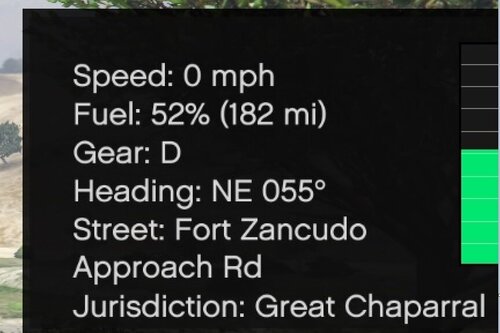 On-screen display + Fuel System shown when player is in a vehicle. Shows Speed, Fuel level, Gear, Heading/Direction, and Street
- 487 Downloads
- 3917 Views
- 31.85 kB File Size
- 6 Comments
Updated -
 ADVANCED VEHICLE PERSISTANCE KEEP AND MANAGE YOUR VEHICLE.
- 220 Downloads
- 3141 Views
- 15.3 kB File Size
- 6 Comments
Updated -
 Modern MDT Police Computer accessible from a web browser and Steam Overlay - Features Ped and Vehicle persistence
- 4,320 Downloads
- 42226 Views
- 413.14 MB File Size
- 307 Comments
Updated -
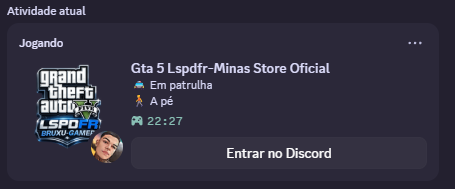 🔥 RichPresence LSPDFR – By Minas Store 🚔 Status em tempo real da sua patrulha direto no Discord!
- 38 Downloads
- 574 Views
- 2.6 MB File Size
Updated
.thumb.png.f6ac323806974bae6b70677161884c73.png)