Skip to content
View in the app

A better way to browse. Learn more.

LCPDFR.com

A full-screen app on your home screen with push notifications, badges and more.

To install this app on iOS and iPadOS
  1. Tap the Share icon in Safari
  2. Scroll the menu and tap Add to Home Screen.
  3. Tap Add in the top-right corner.
To install this app on Android
  1. Tap the 3-dot menu (⋮) in the top-right corner of the browser.
  2. Tap Add to Home screen or Install app.
  3. Confirm by tapping Install.

MAKE ADD-ON POLICE CARS SPAWN IN TRAFFIC (WRITE-UP) 1.0.0

(0 reviews)

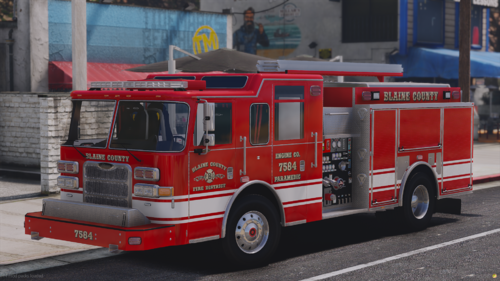
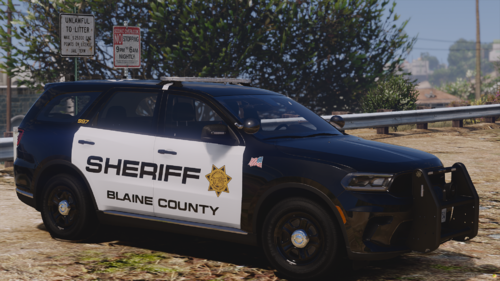
4 Screenshots

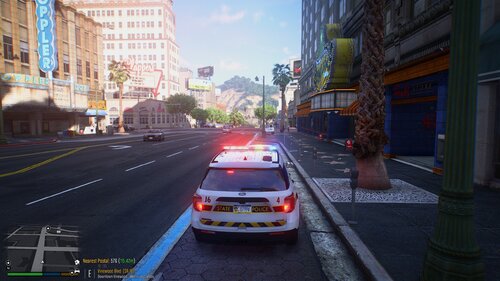
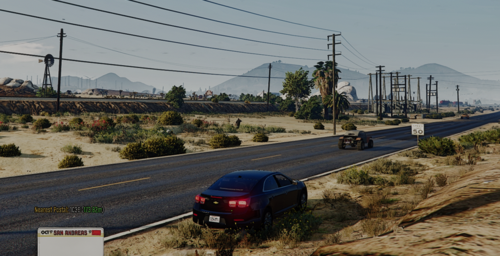
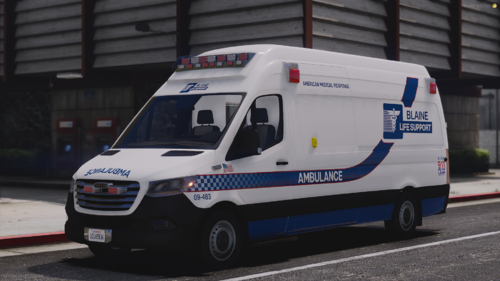
Make Add-on Police Vehicles and Civilian Vehicles Spawn with Natural Traffic


Alright first thing's first, this is NOT A MOD perse,it's more of a write-up with a readme and a vanilla file inside a zipped folder. 


I don't have any coding experience but I'd love to make this into an installer for the community. 


If you want your add-on police cars/civ cars to spawn in traffic and with a wanted level.. THIS IS FOR YOU


If this isn't the right place for this please tell me. I've been using LSPDFR for years and have never uploaded or commented anything. 


Everything is explained in the readme but I'll provide the basics:


I have jumped around the internet trying to figure it out, so I've spent a little time here today writing this up for you guys.

I have added around 7 cars to each department in GTA and my game runs smoothly. Granted my hardware is amazing. 


Before following the write-up:

  • I'd recommend to install an upgraded gameconfig, heap adjuster, and packfile limit adjuster first or you may experience crashing. If you don't know how to use google let me know I'll send you a link. 
  • I'm also gonna make the assumption that y'all have OpenIV, Rage Pluginhook, ScripthookV, and a trainer. I don't believe we'll need the latter three but it's always good to have. 
  • Also make sure you installed the vehicles correctly, try spawning them in-game before trying to make them spawn naturally. 
  • Keep in mind that the game wasn't really intended for these kinds of modifications to the METAs and YMFs, so don't add 40 police cars to the LSPD your performance will go down significantly. 


This is intended for use with Police add-ons but you can apply the same write-up to regular addons, except you will not have to modify the dispatch.meta



User Feedback

Recommended Comments

Siracusa

Members


finally , nice work , even if with only the "readme" it seems that some things do not match , for the first time of this addition of spownable vehicles there was also a video , quite clear is the read me is it seems easy , but there are some points that are not coincide

 some doubts  , this is the first , my line does not coincide with yours , I don't check at 408 , but like at 177 and 221 and 304 , does it do anything ? do we add them in the first? or in the first two ?

DrPhil

Members Author

(edited)

15 hours ago, Siracusa said:


finally , nice work , even if with only the "readme" it seems that some things do not match , for the first time of this addition of spownable vehicles there was also a video , quite clear is the read me is it seems easy , but there are some points that are not coincide

 some doubts  , this is the first , my line does not coincide with yours , I don't check at 408 , but like at 177 and 221 and 304 , does it do anything ? do we add them in the first? or in the first two ?

I may have been a little off with that approximation, but you should only have to edit two locations. Maybe if you try searching for  <ZoneType>VEHICLE_RESPONSE_COUNTRYSIDE</ZoneType> and right under that should be <Vehicle>sheriff</Vehicle>         that is where you add the new slots.  Hope this helped!
                                                                                                                                                                                  

Edited by DrPhil

Siracusa

Members

(edited)

nella terza fase, quando dici "Ci saranno molti slot che sono stati aggiunti dai tuoi, ma ogni lotto dopo che police4 è inutilizzato e può essere cambiato,
tutto ciò che deve essere cambiato è al centro in" <Nome> NOME DEL MODELLO </ Nome> ", ma dobbiamo sostituire gli slot con nomi esistenti? Dopo police4? O registrati e incollare in questo modo, ad esempio <Nome> 16FPIU </Name>
                                                     <Variations type =" NULL "/>
                                                     </ Item>,


Edited by Siracusa

Siracusa

Members

(edited)

@ DrPhil il  
tuo pop.groups openIV non lo apre, altri al fatto che penso sia scritto male, ymt si ripete due volte , un'altra cosa in quella originale non ho trovato VEH_COPRURAL per la contea ... i primi due passi penso di averli fatti bene, ma ero bloccato qui, anche se volevo cambiarlo con quello originale c'è solo da spawnare in città, e va bene nel caso in cui metto una macchina solo per la città, ma la tua non lo apre

OpenIV - update.rpf - [Edit mode] 02_04_2020 12_54_46.png

Edited by Siracusa

Armouredivision

Members

(edited)

Very easy guide. Thank you for this. 


But I have a problem. AI is not using emergency lights on the addon vehicles.


Edit : NVM carvariations.ymt had some wrong values

Edited by Armouredivision

don drako

Members

Hi, I missed a part of the explanation, I installed the extra slots by itzDeanko and i spawn the cop cars in the game, all of them work perfectly, but, what can i do with that cars? i mean, where i should put them?. The Extra Slots by itzDeanko told me to create a folder "extrapolicecars", i edited the dlclist and the extratitleupdatedata.meta.xml, but i dunno how to continue, if anyone could help me i would be grateful. 


image.png.27889f35e218a04b4a199b891dbccd93.png

Create an account or sign in to comment

Account

Navigation

Search

Search

Configure browser push notifications

Chrome (Android)
  1. Tap the lock icon next to the address bar.
  2. Tap Permissions → Notifications.
  3. Adjust your preference.
Chrome (Desktop)
  1. Click the padlock icon in the address bar.
  2. Select Site settings.
  3. Find Notifications and adjust your preference.