Skip to content
View in the app

A better way to browse. Learn more.

LCPDFR.com

A full-screen app on your home screen with push notifications, badges and more.

To install this app on iOS and iPadOS
  1. Tap the Share icon in Safari
  2. Scroll the menu and tap Add to Home Screen.
  3. Tap Add in the top-right corner.
To install this app on Android
  1. Tap the 3-dot menu (⋮) in the top-right corner of the browser.
  2. Tap Add to Home screen or Install app.
  3. Confirm by tapping Install.

*Revised* Sheriff Task Force Operators 4

(5 reviews)

13 Screenshots

                               *Revised*

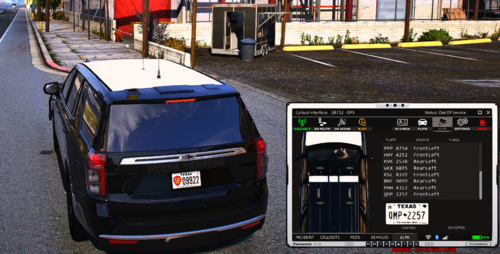
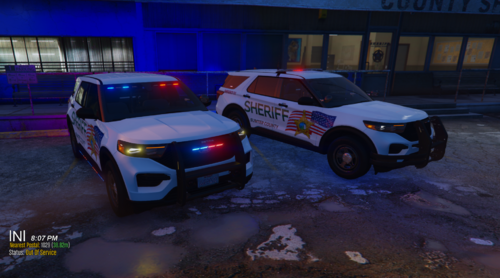
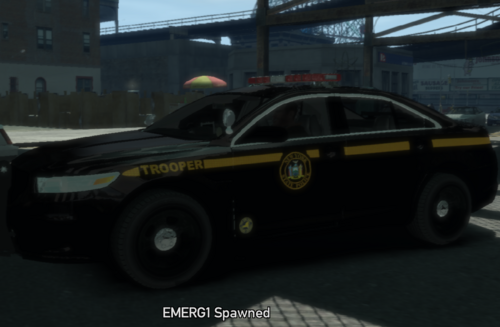
Los Santos Sheriff Task Force adds a variety of different skins.

Beards, bald heads, big arms and tattoos..... these aren't your run of the mill deputies.  


please note these skins replace Merryweather Security peds and you need to use a trainer to access them.

These skins use the s_m_y_blackops_01 ped file.

I am new to reskinning and made these for myself originally, but enjoyed them so much I thought I would share...enjoy.


What's New in Version 4

Released

Sheriff Task Force Version 4

- fixed mess up with hats

+ added new hats for an under cover look


Sheriff Task Force Version 3

- updated bump map for polo shirts

- *HQ* patches and camo

- updated sheriff patch to match lore (changed the animal to a beaver from bear)

- added custom camo patterns to exchange in and out of files

- updated files to work with current version of GTA5

If you have any questions please feel free to message me!

 

User Feedback

Recommended Comments

Sp1cY

Members

Great skins! I have no clue how to access them though. I tried using my Trainer and I still wasn't able to find anything to load them.

DivineHustle

Members

Haha, loving the beard!

officerAMR

Members

I love it. cool concept 

naVee

Members

awesome!

CoreZer0

Members Author

Hmm... not sure why this was put in the gta 4 section as I click on 5 to upload.

lol fact. How do you get this mod to work? I really want this. what "Trainer" do we need?

CoreZer0

Members Author

lol fact. How do you get this mod to work? I really want this. what "Trainer" do we need?

I use ScripthookV + simple trainer, its compatible with .20 Ragehook as of now

Just scroll down to model spawning, I'm away from my computer buts its the spawn menu that start with S_m_m_  ust keep going till you hit s_m_y_blackop_01, then a few down is the accessory list or you can randomize it

Ok. Thanks bro. Ill try and get it to work. Ill keep you posted 

CoreZer0

Members Author

Ok. Thanks bro. Ill try and get it to work. Ill keep you posted 

Cool Np, I'm going to see if an admin will move this to the proper category under GTA 5 

I love the skins bro, the only issue i have is i cant or dont know how to see an accessory list. The onlything i can do is keep hitting 5 and get a random one.

CoreZer0

Members Author

I will be working on new variations for these in the future, to include Gang Task Force city units as well as revising these a bit more.....I didn't think so many people would get these so I'll take my time on the next ones.  It will be a few days because I'm out of town.

snail

Members

I "installed" these skins according to the readme file, but when i was done, i tried launching gta v and i just got a download for 1,97gb. And they dont show up ingame, like they have been "reset" due to the download. Maybe because of the skins i installed? Any ideas?

C35Signal1

Members

what files do I need to replace? I want to put the black kryptec camo in but don't want to screw things up. 

CoreZer0

Members Author

what files do I need to replace? I want to put the black kryptec camo in but don't want to screw things up. 

Run OpenIV follow the path to x64e.rpf\models\cdimages\componentpeds_s_m_y.rpf and make sure you're in edit mode find s_m_y_blackops_01.ytd double click then find the pattern you want to replace click save and thats it

Andyv81

Members

Great skins! I have no clue how to access them though. I tried using my Trainer and I still wasn't able to find anything to load them.

I use script hook v to load it up with no problem just look for the blackops tab and keep pressing to get the skin you want. This was good work I love it  adds the task force feel great job.

CoreZer0

Members Author

I use script hook v to load it up with no problem just look for the blackops tab and keep pressing to get the skin you want. This was good work I love it  adds the task force feel great job.

I know the native trainer works, but if you use simple trainer you get to choose what options you want including the hats

AKMDREY

Members

Been using these since you released them & they are fantastic.  Question however  Since the newest ragehook updatw V 0.22 etc  and also LSPDFR 0.2b or whatever  When using this ped I am crashing & the log is telling me this : [8/13/2015 6:32:36 AM.167] LSPD First Response: Exception type: Rage.Exceptions.InvalidHandleableException
[8/13/2015 6:32:36 AM.167] LSPD First Response: Exception message: Operation is not valid because this Rage.Ped is invalid.


Is it possible author that these need to be updated with the latest ragehook version?

emb306

Members

I use ScripthookV + simple trainer, its compatible with .20 Ragehook as of now

Just scroll down to model spawning, I'm away from my computer buts its the spawn menu that start with S_m_m_  ust keep going till you hit s_m_y_blackop_01, then a few down is the accessory list or you can randomize it

i downloaded naitve trainer and ScripthookV, but what to do now? How do i get those Sheriff task force files into my game?

oracon

Members

loving the skins for the most part, but cant access the hats.... the trainer is showing 3 hats are there tor the ped but wont let me put them  on 

Jml121086

Members

Cannot find on native trainer 

oracon

Members

in model spawning go down to the option called postal and scroll across blackopops_1 is immediately after baywatch ped/s

Create an account or sign in to comment

Latest Mods

Account

Navigation

Search

Search

Configure browser push notifications

Chrome (Android)
  1. Tap the lock icon next to the address bar.
  2. Tap Permissions → Notifications.
  3. Adjust your preference.
Chrome (Desktop)
  1. Click the padlock icon in the address bar.
  2. Select Site settings.
  3. Find Notifications and adjust your preference.