Skip to content
View in the app

A better way to browse. Learn more.

LCPDFR.com

A full-screen app on your home screen with push notifications, badges and more.

To install this app on iOS and iPadOS
  1. Tap the Share icon in Safari
  2. Scroll the menu and tap Add to Home Screen.
  3. Tap Add in the top-right corner.
To install this app on Android
  1. Tap the 3-dot menu (⋮) in the top-right corner of the browser.
  2. Tap Add to Home screen or Install app.
  3. Confirm by tapping Install.

[EUP 8.3] Traffic Services Unit Hi-Vis Raincoat 1.0.0

(1 review)

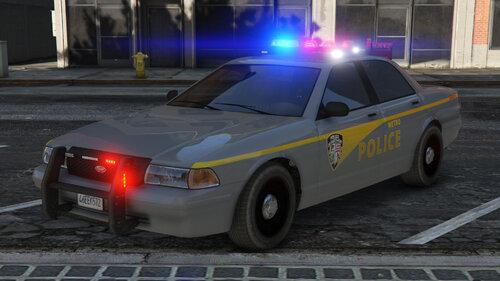
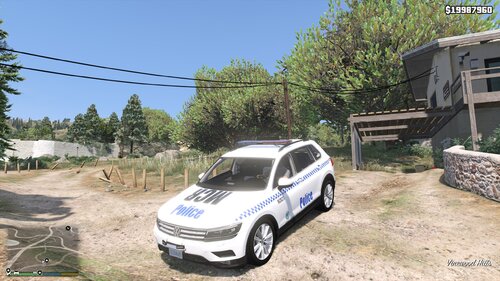
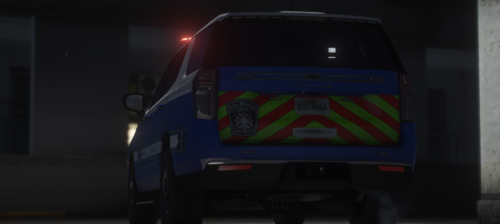
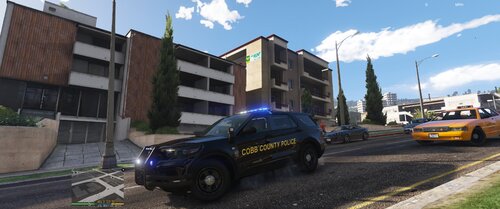
6 Screenshots

This file includes a Traffic Services Unit Hi-Visibility Raincoat which was designed as to be seen during dark rainy instances where you need to be seen! I used the default EUP 8.3 Raincoat and re-textured to suit my design choice.

All credits go to the EUP team for the model.


Details Overview:

Title: [EUP 8.3] Traffic Services Unit Hi-Vis Raincoat

Version: V.1.0.0 29/12/2021

Released: 29/12/2021


THIS IS IMPORTANT!


This pack includes a zip file with a README and information on how to install as well as the files for the mod.


Please do not redistribute this mod, or any part of it . Please do not upload this file to any other site unless given credit.


Please report the bugs in the comments before posting a review about them. 


Enjoy!

Edited by Papa Renny


Short Description

A hi-visibility TSU raincoat for EUP 8.3

User Feedback

Recommended Comments

jj6789

Members

any chance you can direct me to where you got that vehicle pack from?

Papa Renny

Members Author

On 11/18/2022 at 8:22 AM, jj6789 said:

any chance you can direct me to where you got that vehicle pack from?

Hi Mate,


No sorry I don't remember it was a while ago

Create an account or sign in to comment

Account

Navigation

Search

Search

Configure browser push notifications

Chrome (Android)
  1. Tap the lock icon next to the address bar.
  2. Tap Permissions → Notifications.
  3. Adjust your preference.
Chrome (Desktop)
  1. Click the padlock icon in the address bar.
  2. Select Site settings.
  3. Find Notifications and adjust your preference.