Skip to content
View in the app

A better way to browse. Learn more.

LCPDFR.com

A full-screen app on your home screen with push notifications, badges and more.

To install this app on iOS and iPadOS
  1. Tap the Share icon in Safari
  2. Scroll the menu and tap Add to Home Screen.
  3. Tap Add in the top-right corner.
To install this app on Android
  1. Tap the 3-dot menu (⋮) in the top-right corner of the browser.
  2. Tap Add to Home screen or Install app.
  3. Confirm by tapping Install.

Cleveland Police Uniforms 1.0.0

(2 reviews)

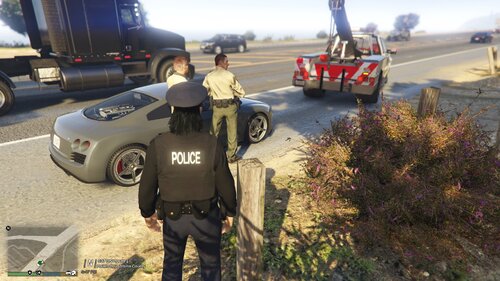
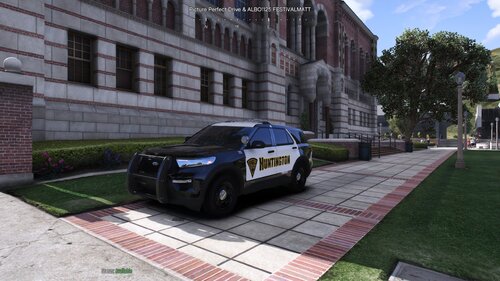
18 Screenshots

The color is not very good because every time I tried to change it the shirts and hat would just be black, bright blue, or purple. 


Any questions or concerns leave a comment, thank you for downloading!


For the duty belt https://www.lcpdfr.com/files/file/14641-ohio-state-trooper/ 

User Feedback

Recommended Comments

valor

Members

(edited)

❤️ love your work


Edited by valor

BuckeyeOSHP

Members

the guide is outdated

Clarkes

Members Author

On 1/27/2021 at 5:11 AM, BuckeyeOSHP said:

the guide is outdated

i know its not the same clothing textures but i think the path should be the same in the video


BuckeyeOSHP

Members

(edited)

t

Edited by BuckeyeOSHP

BuckeyeOSHP

Members

The only thing that worked and turned out fine was the hat. The long sleeve and short sleeve didn't work at all. I followed the tutorial video you showed me and yet it still looks horrible.

Honestly the uniforms looked good in the images which got be excited because I'm trying to make an Ohio state LSPDFR where I have ohio sheriff, cleveland, and OSHP. But the only thing missing is cleveland for the fact that the uniforms don't work. I might have to try to find other uniforms that work.

Screenshot_1867.png

Screenshot_1868.png

Screenshot_1870.png

Screenshot_1869.png

Create an account or sign in to comment

Latest Mods

Account

Navigation

Search

Search

Configure browser push notifications

Chrome (Android)
  1. Tap the lock icon next to the address bar.
  2. Tap Permissions → Notifications.
  3. Adjust your preference.
Chrome (Desktop)
  1. Click the padlock icon in the address bar.
  2. Select Site settings.
  3. Find Notifications and adjust your preference.