Skip to content
View in the app

A better way to browse. Learn more.

LCPDFR.com

A full-screen app on your home screen with push notifications, badges and more.

To install this app on iOS and iPadOS
  1. Tap the Share icon in Safari
  2. Scroll the menu and tap Add to Home Screen.
  3. Tap Add in the top-right corner.
To install this app on Android
  1. Tap the 3-dot menu (⋮) in the top-right corner of the browser.
  2. Tap Add to Home screen or Install app.
  3. Confirm by tapping Install.

Dallas PD Dodge Charger Skin 1.3

(1 review)

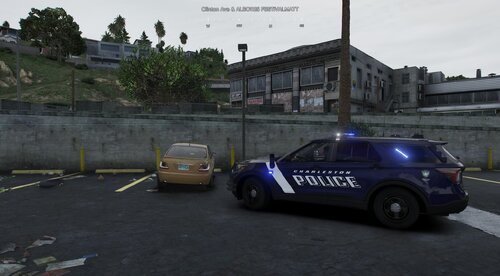
14 Screenshots

Dallas Police skin made for Dodge Charger. Special thanks to GtaxBoss for the HQ DPD skin.

Included Files:

chrg_skin_1.png

chrg_skin_2

chrg_skin_3

pic(1).jpg

pic(2).jpg

Readme.txt

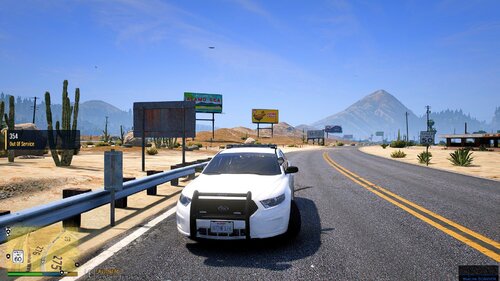
In game screenshots

I am not responsible to any problem to your system!

DO NOT REUPLOAD TO ANY SITE.

What's New in Version 1.3

Released

  • -Added HQ DPD Skin

User Feedback

Recommended Comments

Illusionyary

Members

It's pretty good for a first! Just a little tip, you don't have the manually paint the template. Create a base layer (black for this instance), and then paint the doors, roof, hood and trunk white or vice versa. Also, you don't have to keep to the template, anything out of the template (vehicle parts such as the doors, ect) won't show up in-game. Use that to your advantage to create sharper looking skins without the rough edges like yours has.

TomballPD

Members

its not bad i think you made the words on the doors a little to big and also kinda what sharp said how it was painted its kinda choppy like on the hood and quaterpannels but besides that not bad man

DcK

Members Author

Thank you for your feed back, I hope to improve on my future skins.

1997chevyboy

Members

We love to see Texas skins, overall not bad but could use

SHOME95

Members

eh

Create an account or sign in to comment

Account

Navigation

Search

Search

Configure browser push notifications

Chrome (Android)
  1. Tap the lock icon next to the address bar.
  2. Tap Permissions → Notifications.
  3. Adjust your preference.
Chrome (Desktop)
  1. Click the padlock icon in the address bar.
  2. Select Site settings.
  3. Find Notifications and adjust your preference.