


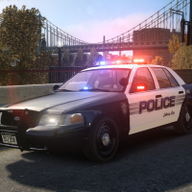


Installation:
Put the fbi.wft and fbi.wtd into your vehicles.img.
Credits:
- Model is original Dodge Charger by EA Games, modified for and converted to GTAIV by Lex91, modified to marked police version by Lt.Caine.
- Wheels made by EA Games, converted to GTAIV by Lex91.
- Emergency lights made by Cj24.
- Liveries made by Cj24.
Notes:
This car features realistic head and taillights. Thanks to Sgt.Kanyo for fixing them!
The steady burn can be removed.
Files included:
- fbi.wtd
- fbi.wft
- readme.txt
- template.png
- Version without steady burn
- pic (1).jpg
- pic (2).jpg
- pic (3).jpg
It is forbidden to upload this or a modified version for public without permission. Changing textures is allowed for personal use.
What's New in Version V3.8U-AC
Released
- Headlights and Taillights fixed.
.thumb.png.e3e66e49fc2fbfb99cfb553875b27e7e.png)
![Jed's Mega-Garage Sale [ELS]](http://s3-screenshots.int-cdn.lcpdfrusercontent.com/resize/500/-/monthly_2023_03/BCRP15Charger(3).thumb.jpg.335a5c2afffd469b763c8cb47d7219f9.jpg)



.thumb.png.0b1306bf9de4d0e31da6fe32fb8c4708.png)
.thumb.jpg.53b34831893b714bdea2520e5d0a8595.jpg)
![[FiveM Ready] D&R Electronics RDS 17](http://s3-screenshots.int-cdn.lcpdfrusercontent.com/resize/500/-/monthly_2021_04/rds17s.thumb.jpg.36b958787fb91722009e132877bd196c.jpg)
![[NON-ELS] 2018 Unmarked F150 - FiveM Ready](http://s3-screenshots.int-cdn.lcpdfrusercontent.com/resize/500/-/monthly_2026_05/Screenshot_5012.thumb.png.f01660d1c0beb2ff2d10d5afc5f86fd1.png)
Recommended Comments
Create an account or sign in to comment