


🚔 Unmarked 2018 Ford F-150 (NON-ELS)
I'm excited to release my Unmarked 2018 Ford F-150 completely FREE for the FiveM community!
This vehicle is fully FiveM Ready and uses a NON-ELS setup, making it easy to add directly into your server without the need for ELS. Whether you're building a realistic law enforcement fleet or expanding your unmarked vehicle options, this F-150 is a great addition to any community.
🔥 Features
✅ NON-ELS
✅ FiveM Ready
✅ Unmarked Setup
✅ High-Quality Lighting Configuration
✅ Optimized for Roleplay Servers
✅ Easy Installation
📥 Download
Enjoy this release completely free and feel free to use it in your FiveM community.
💬 Need Support?
Join my Discord community for support, future releases, sneak peeks, and exclusive content also help me hit 3400 members:
🔗 https://discord.gg/PJECXdFR99
🚨 More Releases Coming Soon
If you enjoy this release, be sure to join the Discord to stay up to date with future vehicle packs, free releases, development updates, and community events.
⭐ Consider sharing screenshots of the vehicle in your server—we'd love to see it in action!
#FiveM #NonELS #FordF150 #FreeRelease #FiveMDevelopment #VehicleRelease
Short Description
AI disclosure
The author has disclosed that AI tools were used in creating the following aspects of this file:
- Description
IONS - CEO

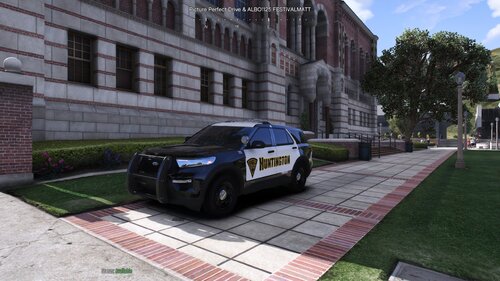

.thumb.png.0b1306bf9de4d0e31da6fe32fb8c4708.png)
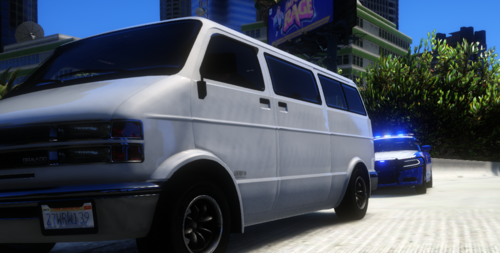
.thumb.jpg.53b34831893b714bdea2520e5d0a8595.jpg)

![[FiveM Ready] D&R Electronics RDS 17](http://s3-screenshots.int-cdn.lcpdfrusercontent.com/resize/500/-/monthly_2021_04/rds17s.thumb.jpg.36b958787fb91722009e132877bd196c.jpg)
![[NON-ELS] 2018 Unmarked F150 - FiveM Ready](http://s3-screenshots.int-cdn.lcpdfrusercontent.com/resize/500/-/monthly_2026_05/Screenshot_5012.thumb.png.f01660d1c0beb2ff2d10d5afc5f86fd1.png)
.thumb.png.c2fb62bb0ee9020fbce4c41046e268d8.png)
![[PL] Polski Ambulans - Mercedes-Benz Sprinter (2019) | Nowoczesny Design](http://s3-screenshots.int-cdn.lcpdfrusercontent.com/resize/500/-/monthly_2026_05/Zrzutekranu2026-05-31151018.thumb.png.14176089696a28515036f84c8fd1bd82.png)
![[PL] Polski Ambulans (Zabudowa Kontenerowa)](http://s3-screenshots.int-cdn.lcpdfrusercontent.com/resize/500/-/monthly_2026_05/Zrzutekranu2026-05-30153350.thumb.png.8d7ce5902985a42a346a7b89d4efa4a4.png)
![[Non-ELS/DLSv2] CHP BMW R1200RT-P [Addon/FiveM]](http://s3-screenshots.int-cdn.lcpdfrusercontent.com/resize/500/-/monthly_2026_04/1.Thumbnail.thumb.png.27cfb560319fde49d84f8b97a7587c1d.png)

Recommended Comments
Create an account or sign in to comment