



Pavy
-
Joined
Everything posted by Pavy
-
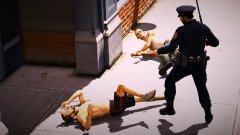
From the album: New York City/State Police Vehicles
-
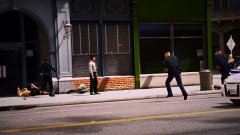
From the album: New York City/State Police Vehicles
-
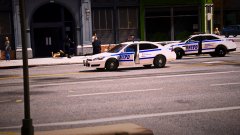
From the album: New York City/State Police Vehicles
-
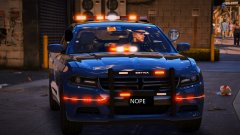
From the album: New York City/State Police Vehicles
-
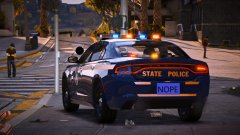
From the album: New York City/State Police Vehicles
-
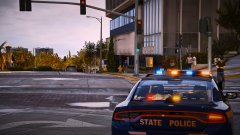
From the album: New York City/State Police Vehicles
-
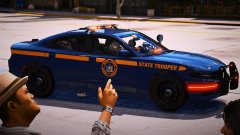
From the album: New York City/State Police Vehicles
-
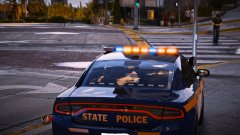
From the album: New York City/State Police Vehicles
-
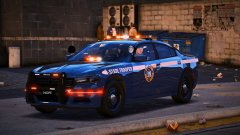
From the album: New York City/State Police Vehicles
-
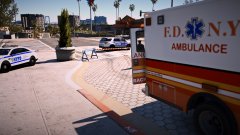
From the album: New York City/State Police Vehicles
-
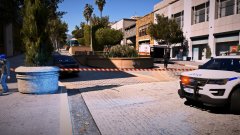
From the album: New York City/State Police Vehicles
-
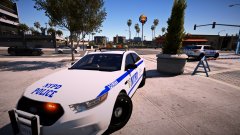
From the album: New York City/State Police Vehicles
-
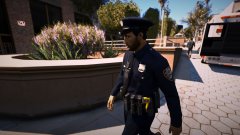
From the album: New York City/State Police Vehicles
-
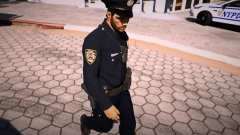
From the album: New York City/State Police Vehicles
-
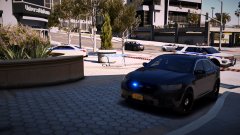
From the album: New York City/State Police Vehicles
-
From the album: New York City/State Police Vehicles
-
From the album: New York City/State Police Vehicles
-
From the album: New York City/State Police Vehicles
-
From the album: New York City/State Police Vehicles
-
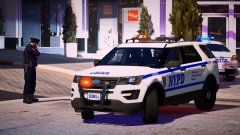
From the album: New York City/State Police Vehicles
-
From the album: New York City/State Police Vehicles
-
From the album: New York City/State Police Vehicles
-
Rage's backup feature already does this with 1 click. There is no need to go digging through files to copy and back them up.
-
Hey, If your game crashes on startup it wouldn't be plugin related since no plugins were attempted to load at the time. Also interaction+ is an lspdfr plugin and not standalone, so it wouldn't load until you went on duty. Your Issue here is either your mods folder(99% of the time) or a script that you have can make you crash. Rename your mods folder to mods_ and it will prove that its a mods folder issue. If it is then you need to backtrack what you did with it because it can be a lot of things. Crash reports will never ever tell why you crashed. Only an RPH.log will say why you crashed but thats only if you crashed when going on duty or lspdfr froze which is not the case here.
-
Public Service Announcement On December 11th 2018, there will be new DLC content for GTA V (Anywhere from 6-10 hours from the time of this posting it will update) PLEASE Backup your update.rpf using the Ragepluginhook Settings. It will Allow you to revert back your game to a previous game version that you backed up. This is so you will not have to wait days for Rage and ScripthookV to update. Edit: Update released. 4.4 GB Patch Version is 1604 Here is a youtube guide on how to back up https://www.youtube.com/watch?v=soRdTGEIjJk


