



xDodox
Members
-
Joined
-
Last visited
Everything posted by xDodox
-
I think caps lock is a good idea.
-
I hope you know that you need only one of them? :whistling:
-
Hi, right click on LaunchGTAIV.exe, then choose "run as Admin..."
-
Have you dsound.dll or xlive.dll in your GTAIV main folder? You need one of them. PS: You can install Service Pack 1 (only a tip) xDodox
-
Right, this will work! :yes:
-
A big thanks to sniper!!! Minimem helped me! Thank you very much, mate! :yes:
-
I've a ATI Radeon HD 5970 :rolleyes:
-
Sometimes I get this texture problems too only in EFLC, with 8GB DDR 3 RAM Dual Channel and 2GB of VRAM!!! I'll test Minimem, thx for the tipp :P
-
 Ok, I'll test it :)
 -
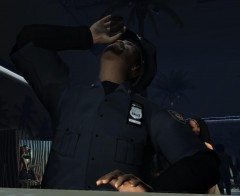
From the album: xDodox's Pictures
© ©xDodox
-
Yeah, i know but i love this position of the police guy ;) Thx for your reply !
-
From the album: xDodox's Pictures
© ©xDodox
-
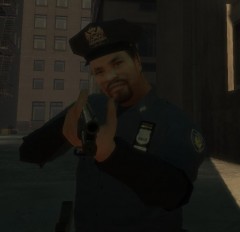
From the album: xDodox's Pictures
© ©xDodox
-
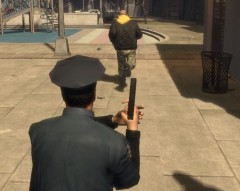
From the album: xDodox's Pictures
© ©xDodox
-

From the album: xDodox's Pictures
© ©xDodox
-
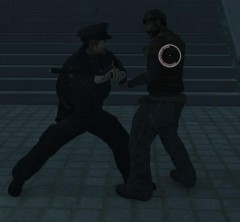
From the album: xDodox's Pictures
© ©xDodox
-
From the album: xDodox's Pictures
© ©xDodox
-
 Nice pic. :biggrin:
 -
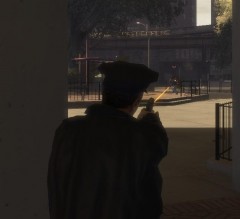 Thanks mate :D
 -
From the album: xDodox's Pictures
© ©xDodox
-
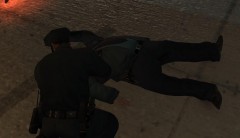
From the album: xDodox's Pictures
© ©xDodox
-
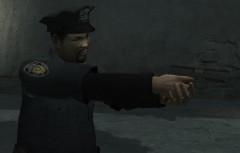 Thanks Olanvo :biggrin:
 -
Nice work! Keep up the good work!!! :thumbsup:
-
From the album: xDodox's Pictures
© ©xDodox
-
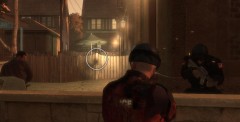
From the album: xDodox's Pictures
© ©xDodox


