


Caine
Members
-
Joined
-
Last visited
Everything posted by Caine
-
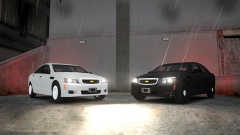 Nice! Very well converted! lol
 -
 Do you not know where u are? lol
 -
-
I have actually been working on this vehicle with a similar light set up, is their a back of car picture?
-
 ahh I c
 -
lol It was a joke, relax. But, I do agree they are getting better and better for each version.
-
Said no one. lol
-
What's ur games aspect ratio at? Picture looks pretty skinny. But anywho, nice car!
-
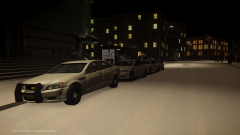
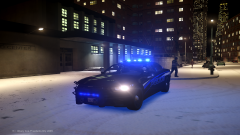
From the album: Random Model Pics / W.I.P's
The LCPD has Just received their 4 new fleet vehicles from GM for the winter season! Comments? Suggestions? -
-
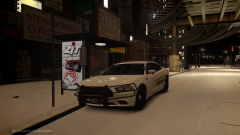 Good idea. Might just be one in the near future.
 -
 haha
haha -
-
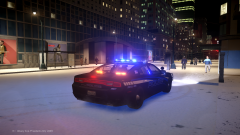
From the album: Random Model Pics / W.I.P's
Comments? Suggestions? -
From the album: Random Model Pics / W.I.P's
Comments? Suggestions? -
From the album: Random Model Pics / W.I.P's
Comments? Suggestions? -
-
-
-
-
-
Snow Mod V2 - http://www.gtagarage.com/mods/show.php?id=5740 Realistic Snow Fall (Which is what I believe is what he is using in partner with Snow mod V2) - http://www.gta4-mods.com/misc/realistic-snowfalls-mod-v25-photorealistic-ed-f30328
-
 Hahaha Yea!
 -
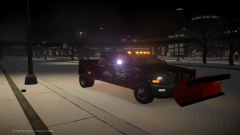
From the album: Random Model Pics / W.I.P's
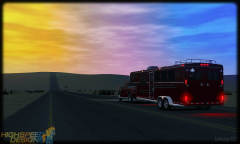
Recently Bellic Industries have received a new fleet of snow plow and towing vehicles! Comments? Suggestions? -
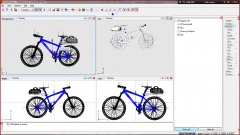 Very Nice! I Agree with Crizby on the snow thing! haha


