


MSPOfficer
Members
-
Joined
-
Last visited
Everything posted by MSPOfficer
-
![[WIP] Slicktop Explorer](//s3-gallery.int-cdn.lcpdfrusercontent.com/gallery/album_1177/sml_gallery_9139_1177_33296.jpg) SAME cant wait to try it.
SAME cant wait to try it. -
How About You Try making Your Car.
-
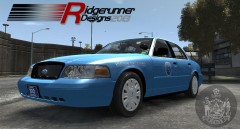 He is Still Workinging on it. it Says Right under the PIC. Also he May be Busy So he Cant up Load it.
 -
OK thanks I was Wondering
-
I was Playing 0.95 Earler and i Saw a Cop On A traffic Shop. i am not Kidding it was on Columbus cross of Jade.
-
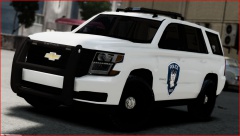 Chevy Can Suck a Rock cause they always Break down accrding To my local Shop. That is all they get in is Dam Chevy.They Might get one Ford every once and a while
 -
@ZombieSoldier47 If you look around you can find that CVPI. I is on GTAPolice Mods.com
- 6 comments
- 2 reviews
-
Today I installed 1.0 for LCPDFR. I got in game and went to the Police Station and when i got in the station my Screen Went BLUE. I had to to uninstall evey thing that had to do with GTA 4
-
Say What???
-
It might be the count down to LCPDFR 1.0
-
There is like 3 threds on this error
-
thx i well do that
-
Got the same error Installation component 'LCPDFirstResponse' error'd! at G17MediaSetupEngine.Stuff.MakeServiceCall(String urloverride) at G17MediaSetupEngine.Installation_Components.LCPDFRComponent.endComponent() at G17MediaSetupEngine.UI.Interface.wizardControl1_SelectedPageChanged(Object sender, EventArgs e) at G17MediaSetupEngine.UI.Interface.wizardControl1_SelectedPageChanged(Object sender, EventArgs e)
-
A 2013 has a is Different in Body and and HP. it is a lot faster.
-
Hi LCPFR Members, I am Looking for EVI's 2013 chevy suburban. If you can help me find it that would be great. Agent Dakota
-
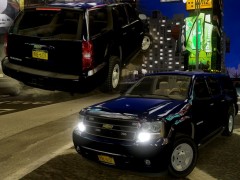 BTW REUPDATE THE LINK PLS
 -
NICE truck
-
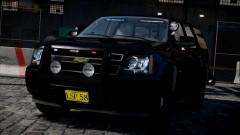 SO COOL LINK PLS?
 -
-
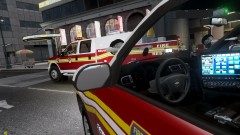 I really want that truck
 -
That would be cool to see
-
i want the next version of LCPDFR were you can choose cars you can add cars to do traffic stops other cars then the (police ,police 2,fbi,noose,polpartiot,and the stockades. so like a car to do a traffic stop in like the Cavlcade
-
Maine Pls
-

![[WIP] Slicktop Explorer](http://s3-gallery.int-cdn.lcpdfrusercontent.com/gallery/album_1177/sml_gallery_9139_1177_33296.jpg)
