Royal Jay
Members
-
Joined
-
Last visited
Everything posted by Royal Jay
-
-
Personal experience is all we have in the beginning, so I fully understand and I appreciate your feedback 😄
-
Alright, first thing first. You are working with non-ELS vehicles, which means they will have extra's such as in this case a spoiler, but their can be additional extras like light bars, etc. That doesn't mean you can't use it in the base game, it just means you have to fiddle around with a few different things. The first thing you need to do is change the name of the vehicle in your .rpf to Sheriff (or whatever your wanting to change it too). Once you've done that do the same in your vehicle.meta, carvaration.meta and carcol.meta file. Now, as far as where they should go I have mine placed as follows: dlcpacks -> modding -> dlc.rpf -> common -> data -> carcols.meta & carvariations.meta dlcpacks -> modding -> dlc.rpf -> common -> data -> levels -> gta5 -> vehicles.meta Also make sure you are referencing the load sequence in content.xml it's in the main directory, if you aren't you need to add these lines: <Item> <filename>dlc_modding:/common/data/carcols.meta</filename> <fileType>CARCOLS_FILE</fileType> <overlay value="false" /> <disabled value="true" /> <persistent value="false" /> </Item> <Item>dlc_modding:/common/data/carcols.meta</Item> After you've done all that load your game and see if it works. As for the spoiler, you can remove that manually with simple native trainer (or any trainer). If you want the car to load with preset extras your gonna have to go into the vehicle.meta and force load whatever extra's you want for example if you only wanted extra 1 and extra 2 to load you would do: <extraIncludes><Item>EXTRA_1 EXTRA_2</Item></extraIncludes> It's a lot to take in, I learned this all on my own and I swap back and forth between ELS and non-ELS cars, so if you need anymore help just ask.
-
Funny you should say that, in my older lore friendly build, I use a Google Sheet document to keep track of what each model is. So, for example my SAHP 3 unit is actually a 2016 FPIU, I wouldn't know that from the name, but I have a sheet that tells me. I did some research and was kind of hoping their might be an easier way to keep track of models but I guess their isn't sadly.
-
Good Afternoon, So I'm currently using Albo1125's modding folder, meaning normally I put my vehicles into the addon DLC pack location: dlcpack -> modding - > x64 -> levels -> gta5 -> vehicles -> vehicles.rpf Now normally I just drop the vehicles into the RPF and call it a day, but as you can imagine the more vehicles you add the more chaotic it can become trying to find what you need. So, I decided to create subfolders and then drop the vehicles into their appropriate folder. For example; instead of having a 2011cvpi .yft, .ytd floating around I would drop all three (or four) files into a folder named 2011 CVPI. Unfortunately, as I have noticed, when I load LSPDFR and go to load vehicles via the addon car menu they don't load. They only load in their base form and no when in folders. So I was curious, is there a way around this where I can still load cars from within folders that are inside of the .RPF, or is that no possible? If it isn't, then does anyone have a better way to organize vehicles or a better naming system..
-
I have since resolved my issue and everything is working accordingly
-
No, I use albos modding DLC folder, so I install my ELS stuff in there and it works flawlessly and yes they go in there normally.
-
So for reference I am using this model: It comes with the model, carcols, carvariations and vehicle meta all of which are drag and drop. Carvariation and vehicle meta are going in dlc.rpf -> common ->data carcols are going in dlc.rp -> x64 I thought this was correct, should they be elsewhere then? (I would assume the carvariations and vehicle meta are in the right place since the model spawns).
-
So I downloaded a non els vehicle (which was fivem ready) and I threw it into the game and I noticed the lights aren't working properly, do these non els vehicles just not play nice with lspdfr? For reference I have the model installed, the carvariations installed and the carcols in "update\update.rpf\x64\data""
-
 When he gets around to it, this isn't his job and we aren't paying him, be glad he made this mod and wait patiently until he updates it.
- 1,178 comments
- 137 reviews
-
-

- 2
-
-
It's not compatible yet from my multiple attempts, most of his mods are still referencing 0.3 and they see 0.4 as an error so we'll have to wait until he updates this and his common file.
- 1,178 comments
- 137 reviews
-
Just making sure I'm not crazy, but only two calls out pursuit and robbery as of now?
-
I changed it to launch in windowed, it almost worked before it crashed (report below). Just strange that it's acting so unusual. Error Log
-
Hello everyone, it's been a little minute since I've played LSPDFR, I admit. So, I decided to fresh install the base GTA V game, made sure I version 0.31 of LSPDFR installed, went ahead and updated my ragehook and script hook to become compatible with 1493 and proceeded to launch ragehook. Unfortunately, I've run into a strange issue and I'm not 100% sure what's going on. For starters, ragehook used to allow me to change the console key from F4 to whatever I want. Now for whatever reason, I cannot change it. Next and most importantly, whenI launch ragehook I am dropped into the default GTA launch screen where I can select online or story. Going via story mode I'm unable to launch anything from F4 and I am a bit confused. Everything appears to work, yet clearly doesn't so obviously I am missing something, but what? Any advice would be grateful. Thank You.
-
-
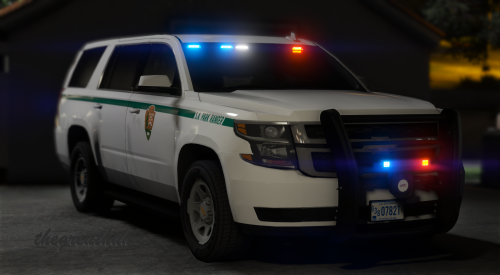 Ah boi! Look at @thegreathah with that red shiny name "woop woop" better look out! Ha Ha great model and congrats on your new position
- 22 comments
- 19 reviews
-
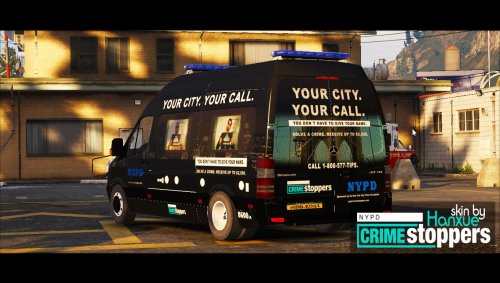 Nice texture, hope we get some better sprinters.
 -
You mean this one: https://www.gta5-mods.com/scripts/simple-trainer-for-gtav
-
He's using the USA as an example and he is correct, the people who said that now won't be in office when 2040 rolls around. Then they'll claim they did all they could do in office whoever currently runs the nation failed, everyone passes the blame.
-
 Nice! The texture reminds me of Miami - Dade almost, love them!
 -
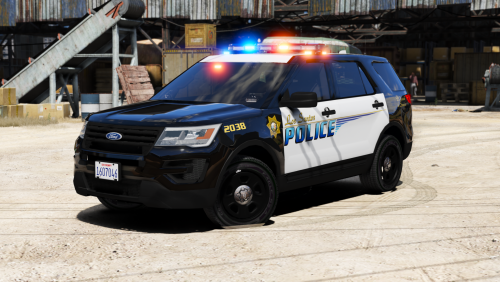 @thegreathah hey I know your busy and all, just wondering if you mind helping me resolve this lightbar issue (I have a picture posted three posts above). Decided to revisit this model and still running into the same issue Edit: Nevermind I FINALLY figured out how to resolve the problem, required a multi-layer edit.
- 210 comments
- 59 reviews
-
-
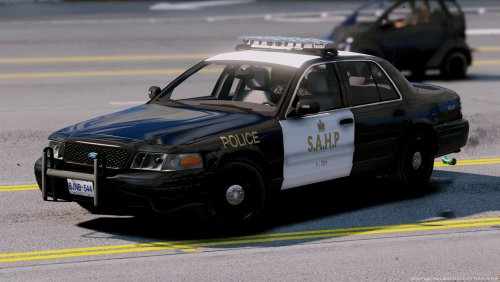 Nice models @OfficerFabe kind of surprised you didn't put a rear TA in the FPIS since they seem to be placing them in their newer units (FPIS | Tahoe | Charger), but I guess you wanted all the units to remain similar?
- 28 comments
- 9 reviews
-
-
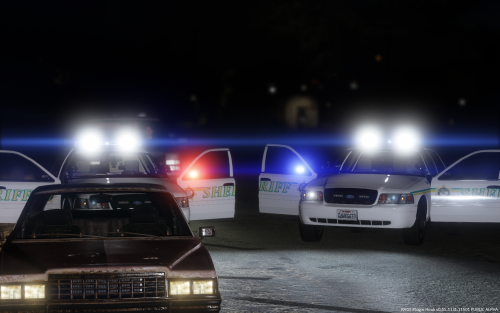 Oh well then, cool, I didn't expect an update so soon lol. I was actually playing around with the emissive files after getting some advice from Toy and looking to fix it myself. But, I'll just wait and look forward to seeing what you've come up with.
- 14 comments
- 4 reviews
-
-
- 1
-