



dead2self89
Members
-
Joined
-
Last visited
Everything posted by dead2self89
-
-
-
-
Dude hands down the best skins I've seen in a long time! Nobody on LCPDFR.com is touching your skins. The only request is could you add 12' charger skin in the packs. Awesome job dude!
- 20 comments
- 7 reviews
-
-
Handling is horrible. Constantly flipping over. Also CVPI is a little bit bigger than normal CVPI's. Back lighting is awesome, but front top lighting seems a little off. The color is off. 2/5.
- 11 comments
- 1 review
-
-
-
-
-
-
Got you ill do it now.
-
Nothing crazy. Just thought it was cool.
-
-
Awesome dude, now if you could just release the Tahoe as well!! lol been waiting along time for that.
- 31 comments
- 12 reviews
-
-
-
-
-
I never did get into ELS 7. Ive been stuck on ELS 6 for the simple fact ELS 7 reflections were always red even if i had blue lights. Looks cool but Ill stick with ELS 6. 5/5!
- 89 comments
- 29 reviews
-
Made this quick LCSO computer screen from Blacklist textures. Not the best but I haven't found one yet.
- 1 comment
- 1 review
-
-
-
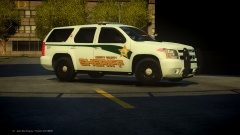 Please release already!
 -
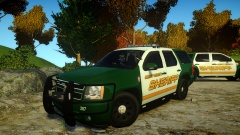 When will these be released?

