



Digital HD
Members
-
Joined
-
Last visited
Everything posted by Digital HD
-
-
 That would be awesome. I found myself going back to the keyboard for my siren controls simply because there is no horn on the app. But otherwise, it's a great tool.
- 70 comments
- 5 reviews
-
 Won't even work. I tried using a new "mods" folder and the game crashes while loading.
- 1,524 comments
- 85 reviews
-
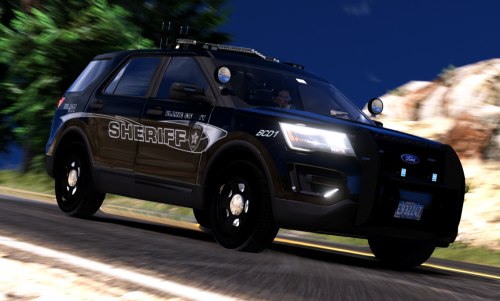 The models are amazing, I've always had a thing for dark vehicle models, not white cars. However, I have an issue with the FPIU. Replacing as "sheriff2" causes it to be top heavy and flip way too easily. I'm fairly new to this modding so I'm sure there's a way I could fix it but straight off the bat of replacing "sheriff2" makes it flip.
- 50 comments
- 27 reviews
-
Great tool to use, however one thing I do wish the "Lighting System" page had was a button for the horn.
- 70 comments
- 5 reviews
-
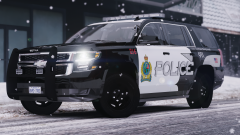 How do you use Simple Trainer for getting snow on the ground? When I hit that in even the trainer, it tells me it's not compatible with my version of GTA V.
 -
How do you get the snow? I've tried downloading a snow mod and it tells me it's not compatible with my version.
-
Whenever I access the police computer during a traffic stop and go to type the name into the computer, ELS and other controls of the game are activated, Like if I need to type G, then the siren will turn on. I was wondering if there is a way to stop this.
-
I'm after a program that can be downloaded onto a computer for use in tracking where the units are located. I don't need an Xbox mod, I just need a program for a computer.
-
I am a supervisor in an Xbox 360 police roleplay clan. I was wondering if there is a program I could use for dispatch. It can be an actual police program or even one made specifically for GTA IV. The program must be free. Thanks for the help in advance.

