
J T
Members
-
Joined
-
Last visited
Everything posted by J T
-
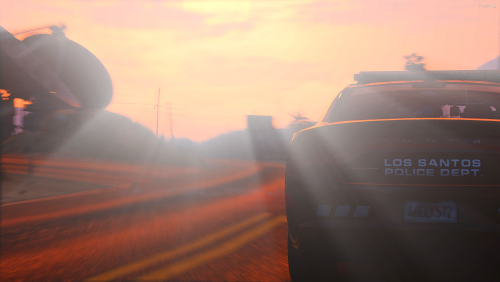 do you have a red and blue texture for the light bar? and would recommend adding a spotlight or two on the marked units, keep the rambars off for a change
- 66 comments
- 26 reviews
-
-
-
-
-
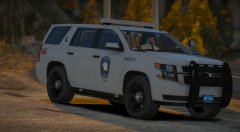 probably should scale that tahoe down like hah did, still looks like a suburban with 40 inch tires, i find it funny some people dont notice the obvious
 -
-
-
-
-
-
-
-
-
-
-
-
-
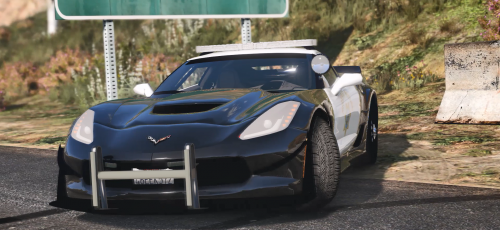 dude it literally takes a few seconds to google a chp car and see the set up....they all have dual spotlights so not sure why this was half assed but whatever, would look better without them anyway
 -
-
-
-
-
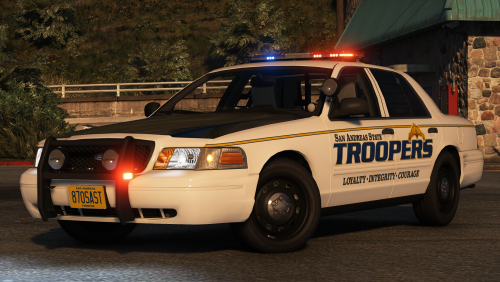 brings back memories of when i used the charger as my first els car for gta iv, looks good
- 31 comments
- 24 reviews
-