
Rashy
Members
-
Joined
-
Last visited
Everything posted by Rashy
-
Do you have the most recent ScriptHookV version installed? this is a early crash not showing much on your log.
-
After looking at your log I also see hash 0x71fa16ea is possibly causing an issue. 0x71fa16ea is essentially your police3 vehicle. I assume you're leaving it out somewhere, or a bad install. I would first suggest a stock vehicle.meta to see if that fixes the issue.
 Your Emergency Callouts seems to be outdated, updating that might help (which was a recent update). Would also suggest downloading the latest version of RageNativeUI if you haven't already.Is your scripthookV up to date?Can you resend your log again with the updated RageNative?Have you tried just re-installing ELS 1.05 ?Its showing you're missing file path file path: GTAV - plugins - LSPDFR - CommonDataFramework - PostalXMLs through log analysis. I linked somebody with a similar issue, hopefully this fix might work.Strange. Make sure you also installed "Damage Tracker Framework" and have no mods that could possibly conflict with Policing Redefined.
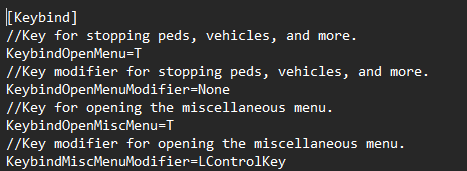 If that doesn't work try binding it yourself ... GTAV main directory - Plugins - LSPDFR - PolicingRedefined - SettingsI'm not aware of a "context menu" for Policing Redefined. If you're referencing the general menu I believe the bind is "T" or "CTRL+T" & backup menu is "B" or "CTRL+B"You should try updating your RageNativeUI.dll and see if that fixes the issue. https://github.com/alexguirre/RAGENativeUI/releases/tag/1.9.3