Chappie
Members
-
Joined
Everything posted by Chappie
-
Same problem. I'm sure they know, but it's always good to report it. :P
-
Is there anyway you can get rid of these kinds of ads? I've seen this one a few times already. I obviously know it isn't the real thing, but someone who is new may not.
-
 but why
 -
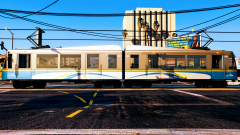 As someone that takes trans link transit almost daily, nice job. hehe.
 -
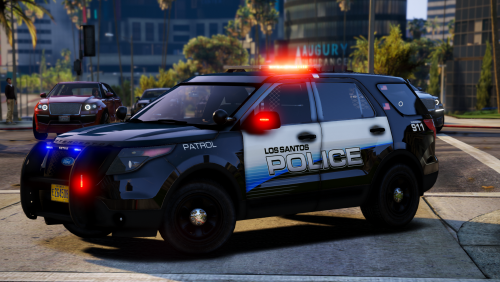 Once again Brad, another skin pack that I'll just keep using and using. Nice work on this one
- 13 comments
- 14 reviews
-
-

- 1
-
-
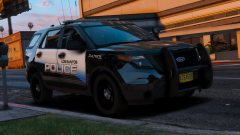 Is this from an upcoming pack? :P
 -
-
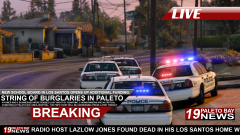 Lovin' it.
 -
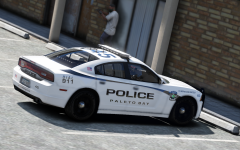 Sweet. These car's are a treat to look at. :P
 -
These cars are the tits. Release plans?
-
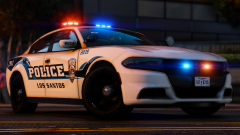
From the album: Chappie's photo depository
I personally believe this is my best screen shot ever. It's all down hill from here, boys. Car by @J.J Dawkins. -
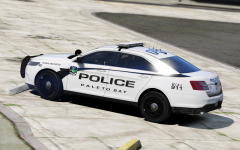 Damn it t0y. This looks so good.
 -
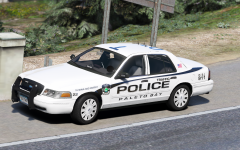 These paleto bay cars you've been doing, good lawd.
 -
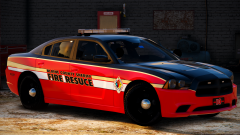 Although it's not my favorite thing in the world, it's awesome to see someone playing around with something completely different and something rather unique.
 -
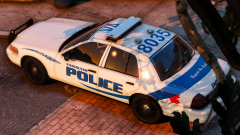 You mean n0ice, right?
 -
From the album: Chappie's photo depository
Car by @NY Delta, part of his upcoming VPD pack! -
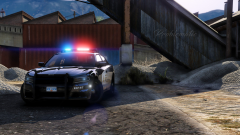
From the album: Chappie's photo depository
I'm finally back at it. I missed this shit. Car by @NY Delta, part of his upcoming VPD pack. As a vancouverite, this gives me the tingles. -
-
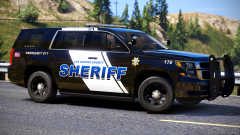 God damn. I love it.
 -
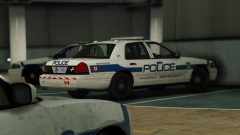 Oh shit. Peel. nice.
 -
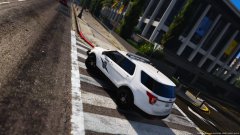 Purchased from someone who didn't have permission to give it out. This user was banned from our personal discord server and was rather salty, and doesn't mind burning bridges. :)
 -
Word of the day! Stolen.
-
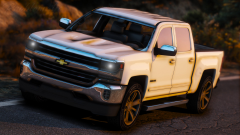
From the album: Civilian life
By @Thehurk, something he's working on. -
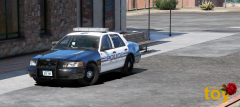 I love the set up. Feels so small town PD to me. Keep it up.
 -
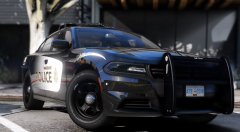 Lookin' good bud!