
Darnath
Members
-
Joined
-
Last visited
Everything posted by Darnath
-
Yes many thanks !
-
Thanks for the reply ! Did you know maybe if they had special "K9" symbols on it ? Or were there blank doors bending in like their main patrol car ?
-
-
-
 Chevy Caprice 1995 Unmarked
-
 Love this car
-
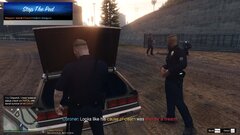 suspect down
-
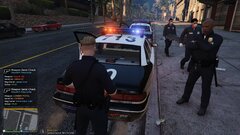 Love this car
-
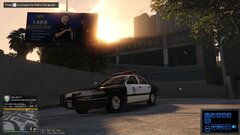 Love this car
-
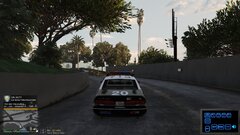 Love this car
-
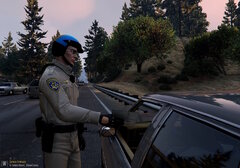 traffic stop
-
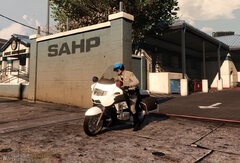 20250528211354_1
-
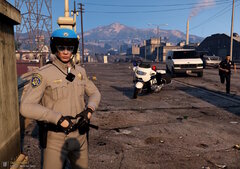 CHP version T-1000
-
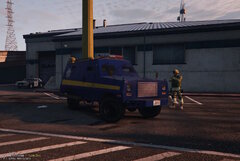 Ranger SAHP
-
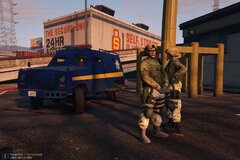 Ranger SAHP
-
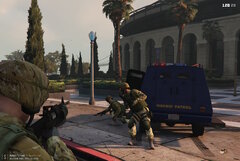 Ranger SAHP
-
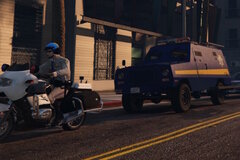 Ranger SAHP and BMW 1150rt convoy
-
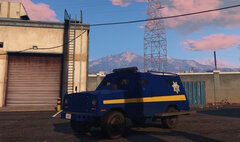 Ranger SAHP
-
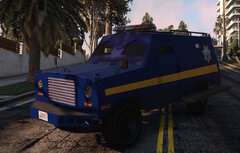 Ranger SAHP
-
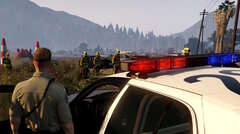 Arson aftermath
-
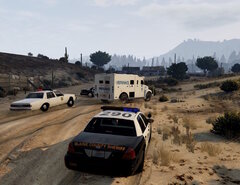 Theft of an armored truck
-
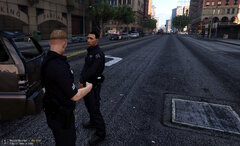 Need to close the road
-
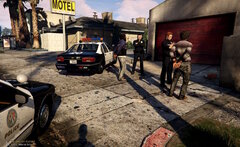 Attempted arson arrest
-
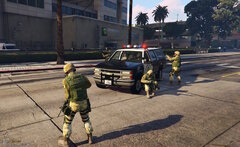 Highway Patrol SWAT
-
-
From the album: 90's Playset
-
-
-
-
-
-
-
-
-
-
-
-
From the album: 90's Playset
-
-
-
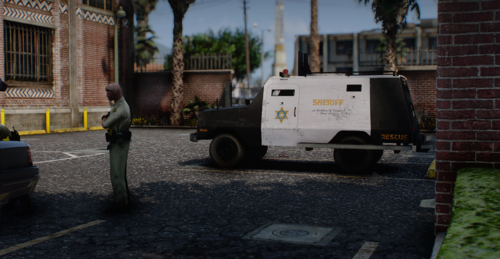 👌🏼
👌🏼 -
No way,... I searched this for months for my 90's playset ! Thank you for the skin and the link to the model !!!
-
-
From the album: 90's Playset
-
From the album: 90's Playset
-
From the album: 90's Playset