




StankMan420
Members
-
Joined
-
Last visited
Everything posted by StankMan420
-
 Next update will include this, whenever I get around to updating it.
 -
Not at the moment, maybe in a future update
-
no
-
Join the discord and open a ticket, I can't really help with the information you've given
-
I'll look into it
-
idk what to tell you, the keybind for the edit mode and the keybind to pull up the radio should be different and can be changed in the .ini if what you meant to ask was "Is the handheld radio keybind the same as the in-car radio keybind?" then the answer is no its not. and that can also be changed in the .ini
-
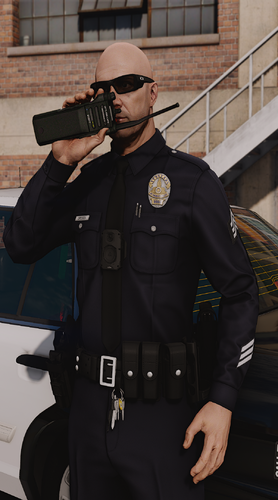 Its LT Modifications' western style patrol pack EUP, you can buy it on his discord https://discord.gg/GhjPeKZs4U
- 77 comments
- 7 reviews
-
-

- 1
-
-
You can change the keybind in the .ini yes
-
update is out that should fix nexus compatibility
-
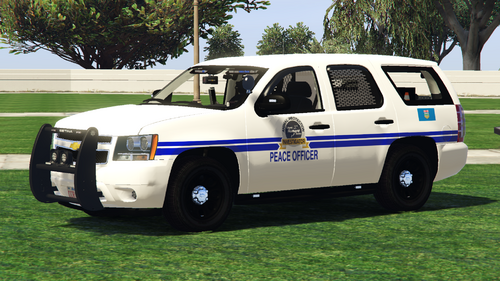 I saw a photo of this online and wanted to make it for LSPDFR, its pretty niche and I doubt anyone has any use for it but hey, it exists now. I'm not even sure that the Calgary Humane Society even has a police force anymore, as I cannot find any proof of it existing past 2023, but who knows. INCLUDES 2013 Tahoe REQUIRES Any model that uses the 2013 Tahoe template by OfficerUnderwood MODEL USED IN SCREENSHOTS DISCLAIMER These are LIVERIES not models. I've linked the model I used if you want it, otherwise you'll have to find a compatible one on your own.
 -
-
Interesting, Its supposed to be 3.4. I’ll change it again
-
I can definitely look into the incompatibility with nexus, I thought I got that working but something must’ve broke it. And as for it disappearing when you’re in and out of the car, thats already on the list of things to fix as well Hold the handheld radio keybind I can 100% look into this
-
LISTEN, I just decided to pull the trigger on it. Ain’t gonna gain traction sitting on my sever
-
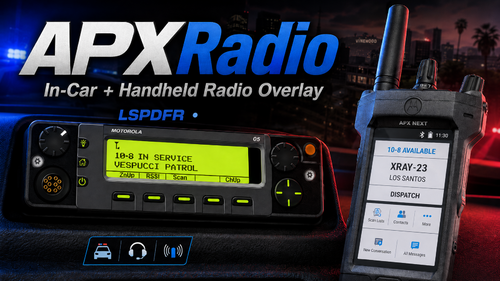
Tired of your police radio being nothing more than a keybind? Want an actual in-car control head and handheld radio that you can see, operate, and customize? Well, look no further! APXRadio is an immersive, interactive radio-interface plugin. It adds fully functional in-car and handheld radio overlays with dynamic displays, clickable controls, animated knobs, status indicators, configurable layouts, and optional integration with other popular LSPDFR plugins. Whether you prefer a traditional mobile radio mounted inside your patrol vehicle or a handheld unit while working on foot, APXRadio gives you multiple hardware styles to choose from. For any questions, inquiries, suggestions, bug reports, etc. feel free to join my discord --> https://discord.gg/3fPrr9UQT8 Included Radio ModelsIn-Car RadiosAPX 1500 APX 7500 Handheld RadiosAPX 8000 APX NEXT Each model has its own texture, control layout, screen design, animations, and configuration settings. RequiresEmergency Lighting System OR Dynamic Lighting System OptionalIn order to achieve the full functionality of the radios, you must have Blue Line Dispatch / Nexus Dispatch (Currently Broken) Grammar Police
-
Maybe? Open a ticket on our discord and we can go more in depth as to what it is that you want to achieve!
- 77 comments
- 7 reviews
-
We can definitely look into that! if you have any other suggestions feel free to leave them in our discord :)
- 77 comments
- 7 reviews
-
-
-

- 2
-
-
-
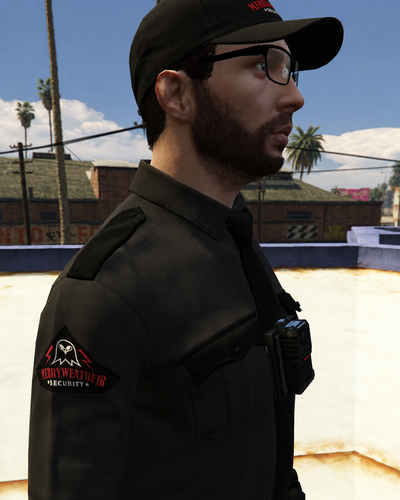 Merryweather Security Consulting? Private army of the New World Order? The folks waging outsourced shadow wars in twenty countries around the globe, and recently cleared to operate on US soil? That's right! Now you too can join Merryweather Security Consulting! Pack Includes: Hat Shirt Belt Pants NOTE: These are TEXTURES ONLY, these textures were made using EUP Version 9.10 however, they should work with the public release as well. The pants texture will work on most duty pants, shirt texture with most class a, b, and c shirts, and the hat with most baseball caps. The belt is really the only specific texture. If you need help installing these please feel free to reach out to me on discord. REQUIRES:
 -
-
as I explained in the readme, I tried to replace the one for the chest and it refused to work, something about replacing it causes it to either not play or just crash the game all together. These are the limitations you run into when converting animations and not creating them.
- 77 comments
- 7 reviews
-
-
-
Strange everything works on my end still, if you’d like some help you can always contact me on discord and I’d be happy to answer any questions If I can get the chest animation to ever actually replace the chest slot instead of the shoulder slot, I’ll definitely add a custom shoulder animation!
- 77 comments
- 7 reviews
-
Sadly the only way would to be editing the animation in 3DS Max, I couldn’t manage to get 3DS to work but if you want to give it a shot you’re welcome to!
- 77 comments
- 7 reviews


