
Chippy
Members
-
Joined
-
Last visited
Everything posted by Chippy
-
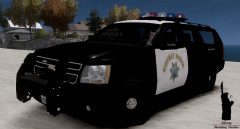 I was indeed, great work
 -
-
Cant wait for this!
-
I've tried that with all of the models they appear that way in-game This is what I get in-game
-
After exporting, and adding the images to create the .wtd I look at the model only to find this.. As you can see I've tried a few times.
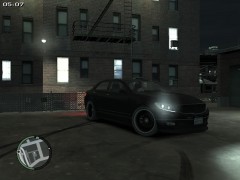 Looks good!
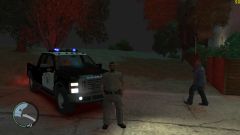 Awesome! Thank you very much!
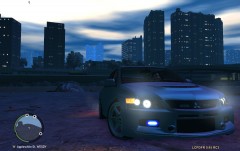 This is from BritishPoliceMods
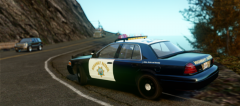
From the album: CHP On Patrol
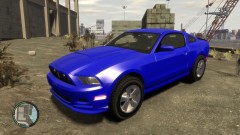 Looks awesome, can't wait!
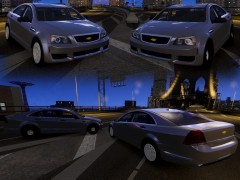 Wow..
Wow..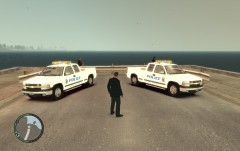
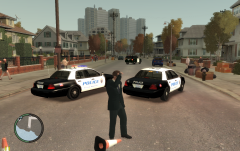
From the album: Modesto, Ca Police
(My local department) You should add some crown vic wheels to it. Nice work though!
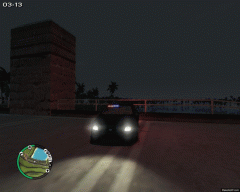 Ahh I see. Interesting..This is a Stanislaus County Sheriff skin. Works with most CVPI ------------------------------------------------------------------------- Installation: Put the textures in the .wtd you are using by using SparkIV or OpenIV. ------------------------------------------------------------------------- The skin is made by me, Chippy ------------------------------------------------------------------------- Thanks for downloading! ------------------------------------------------------------------------- Model link: http://gtapolicemods.com/downloads.php?do=file&id=731
- 1 comment
- 2 reviews