




Raylan Givens
Members
-
Joined
-
Last visited
Everything posted by Raylan Givens
-
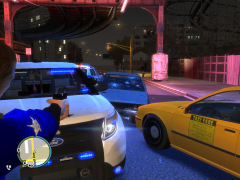
From the album: Srgt.Scales [WIP] [REL]
-
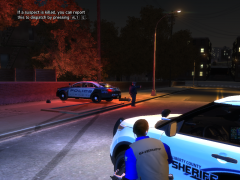
From the album: Srgt.Scales [WIP] [REL]
-
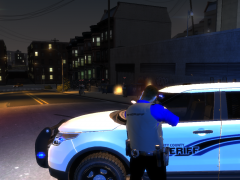
From the album: Srgt.Scales [WIP] [REL]
-
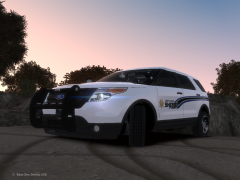
From the album: Srgt.Scales [WIP] [REL]
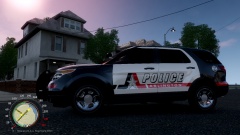
Liberty County Sheriff Department over seeing the sun set with there new vehicles! *My favorite picture of a sunset* Skin by: Soutar (private) -
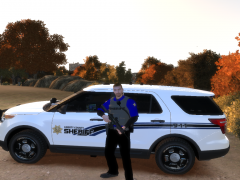
From the album: Srgt.Scales [WIP] [REL]
-
mm weird, if you do all of that it shouldn't mine is set to medium and if you check out my vids there good quality.
-
Clearly says: 2013 Dodge Durango "NMSP"[FICTIONAL] So yes its not going to match...
- 5 comments
- 1 review
-
Your graphics to the max, mostly you video quality...! and a ENB!! ~ Srgt.Scales
-
 It's to sharp to handle LOL
 -
Thats funny!
-
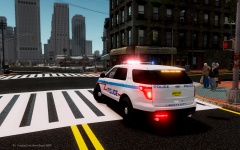 LOL :)
 -
Sexy!
-
 Thanks bud, LOL
 -
the name isnt liberty county, its liberty city & county emergency response.......
-
From the album: Srgt.Scales [WIP] [REL]
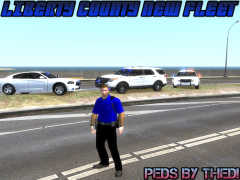
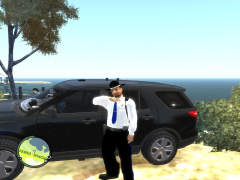
*PLEASE NOTE I'M NOT ADVERTISING, SIMPLE SHOWING THE VEHICLES AND THE AWESOME PED* The LCSD have bought three new vehicles, there skins will be on soon! -
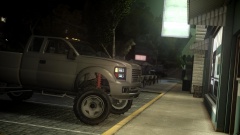 Thats my Fav. truck in GTA V
 -
-
Well those scripts might not be able to run in GTA IV no more, ive found some that dont work, id suggest finding a different one or just leaving them out. ~ Srgt.Scales
-
Have you tried the game with out the scripts in? ~ Srgt.Scales
-
-
 Lol, under construction! Love it dude!
 -
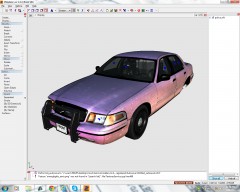
From the album: Srgt.Scales [WIP] [REL]
Going to add a RX2700, Cant wait to see it done my self! -
http://www.youtube.com/watch?v=d9BOEQWFrvQ Here are the simple steps to make a model, just made this video today, it'll be in the tut. section soon! EDIT: Video is now in the tut. tab!!
-
Oh god maximum over drive < well i think i spelled it right :)
-
 nah, dosent seem like..



