


marino141
Members
-
Joined
-
Last visited
Everything posted by marino141
-
-
-
Thank you guys for everything you do, you have brought many different types of people together that may have not run into eachother before!
-
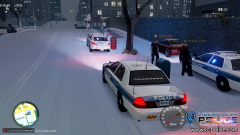 Did you release these textures? Or can you. Thanks
 -
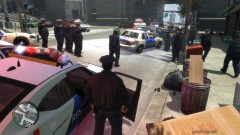 Is there a donut shop nearby? or a burgershot? Cause i think thats where they were actually heading....
 -
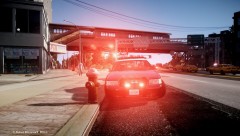 Im in class right now taking finials, but somehow im looking at your ENB lol..... Very Nice.. Marino141
 -
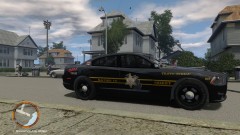 This looks alot like Wayne County as well, at least to me lol. I guess they might look similar, im in Wayne County and this looks alot like my sheriff cars......Very nice though
 -
Well we could all not sign it and then definatly not get their attention, IF WE SIGN IT AS A LARGE GROUP, trust me it will be noticed, trust me i might just know lol.......Keep the sigs going and keep on signing. Another thing is this is a good protest for young teens as well.
-
someone may correct me if im wrong, but i believe a disc comes with the computer to reset internal hardware.... What this helps with is when you get this so called "blue Screen" and also so called "crashes" if you read the last couple lines of that message it tells you about what you PC is trying to do to avoid total memory loss or TML as some know it. If you have the disc, insert it and follow on screen instructions, i had to do this once and it pretty much resets the entire system, deleteing all files and such. So what i recommend doing is getting an external hardrive and backing up all your files and then doing a entire re-boot of you PC.....Good Luck and hope this helped Marino141
