


.png.52200072d4f7f7f19052e7ce58a60a31.png)
InnermostZero
Members
-
Joined
-
Last visited
Everything posted by InnermostZero
-
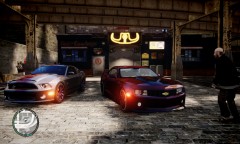 Oh thought it was outdated. Nice work..
 -
Could you PM me the name of the ENB
-
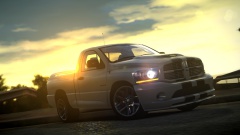 Yeah Strike thanks... Ha..... lets hear what you've to say lol
 -
no real life pict...........
-
No worries. SOLVED.
-
Fresh installed.. Nope was like that before. Like I just installed. played for 10 mins and then put the files In. It opened the window the first time but still opened the game after .Now just the window.
-
Everythime I launch my game it goes to this.... Then doesn't start? An ideas? InnermostZero.
-
That was directed at ineseri .I thought you were finished with this request. My bad buddy. Hopefully someone will help.
-
ASI loader worked. Just oooo you. Thanks a mill Thanks Crawford.
-
Thought you'd know my info my now LOL. Yeah no ASI loader though
-
Yea just states changes from previous versions
-
yeah pressing F3/ F4
-
Sorry, no action meaning the trainer doesn't work.
-
Would you have the files for just blue buddy? ^
-
Simple. I have inserted all trainer files in the newest version. Then no action when I'm in game.
-
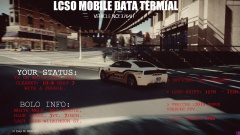 No man, This was just made with images and text. Sorry to disappoint :/
 -
From the album: Photo-Realistic Shots. [PAGE 2]
Laptop MDT In the cruiser. -
-
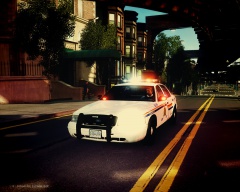 Wow!. Care to share the ENB?
 -
-
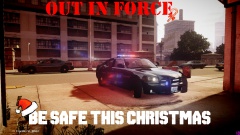
From the album: Photo-Realistic Shots. [PAGE 2]
Happy Holidays. -
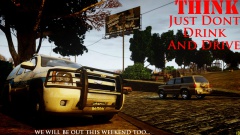
From the album: Photo-Realistic Shots. [PAGE 2]
We will be out too! -
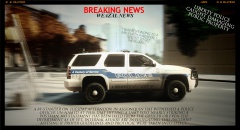 Hahaha
 -
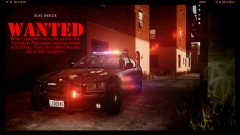
From the album: Photo-Realistic Shots. [PAGE 2]
WANTED MALE on the loose. -
From the album: Photo-Realistic Shots. [PAGE 2]
And It begins...
.thumb.png.ecf43c03aae99a7abd3f5a0d930d62f9.png)

