


DukSezQuak
-
Joined
Everything posted by DukSezQuak
-
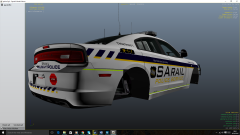
From the album: OpenIV Pictures
WIP Texture pack that I am working on. San Andreas Railway Police Service. -
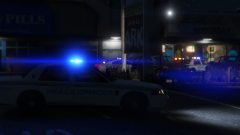
From the album: Termination Media
A Lakeview County Peace Officer vehicle blocks off the entrance to a small strip mall in District 3. Police were called to the area for a report of shots fired and found three injured individuals upon arrival. Police remain on scene to investigate. -
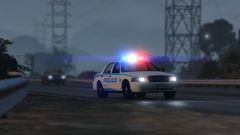
From the album: Termination Media
A Lakeview County Police Officer beginning to chase down a speeding vehicle along the freeway. -
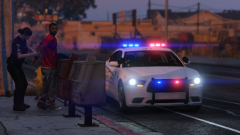
From the album: Termination Media
A Lakeview County Police Supervisor placing a man under arrest for multiple offences, but primarily harassment, causing a disturbance, and public intoxication. -
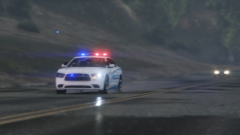
From the album: Termination Media
Lakeview County District 3 Officer responding on Charlie Level (Code 3) for a Motor Vehicle Collision involving two vehicles on a two-lane highway. Upon arrival of police and fire crews, an off-duty police officer from Los Santos was found to be involved in the collision and was intoxicated at the time. S.I.R.T. has been called in to investigate the collision, and the officer will be placed on unpaid administrative leave pending the outcome of the investigation. -
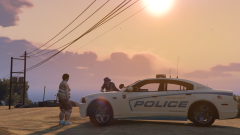
From the album: Termination Media
A Lakeview County Police Officer reviews a statement with a witness after a road rage incident near Paleto Bay. -
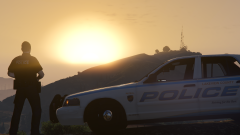
From the album: Termination Media
A Lakeview County Police Corporal from District 1 taking in some of the scenery that Lakeview County offers. -
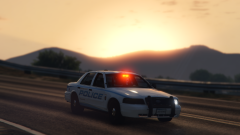
From the album: Termination Media
A District 1 Lakeview County Police Supervisor running Charlie Level (Code 3) to a fight in progress at a rest area in the early hours of the morning. This photo sent to us by a fan. -
I would believe they are used in order to transport or store a large amount of witnesses or victims in a high scale incident. I have seen it in the City of Calgary where city transit buses arrive at large residential or apartment fires where multiple families/residents are evacuated in order to keep them warm and safe until they can be moved elsewhere by family or friends.
-
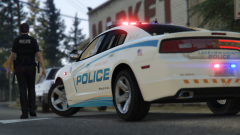
From the album: Termination Media
A Lakeview County Police Officer out on a traffic stop. A vehicle was travelling 20 miles over the posted speed limit in a playground zone. -
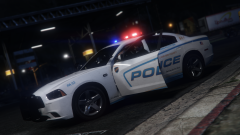 It's been in the plans to release the skins for a while, but I am most likely going to release them so they are lore friendly. So instead of Lakeview County I'd switch it to Blaine County.
 -
Especially with the sexy car ;). Haha thanks. I am pretty happy with how it turned out.
-
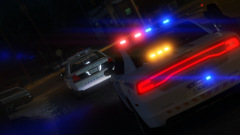
From the album: Termination Media
Clearly, there is no shortage of action in Lakeview County. District 3 Police Services were called to assist a local Peace Officer after a bylaw complaint went wrong. A neighbour complained on a resident in regards to a bylaw infraction, and shortly after the Peace Officer arrived, he was attacked by the resident. Police have laid charges in the incident, and nobody was seriously injured. OC Spray and a taser were used in the incident. One man is charged with Assault on a Peace Officer, Assault on a Police Officer, Assault with a Deadly Weapon, and Resisting Arrest. -
From the album: Termination Media
The newest addition to the District 3 Office fleet in Lakeview County arrives on scene of a fight in progress. This Charger is the first of five vehicles to be put in service at the District 3 Office, but this particular car is the only one that is active out of the five at this time. This image is the first picture of the new units in action, and this happens to be the first call that this unit has attended. -
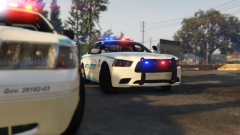
From the album: Termination Media
Lakeview County Police Service District 3 Office is set to get new patrol vehicles this spring. After months of testing and trials in the field, they have set their sights on the Dodge Charger model for their police vehicles. Replacing the Crown Victoria's, the new chargers will be rolling out in early March, ready for patrol. "As good of a car as the Crown Vic was, and you know what, still is, we were running out of time and mileage on the cars, and it was just time to look at some new patrol vehicles" Police Spokesman Jim Treckie told Lakeview Times. "The cars were the most comfortable and best fit for our needs here in District 3." The district tested various models, from Chevrolet to Ford, but most officers had their hearts set on the Dodge. "Some officers say that it was love at first sight" Mr. Treckie said as he chuckled. You can expect to see these new cars patrolling around your neighbourhood in the not-so-distant future. With the Lakeview Times, I'm John McLaughlin. -
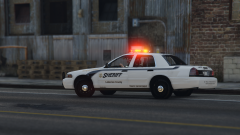
From the album: Termination Media
-
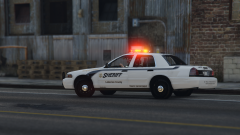
From the album: Termination Media
A Traffic Enforcement Deputy with the Lakeview County Sheriff's Department initiating a traffic stop on a vehicle speeding through a school zone. -
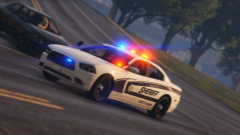
From the album: Termination Media
A Sheriff Deputy responding on Charlie Level response (Code 3) to a motor vehicle collision. -
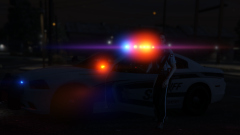
From the album: Lakeview County
A Lakeview County Sheriff's Deputy questions a photographer as he gets into his patrol vehicle. -
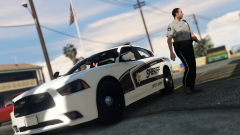 Well they were on their coffee break, therefore, "unable to attend" hehe.
 -
From the album: Lakeview County
A Lakeview County Sheriff arrives on scene of a disturbance after the Police Service was unable to attend. -
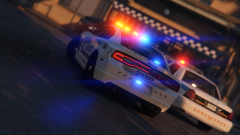
From the album: Lakeview County
The Lakeview County Sheriffs Department received their first fleet vehicle, which they displayed at the shared District 3 Office with the Lakeview County Police Service -
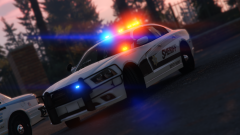
From the album: Lakeview County
The Lakeview County Sheriffs Department received their first fleet vehicle, and displayed it at the shared District 3 Office with the Lakeview County Police Service -
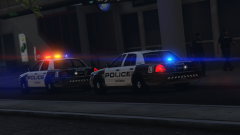
From the album: Lakeview County
A Los Santos Airport Division car (AP) and a Citywide Supervisor car (CW) are seen parked outside the MyFly Terminal at Los Santos International Airport following an incident with an irate passenger in the security processing area. -
From the album: Lakeview County
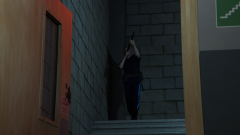
Lakeview County Police Officer searching a building after reports of shots fired.


