
realcelestial21
Members
-
Joined
-
Last visited
Everything posted by realcelestial21
-
-
 Hey, first of all, this is a great plugin! There's just a small issue. For some reason, it always starts at 5:00:00 time elapsed instead of 0. Could you please look into this? Also some departments do not have a image showing in the status, like IAA. @Jayma1322
- 37 comments
- 5 reviews
-
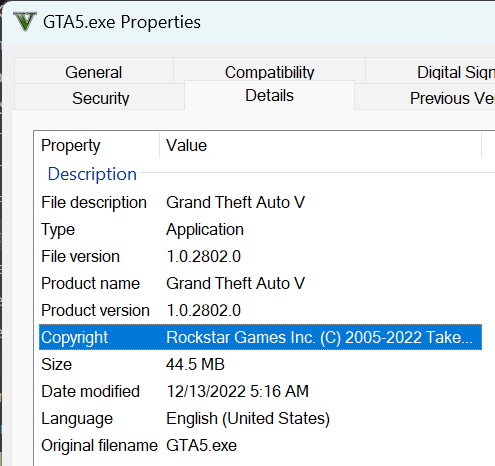
I am having the same issue but I'm on 1.0.2802.0 Here's my log file RagePluginHook.log
-
-
 Having the same issue, guess the new iCue update broke the plugin. I'm on a Lenovo Legion 7 laptop, and it (somehow) was working perfectly before with my inbuilt keyboard, so I hope the patch for this plugin works for my Legion too.
- 113 comments
- 13 reviews
-
-
Can this work (now or in the future) with the Lenovo Legion RGB keyboards that use iCue software? Edit: It works on my Lenovo Legion 7! The right side's side/edge lights don't work (but left ones do) which I think can be fixed by me just changing the config files, but this works perfectly! Great job!
- 113 comments
- 13 reviews
-
-
 has anyone faced an issue where this plugin does simply not load 50% of the time you load up gta and ragepluginhook? Sometimes, it will work, sometimes it won't. All my other mods successfully work.
- 262 comments
- 21 reviews