



Carrythxd
Members
-
Joined
-
Last visited
Everything posted by Carrythxd
-
From the album: Carrythxd's Pics [V]
From the album: Carrythxd's Pics [V]
From the album: Carrythxd's Pics [V]
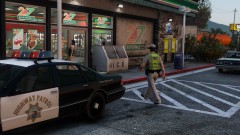
From the album: Carrythxd's Pics [V]
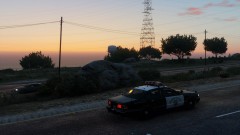
From the album: Carrythxd's Pics [V]
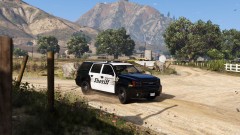
From the album: Carrythxd's Pics [V]
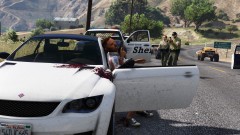
From the album: Carrythxd's Pics [V]
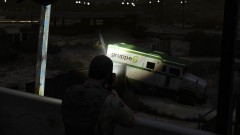
From the album: Carrythxd's Pics [V]
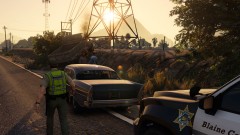
From the album: Carrythxd's Pics [V]
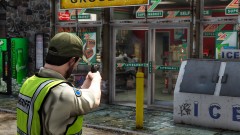
From the album: Carrythxd's Pics [V]
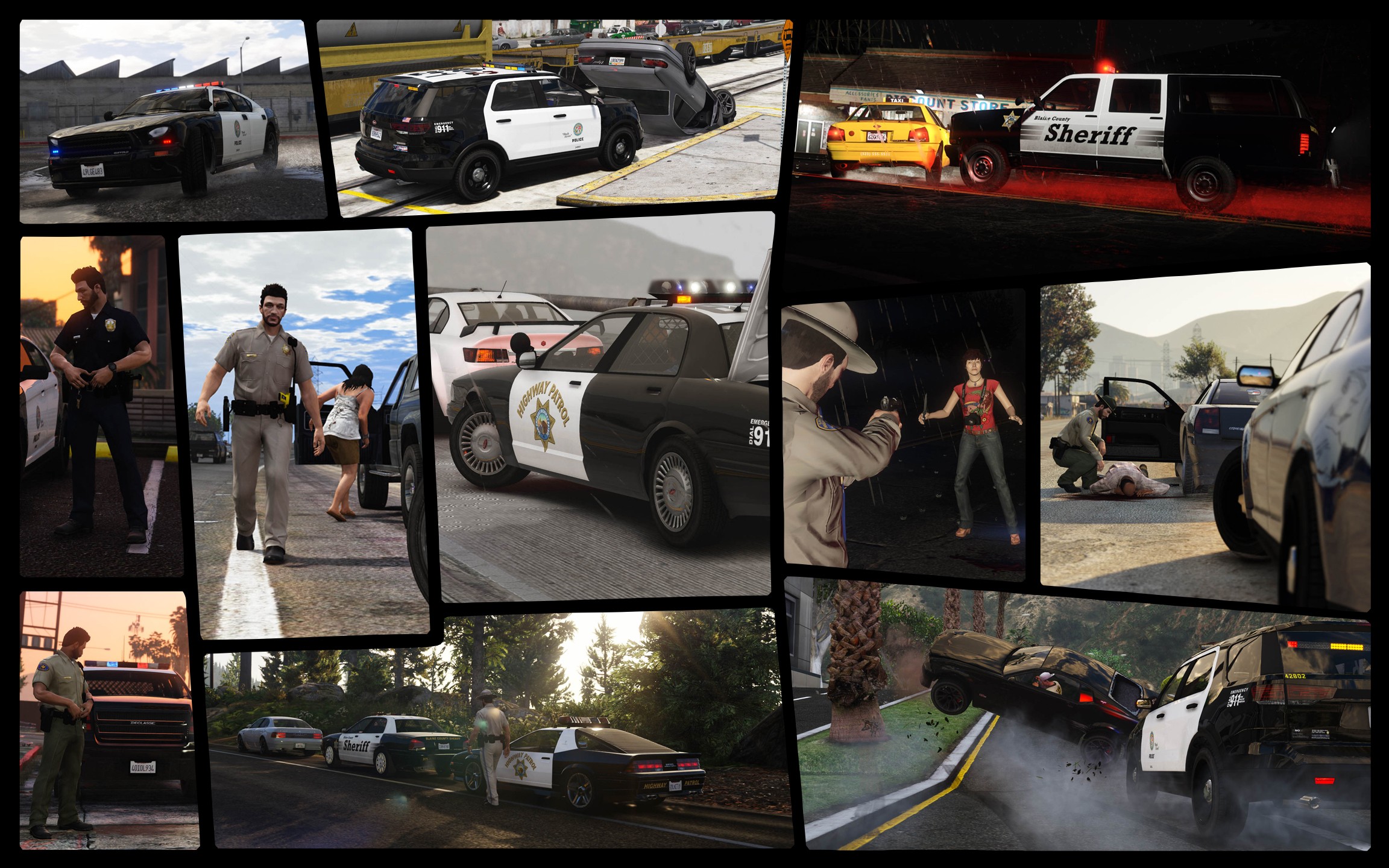
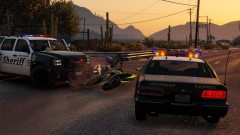
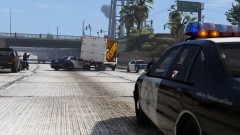
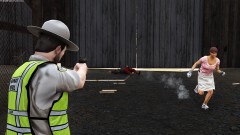
It definitely is graphic settings ingame as well, you obviously can't achieve the same image quality on lower graphic settings that higher settings can It also depends on the visual mods that you have installed. As nice as the vanilla graphics are they don't even come close to the visuals that VisualV (in my opinion) for example achieves, so having any visual mod installed whether it's VisualV or VisualV + NaturalVision Remastered (haven't tried any other ones so can't really recommend them) does help a lot Also another thing to note is that at least from my understanding the way the Rockstar Editor works (which I use to take the screens) is that you can record clips on for example medium settings and then increase your settings to ultra before you start editing the clips in the Editor. That way you can still comfortably play the game, but also take nice screens afterwards As for the vehicles, the older ones such as the SAHP Premier Classic & Ruiner are made by 11john11, some of the more modern ones that I've used have been by IlayArye and Vx5 Voltage and some were from the Realism Dispatch Enhanced mod. They along with plenty of other people have made some really nice lore-friendly emergency vehicles that can be used with LSPD:FR 😁LSPD:FR seems to overwrite itIs there a way to save the default walk style of your character? I'd like to have it set as "Cop" every time I go on duty but it seems to reset to "Normal" whenever the game is restarted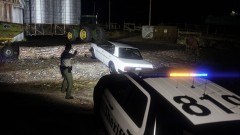
From the album: Carrythxd's Pics [V]
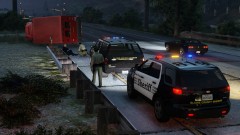
From the album: Carrythxd's Pics [V]
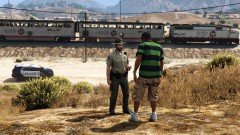
From the album: Carrythxd's Pics [V]
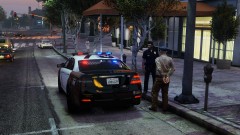
From the album: Carrythxd's Pics [V]
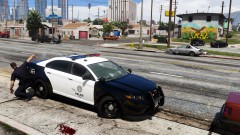
From the album: Carrythxd's Pics [V]



Account
Navigation
Search
Configure browser push notifications
Chrome (Android)
- Tap the lock icon next to the address bar.
- Tap Permissions → Notifications.
- Adjust your preference.
Chrome (Desktop)
- Click the padlock icon in the address bar.
- Select Site settings.
- Find Notifications and adjust your preference.
Safari (iOS 16.4+)
- Ensure the site is installed via Add to Home Screen.
- Open Settings App → Notifications.
- Find your app name and adjust your preference.
Safari (macOS)
- Go to Safari → Preferences.
- Click the Websites tab.
- Select Notifications in the sidebar.
- Find this website and adjust your preference.
Edge (Android)
- Tap the lock icon next to the address bar.
- Tap Permissions.
- Find Notifications and adjust your preference.
Edge (Desktop)
- Click the padlock icon in the address bar.
- Click Permissions for this site.
- Find Notifications and adjust your preference.
Firefox (Android)
- Go to Settings → Site permissions.
- Tap Notifications.
- Find this site in the list and adjust your preference.
Firefox (Desktop)
- Open Firefox Settings.
- Search for Notifications.
- Find this site in the list and adjust your preference.