
MrFanta
Members
-
Joined
-
Last visited
Everything posted by MrFanta
-
-
-
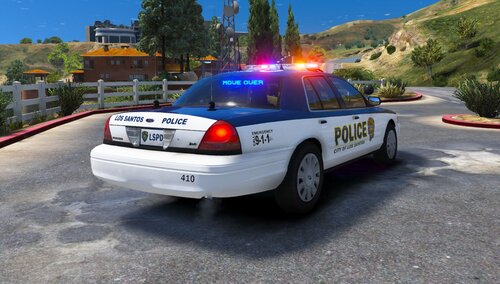 is this replace or add on? if its add on is there any way to get it for replace?
 -
-
-
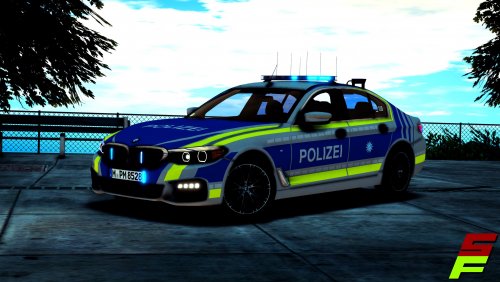 sieht einfach geil aus
 -
-
 can you update the links pls would love to play these
 -
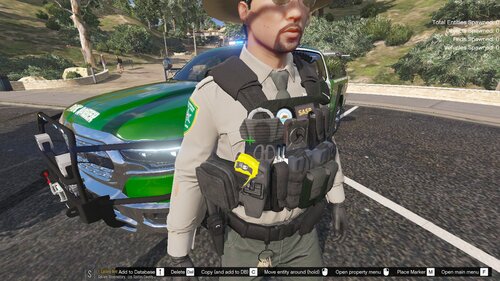 so i downloaded it but idk where to put it in probably because im stupid but can you tell me how pls
 -
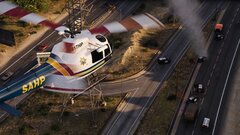 what pack you use for the SAHP and USCG heli? i like how they look
 -
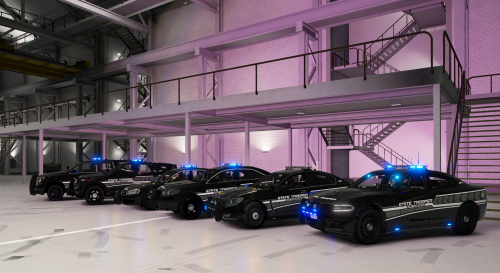 help pls i have the charger with no lights on top but when i play like 10min they pop up and dont go away, i hope you can see it in the picture but the light on top doesnt belong there
- 102 comments
- 5 reviews
-
-
-
.thumb.png.3fa2dd2dec3ad764e90d9b881b638d7d.png) wdym? i usually put it in eup but idk if it will work
wdym? i usually put it in eup but idk if it will work -
-
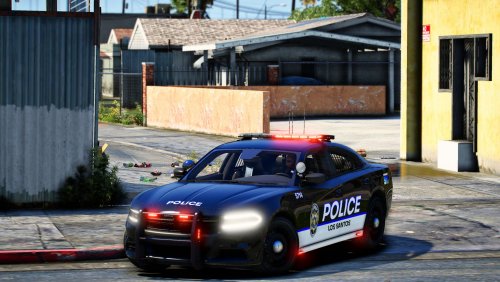 love it looks amazing
 -
 help doesnt work on me but did what all the videos on yt say
 -
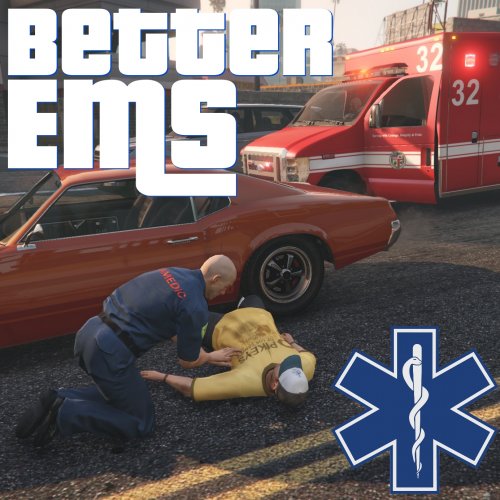 idk if someone can help me but im searching something like a menu that when i shot someone that i can help him because the ems takes a little to long but i cant remember the name pls help. nvm found it
- 783 comments
- 86 reviews
-
-
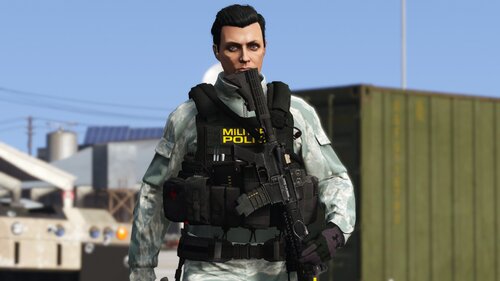 can you show how you did that with your weapon looks cool
 -
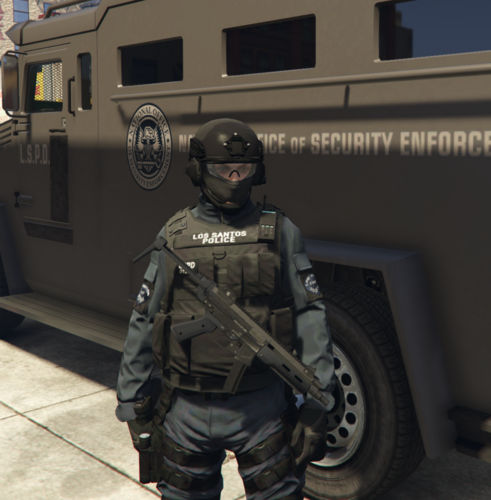 idk if it because of me but i install it and put it in plugins and it didt work so is it my fault did i do something wrong ore why doesnt it work?
- 266 comments
- 22 reviews
-


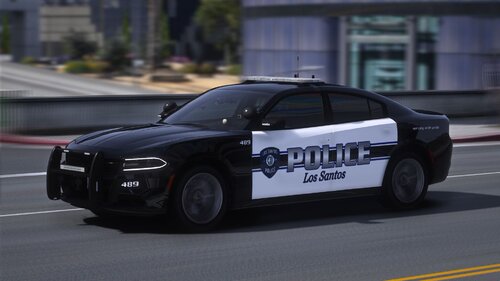
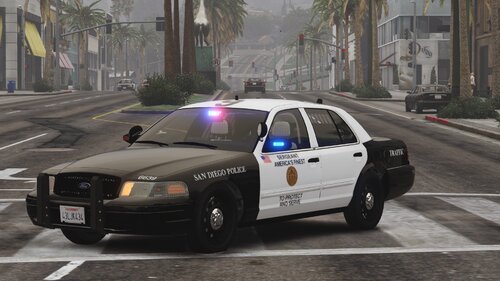



.thumb.png.3fa2dd2dec3ad764e90d9b881b638d7d.png)
_jpeg.thumb.jpg.f7342dc04a7eb485c413419a8f94baca.jpg)