.png.4cd9046762e1e78cdbbcb4f34fe955e8.png)

sinusphi
Members
-
Joined
-
Last visited
Everything posted by sinusphi
-
-
-
-
-
-
-
 Nice. This even makes me think about removing SkipIntro.asi from my config. 👏
 -
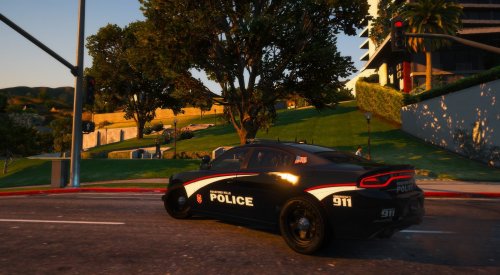 Looks good.
 -
 What a great tool!!! Thanks so much!! I was using another tool (EUP2UB) which however only converts from EUP to UB. That's sufficient for building and setting up UB's "SpecialUnits.xml" and all the other .xml files needed for controlling how and where specific backup units respond in game. But for setting up the ambiently spawning units it's required to edit "agency_eup.xml" and the "outfits_<agency>_eup.xml" (the latter contains the outfits in LSPDFR format). Means I had to do the conversion manually (so, go to PD, go to Police Locker, pick the values and then edit "outfits_<agency>_eup.xml"). That's quite time consuming and switching between game and editor all the time really sucks after a while. I'm still far away from having all agencies set up but with the help of your awesome tool, bro, I'm sure that I will at least complete the most important ones it in a few nights. 😁 Cheers!
- 31 comments
- 12 reviews
-
-

- 1
-
-
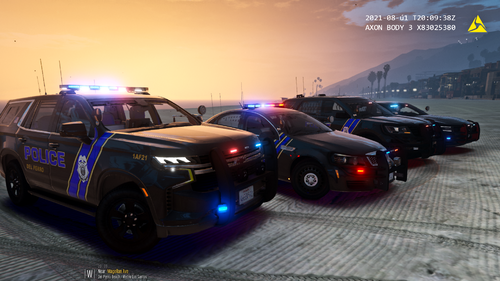 Beautiful, love it!
 -
Same here. EUP doesn't work with the recent version.
-
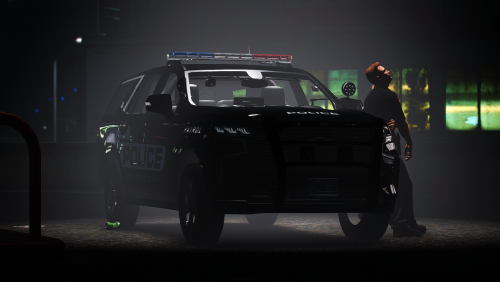 Nice, thx a lot for sharing bro.