Skip to content
View in the app

A better way to browse. Learn more.

LCPDFR.com

A full-screen app on your home screen with push notifications, badges and more.

To install this app on iOS and iPadOS
  1. Tap the Share icon in Safari
  2. Scroll the menu and tap Add to Home Screen.
  3. Tap Add in the top-right corner.
To install this app on Android
  1. Tap the 3-dot menu (⋮) in the top-right corner of the browser.
  2. Tap Add to Home screen or Install app.
  3. Confirm by tapping Install.

FyreDesigns

Members
  • Joined

  • Last visited

  1.    FyreDesigns reacted to a comment on a file: LSPDFR Themed Loading Screen.
  2. This is designed to be used with the top and bottom bar enabled and in full-screen mode, it's 1920x1080
  3.    FyreDesigns reacted to a comment on a file: LSPDFR Loading Screens - Reloaded
  4. Do your settings look like these? And is the LoadingScreens folder inside of your GTAV Directory?
  5. Could you expand on that? It works fine for me, make sure to enable custom loading screens inside of RPH settings.
  6.    FyreDesigns reacted to a comment on a file: LSPDFR Loading Screens - Reloaded
  7.    FyreDesigns reacted to a comment on a file: LSPDFR Loading Screens - Reloaded
  8. Right click any of the images of the game, so for example right click the banner on the info page of the game, then set custom artwork, then repeat for all the images Here is a brief tutorial I found: https://www.xda-developers.com/how-to-add-custom-artwork-steam-library/
  9. FyreDesigns changed their profile photo
  10.    OfficerTina reacted to a comment on a file: LSPDFR Loading Screens - Reloaded
    • 429 downloads
    • Version 1.0
    // FYREDESIGNS - LSPDFR VISUAL OVERHAUL FOR STEAM // Upgrade your Steam library with a custom LSPDFR visual overhaul! If you've added LSPDFR as a non-Steam game, this pack provides high-quality banners designed to seamlessly match the LSPDFR experience, giving your library a polished and immersive look. // Included Assets: ✔ Library Capsule – Main Steam cover art ✔ Library Hero Banner – Large artwork for the Steam details page ✔ Library Product Icon – Small icon for grid view ✔ Library Product Logo – Clean logo overlay ✔ Alternate Library Capsule – Larger image shown when the game is the most recently played // Installation: Download the files and locate your LSPDFR Steam shortcut. Right-click the game in Steam Library → Manage → Set Custom Artwork. Apply the appropriate images to each section for the best visual experience. // Notes: The Alternate Library Capsule is displayed when LSPDFR is the most recently played game in your library. This artwork is designed to match my previous mod: LSPDFR Loading Screens - Reloaded, ensuring a cohesive and immersive look. If Steam does not save the artwork, try restarting Steam and reapplying the images. // Credits: Created by FYREDESIGNS. Do not redistribute without permission. Screenshot by RockyMtnAdam. Enhance your Steam library with a professional, LSPDFR-themed look—download now! 🚔
  11. Feel free to send them over, and I’ll create them for you! Since it’s not a simple filter, I’ll be working in Photoshop with multiple layers and adjustments to get the best result. You can reach me on Discord: xfyre_
    • 1,718 downloads
    • Version 2.0
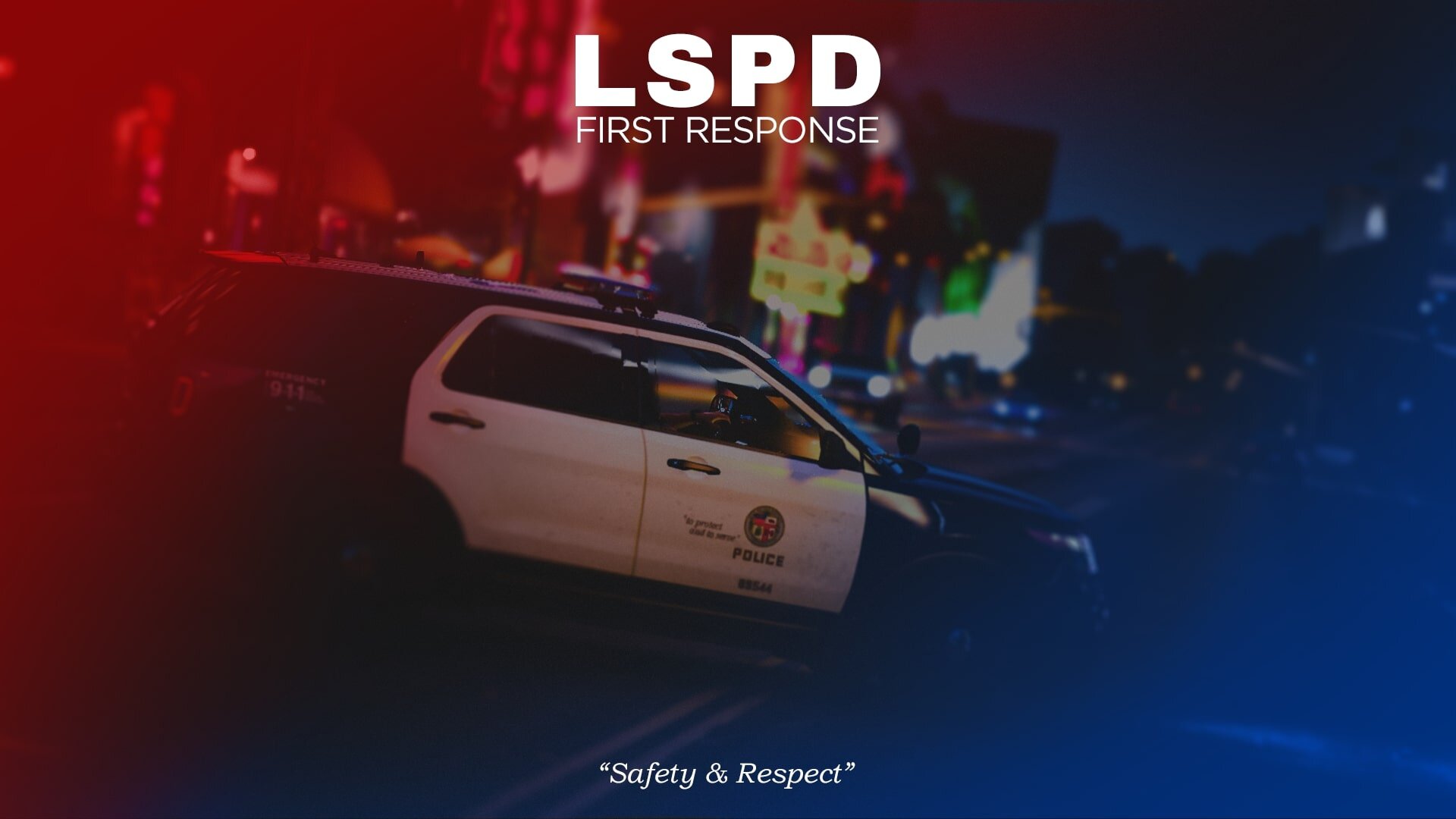
    // FYREDESIGNS - LSPDFR LOADING SCREENS RELOADED v2.0 // Revamp your patrol load-ins with v2.0 of LSPDFR Loading Screens Reloaded – a complete visual overhaul now featuring 15 high-quality, lore-friendly loading screens. Designed to enhance immersion and professionalism, each screen reflects real-world policing with cinematic flair. Whether you're rolling with LSPD, LSSD, SAHP, or BCSO, these screens add depth and atmosphere to every shift. // Features: ✔ 15 total screens (7 newly added in v2.0) ✔ Lore-friendly visuals that fit naturally in GTA V ✔ Realistic police scenes captured by the LSPDFR community ✔ Seamless loading screen replacement using RagePluginHook // Requirements: RagePluginHook Enable: “Custom Backgrounds for Loading Screen” Disable: “Disable Custom Loading Screen” // Installation: Drop the "LoadingScreens" folder into your GTA V directory. Open RPH Launcher, apply the settings above. Start the game and enjoy the fresh new loading visuals. // Credits: Created by FYREDESIGNS Screenshots by these talented creators: Ugvar https://www.lcpdfr.com/gallery/image/177497-sahp9/ https://www.lcpdfr.com/gallery/image/177661-grand-theft-auto-v-screenshot-20250202-22311228/?browse=1 https://www.lcpdfr.com/gallery/image/177662-grand-theft-auto-v-screenshot-20250202-22315392/ https://www.lcpdfr.com/gallery/image/177659-on-scene/ hashbrown https://www.lcpdfr.com/gallery/image/177623-gta5-2025-02-03-01-44-23png/?browse=1 https://www.lcpdfr.com/gallery/image/177678-gta5-2025-02-05-21-50-30png/ purplepotatoes14 https://www.lcpdfr.com/gallery/image/97720-nightlife-3/?context=featured https://www.lcpdfr.com/gallery/image/174128-explorer-morning/?context=new https://www.lcpdfr.com/gallery/image/167460-all-of-the-lights/ https://www.lcpdfr.com/gallery/image/167504-on-the-way/ https://www.lcpdfr.com/gallery/image/167505-chiliad-sunrise/?browse=1 danksg https://www.lcpdfr.com/gallery/image/123604-sasp-sunset/?context=featured https://www.lcpdfr.com/gallery/image/123603-sasp-look-up/ 🚔 Version 2.0 – Bigger, cleaner, and built for patrol. Enhance your immersion every time you boot up.
    • 1,692 downloads
    • Version 1.4 FHP Edition
    // REPORTSPLUS POLICE CAD BACKGROUNDS //Enhance your LSPDFR experience with custom Police CAD backgrounds designed for ReportsPlus! These high-quality backgrounds add immersion to your patrols, featuring sleek and professional designs for multiple San Andreas and real-world law enforcement agencies: ✔ Los Santos Police Department (LSPD) ✔ Los Santos Sheriff's Department (LSSD) ✔ San Andreas Highway Patrol (SAHP) ✔ Blaine County Sheriff's Office (BCSO) ✔ Colorado State Patrol (CSP) Each background is crafted to match the department’s theme, ensuring a clean and immersive interface while managing reports, warrants, and more. Now expanded with the Colorado State Patrol (CSP) Division. // Phonetic Alphabet Integration!Optional phonetic variants are available for all CAD backgrounds, featuring a full law enforcement phonetic alphabet footer for quick reference while on patrol. // Installation Instructions:Open ReportsPlus. Navigate to Settings → Main Settings → Desktop Settings → Desktop Image Chooser. Select your preferred background from the provided images. Ensure “Use Desktop Background” is enabled. 🚔 Upgrade your CAD system and patrol in style!
  12. agency.xmlDefaultRegions.xml Hi everyone, I'm currently facing some issues while trying to use the peds and vehicles from the Ultimate Backups' DefaultRegions.xml file. I've added custom uniforms and vehicles for the following departments: LSSD (Los Santos County Sheriff's Department) LSPD (Los Santos Police Department) BCSO (Blaine County Sheriff's Office) SAHP (San Andreas Highway Patrol) These custom additions are for male officers only, as the outfit pack I used did not include female officer outfits. I'm not sure how to proceed from here and would greatly appreciate any assistance or advice on the following: How to correctly implement the custom peds and vehicles in DefaultRegions.xml. Solutions or recommendations for obtaining or creating female officer outfits compatible with my current setup. Any common pitfalls or tips to ensure everything works seamlessly. Thank you in advance for your help! The pack I used for reference:
  13. Make sure to launch the XInputTest.exe first, this makes the friction work.
  14. I have an explanation here, though I'm unable to offer support with it, this is just what I've read somewhere:
  15. I believe so, you might need to look through either software for using 2 controllers at once. Found this on x360ce's website:

Account

Navigation

Search

Search

Configure browser push notifications

Chrome (Android)
  1. Tap the lock icon next to the address bar.
  2. Tap Permissions → Notifications.
  3. Adjust your preference.
Chrome (Desktop)
  1. Click the padlock icon in the address bar.
  2. Select Site settings.
  3. Find Notifications and adjust your preference.