
10 DAVID 01
Members
-
Joined
-
Last visited
Everything posted by 10 DAVID 01
-
-
-
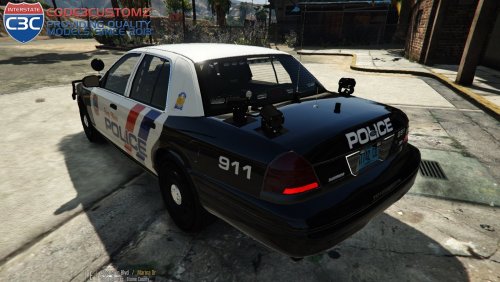
 This your vehicle model? Very nice!
 -
-
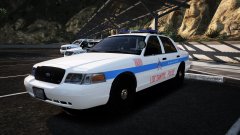 Thank god some legit CPD vehicles!!! hell YES!
 -
-
-
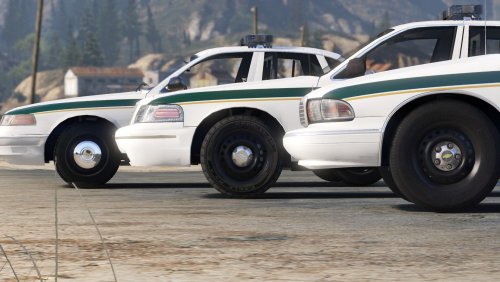 what he said, plus ad those chrome spotlights..they dont have to be functional they can be downturned if you like....but it would be really extra sweet if they were functional!!
- 60 comments
- 14 reviews
-
 you should be a bit more descriptive, how can he "work" on it if you don't describe where it "needs work"?
- 153 comments
- 32 reviews
-
-

- 2
-
-
-
-
-
-
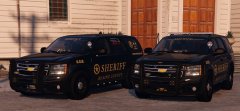 There they are!!!!
 -
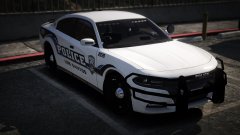 hell yeah that one is lookin sexy!
 -
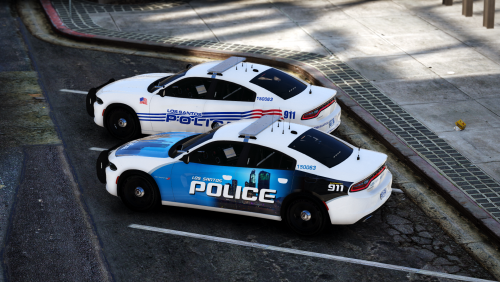 My Man!!! You are Awesome!! You just don't stop!!! Keep up the great work!!! 5/5
- 17 comments
- 9 reviews
-
-
- 1
-
-
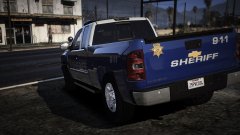 Glad to see you back on here JJ!
 -
 Once again the gold crown holda 5/5 10/10 you the man albo. shout out to festivalmatt and everybody else that had involvement in this. we need this.
- 266 comments
- 36 reviews
-
-
- 2
-
-
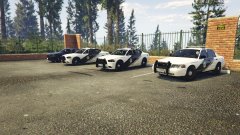
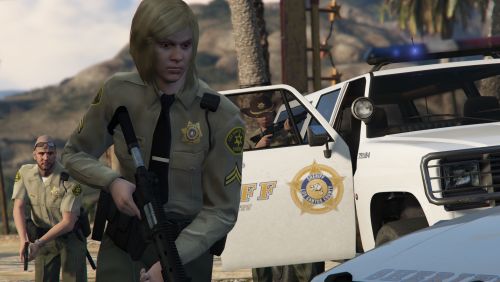
From the album: 10-8
-
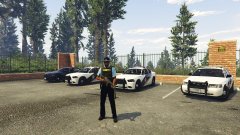
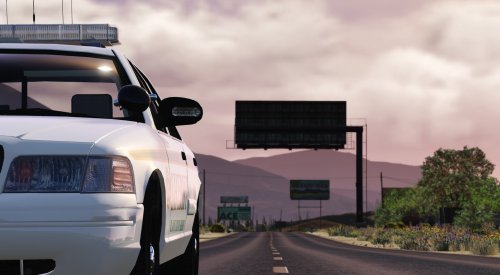
From the album: 10-8
-
-
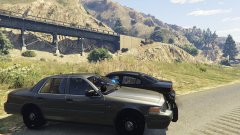
From the album: 10-8
-
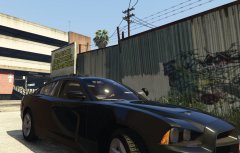
From the album: 10-8
-
You're truly amazing!
-
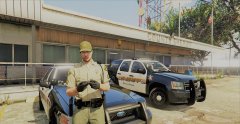
From the album: BCSO
Sandy Shores Station.