



iiDetroitLaw
Members
-
Joined
-
Last visited
Everything posted by iiDetroitLaw
-
 Couldn't have said that any better because I for sure don't want no autopilot.... but to maintain a basic set speed while driving a lane running radar
- 126 comments
- 25 reviews
-
.thumb.png.26dcf684c7ed304ca989f7d9186acbcd.png) Was this issue eventually taken care of?
Was this issue eventually taken care of? -
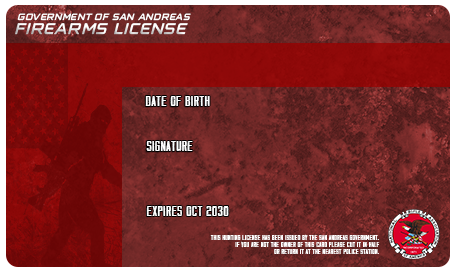 @Pomku Can I use this for single player? Like... Would it show your version (via STP) as their ID layout or just for FiveM?... it looks really nice!
 -
-
-
-
 I hope @Jack Hammer does... I won't put it in until I see them because I'm comfortable with the ones that I have now and have cycled through many and am sick of constantly putting some in and just going back to what I have now. Please... Please add screenshots of the citations and charges. 🙂
 -
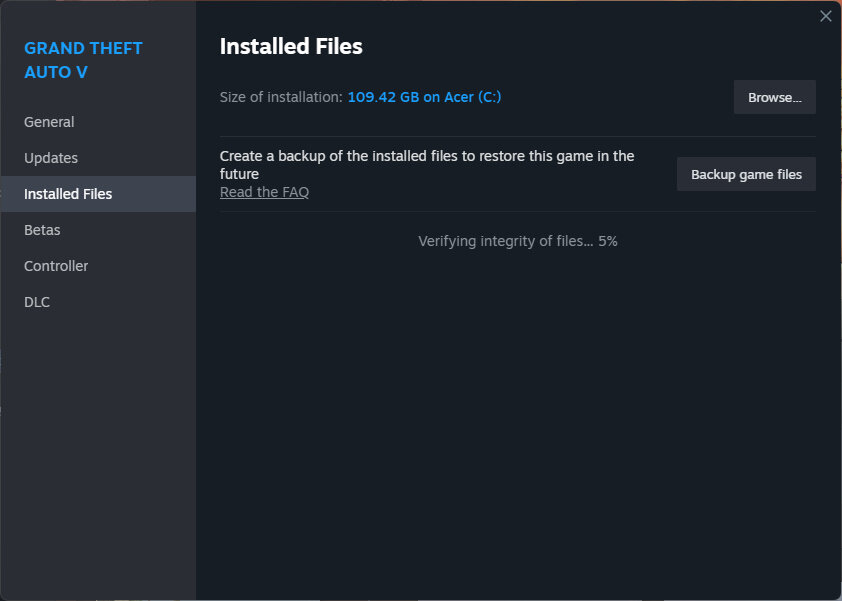
10000% certain all 11 options said "Yes". I'm in the process of rebuilding my LSPDFR up so I'll let you know if it fixes the issue or not when I load in after getting all my mods and plugins in (The essentials) @Pavy ---UPDATE--- It did in FACT, fix my issue... Fresh install of GTA V and start building up the mods and callouts from scratch... My issue is now "resolved".
-
*UPDATE* After a whole day devoted to fixing the issue that I can't seem to get over... I have decided to make a file of the mods, plugins, and callouts that I plan to redownload and just start fresh... I'll update afterwards on rather or not it fixes the issue.
-
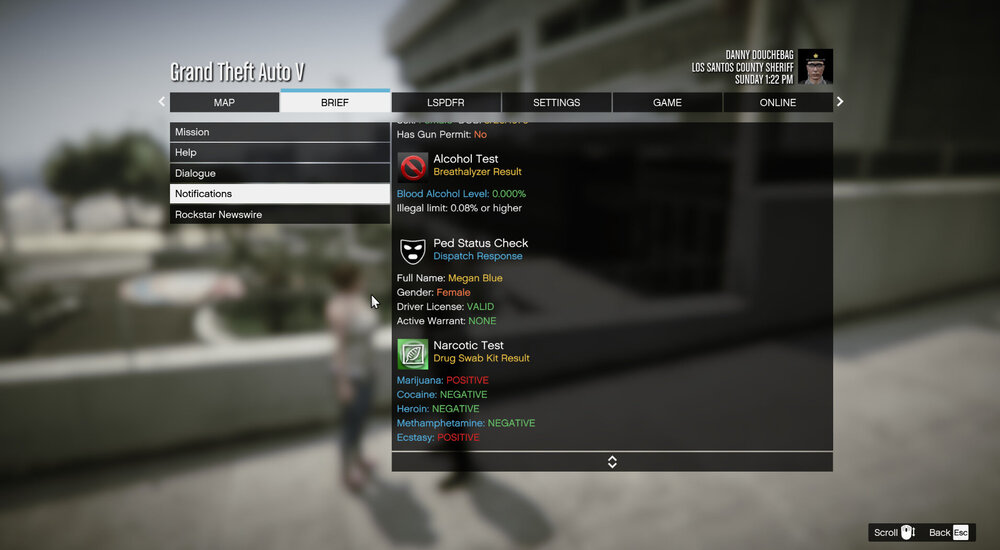
*UPDATE* @Pavy I just noticed that the notifications Are showing up in the "Pause " menu under the "Brief " tab... but still no notifications above the mini map.... my issue still remains unsolved at this time... RagePluginHook log.txt
-
@Pavy All of the plugins and callouts show above the mini map when loading in and going " on duty " as they should... Phone notifications are on... but still no ID/License Callouts Breathalyzer/drug test results Notifications appearing on the screen whatsoever
-
I'm uploading the "Joining/Loading in process " too so you can see... The " Loaded in " plugins pop up normal... Callouts aren't popping up either when they come in from dispatch as a "callout"... @Pavy RagePluginHook_18102023_065255.log
-
I’ll make one for you right now
-
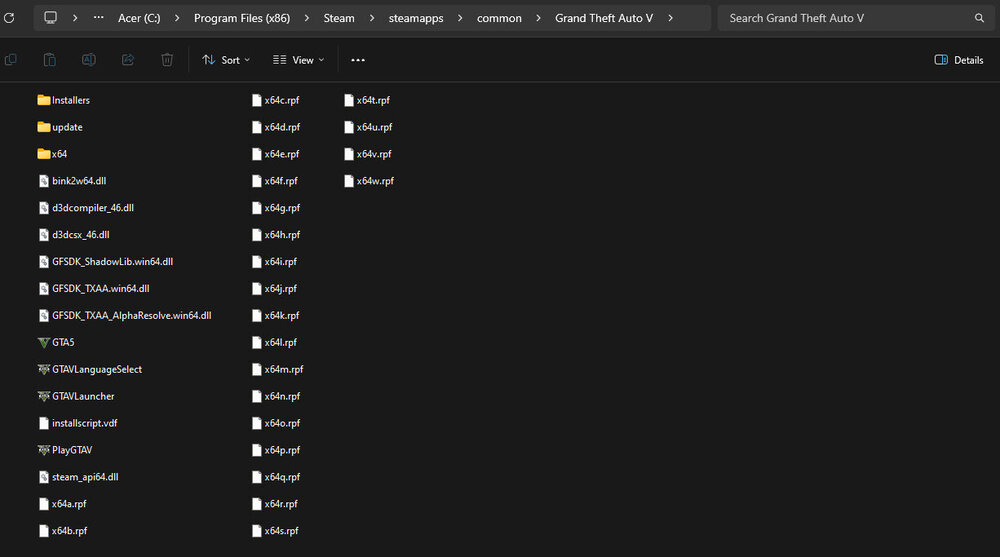
@Pavy I'll tag you again with the RPH log.... but here's the directory
-
Absolutely! I'll start on that right now! Thank you for the assistance as well.
-
Hello! So... I'm not really a newbie here by any means and I usually don't struggle with playing around the directory... Before you ask.... Yes I DO in FACT... have my phone notifications turned ON. I reinstalled STP and went through all of my .ini(s) and I don't see anything wrong here... I had "Plain Sight " loaded in but got rid of it assuming since it was the last thing I remember installing before this issue started occurring, that I'd delete that, and all of it's components alongside STP and its components... I'm still getting the same issue... going "On Duty" and all of my notifications show up to the left just above the mini map.... but when I walk over to a ped and try and frisk them.... no notifications as far as my search goes (Besides now it shows the basic take over the whole screen with what I found)... but I breathalyze and drug test the ped.... it doesn't show me the notifications... but it makes the "chime" sound that it makes when the box would usually show above the minimap. Please Help! 😓
-
I hope somebody replies to this
-
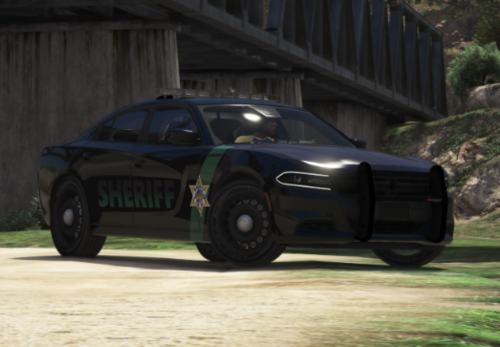 Hmmmm....
 -
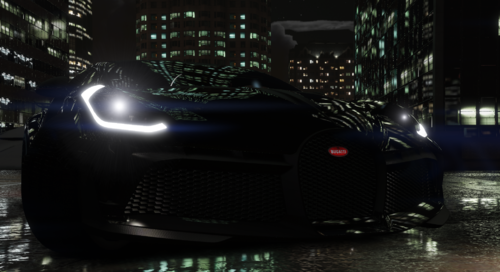 Where do I put the Carvariations and the meta files for this?
 -
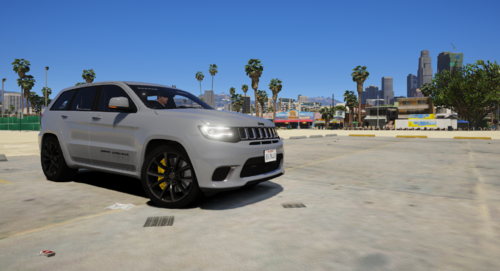 Will you be adding a partition to it any time soon?

.thumb.png.26dcf684c7ed304ca989f7d9186acbcd.png)

.thumb.png.9d0943161b37f863c291d6d6664edefb.png)


