
Spencer M.
Members
-
Joined
-
Last visited
Everything posted by Spencer M.
-
 i did. I even read the big bold underlines letters "STRICTLY FOR FIVEM". You'd just think it would be fivem ready with the ulc files to add to the script 🤷♂️.
 -
you can. but you need to convert it to work. it's currently in singleplayer setup.
-
strictly for fivem, but it's in DLC?
-
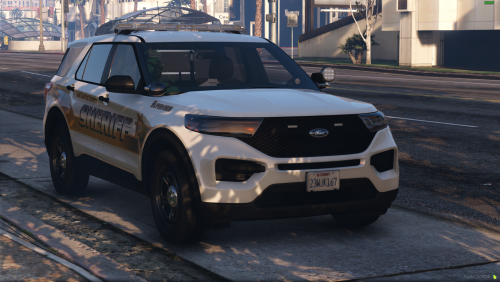 is there a possibility of an update with pushbars?
 -
.thumb.png.fe8d69a4bc49b0d61a3861057c8c7a9c.png) What's the vehicle you used?
What's the vehicle you used? -
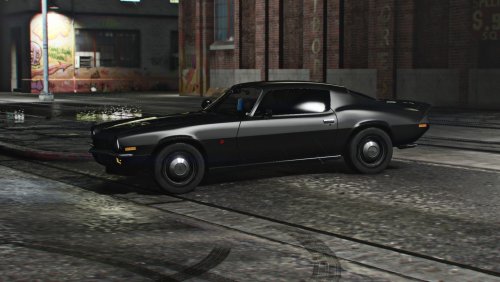 Look great. Would you possibly make an 80's Pontiac Trans Am, or Firebird?
 -
-
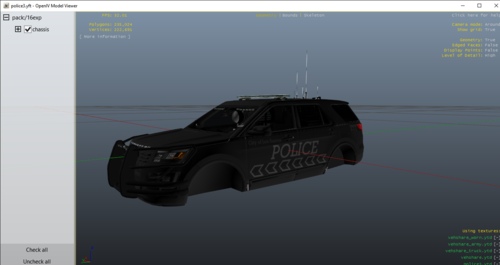 Model?
 -
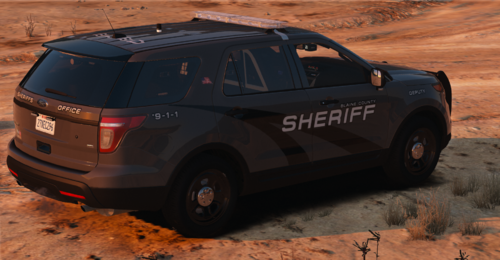 Can you link Deweys liberty pack? I can't find it anywhere.
 -
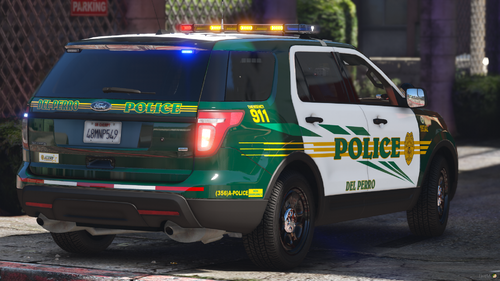 What are the car models?
 -
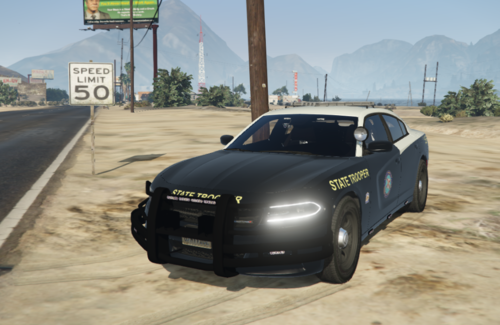
.thumb.png.319de58082e26702b8a04f520a70d5e1.png) There is no Minneapolis state police, it's Minnesota State Police. Minneapolis is a city, not a state.
There is no Minneapolis state police, it's Minnesota State Police. Minneapolis is a city, not a state. -
 I saw a texture for a Taurus, but it only for 1 model, so I made one for the other model. The link to the model is in the zip.
 -
 It says it's corrupt.
 -
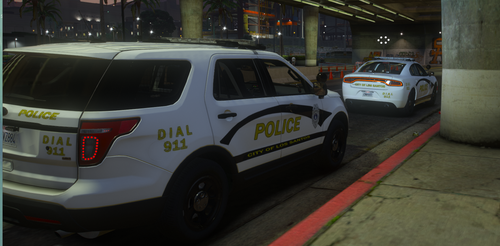 Where's the link to the models?
 -
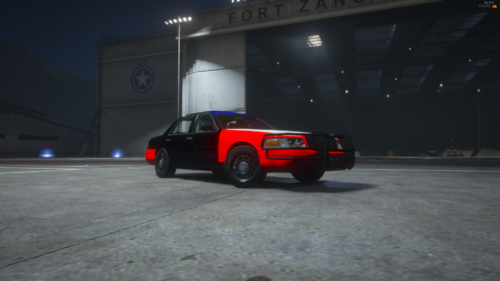 I made this because I was bored, and had nothing better to do. It's just a simple skin so people training to become LEO know where to pit during training. Feel 100% Free to Edit, and use in any Five M Server, or community. Just please don't re-upload.
 -
-
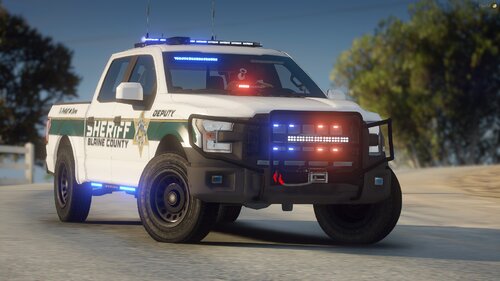 @Parkerbrower80 Just put in a ELS.Xml in with all extras disabled.....
 -
 Wow....
 -
-
-
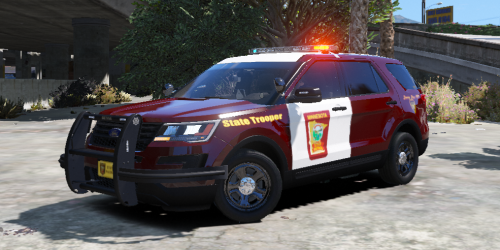 In credits
 -
I didn't see any MSP 2016 Explorer's, and I wanted one because they look pretty nice.
-
-
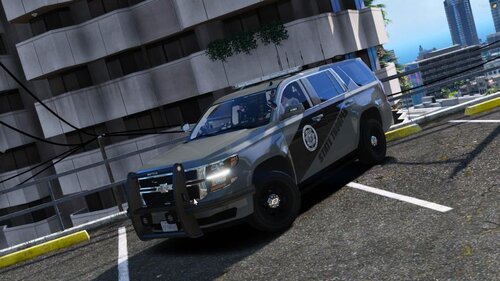 Car link?


.thumb.png.fe8d69a4bc49b0d61a3861057c8c7a9c.png)


.thumb.png.319de58082e26702b8a04f520a70d5e1.png)