
Sheepdogvalley
Members
-
Joined
-
Last visited
Everything posted by Sheepdogvalley
-
It is very possible that the .ytd is not formatted correctly. I experience similar texture loss when using a faulty livery.It's likely that the .ytd file is improperly formatted, which could be causing texture issues. I've encountered similar problems with faulty liveries leading to texture loss. I recommend removing the vehicle associated with the problematic .ytd file to see if that resolves the issue. If texture problems persist, it may be beneficial to run the cache cleaner again to ensure all corrupt data is removed, potentially resolving any lingering issues.
-
Based on the provided Rage Plugin Hook crash log and analyzing the sequence of events and errors, the main issue causing LSPDFR to crash when going on duty appears to be a TypeLoadException related to the RAGENativeUI assembly. Here's the detailed breakdown of the crash: Key Points from the Log: Exception Type: The log mentions an Unhandled Exception during game fiber tick, specifically a System.TypeLoadException. Exception Message: The message associated with the exception is: Could not load type 'RAGENativeUI.ScrollableListBase`1' from assembly 'RAGENativeUI, Version=1.8.2.0, Culture=neutral, PublicKeyToken=null'. This indicates that the game is trying to load a type from the RAGENativeUI library, but it cannot find it. Plugin Affected: The exception is thrown in the ALPR_TrafficCameras plugin during its initialization: at ALPR_TrafficCameras.OptionsMenu.SetupMainMenu() It seems the plugin is trying to use something from RAGENativeUI that is either not present or has a mismatched version. Possible Causes and Solutions: RAGENativeUI Version Mismatch: The most common cause for this type of error is a mismatch between the version of RAGENativeUI that the plugin expects and the version that is actually installed. Ensure that you have the correct version of RAGENativeUI installed: The log indicates the game is looking for RAGENativeUI, Version=1.8.2.0. RAGENativeUI is currently version 1.9.2, which could identify an issue. Corrupted Plugin or Dependency: A corrupted download or installation of RAGENativeUI or ALPR_TrafficCameras could also lead to this issue. Try the following steps: Re-download and reinstall the RAGENativeUI library from a trusted source. Re-download and reinstall the ALPR_TrafficCameras plugin. Dependency on an Outdated Type: If RAGENativeUI has been updated and no longer contains ScrollableListBase (or changed its accessibility), the ALPR_TrafficCameras plugin might be outdated and not compatible with the newer version of RAGENativeUI. Check for updates: Look for an updated version of ALPR_TrafficCameras that is compatible with your current version of RAGENativeUI. For a straightforward resolution, I recommend visiting my mods list on my LSPDFR profile and following the direct link there to update RAGENativeUI from its original source. This ensures you have the most current and compatible version for your setup.
-
To address this issue, I recommend using Simple Cache Cleaner, which you can find via the link on my mods list accessible through my LSPDFR profile. This tool effectively clears your cache, usually resolving any texture loss issues. I frequently use it after installing a problematic vehicle, and it works wonderfully! Be aware that it will sign you out of the Rockstar launcher, but don't worry—you haven't lost any of your data.
-
 I'm not sure how familiar you are with ELS, so I apologize if this explanation is a bit basic. Ensure proper installation of ELS and verify that your vehicle comes with an ELS lighting setup .xml file, such as "policecar.xml", which needs to be placed in the ELS pack default folder. It’s crucial to confirm that this XML file actually functions correctly, perhaps by checking user comments on the download page. If it doesn’t work, consider obtaining a different vehicle that includes a working .xml file. For a selection of vehicles with verified working XML files, feel free to check out my profile where I’ve linked the mods and vehicles I use that you can try.
- 2,699 comments
- 240 reviews
-
-

- 1
-
-
 To potentially resolve the crashing problem, update RageNativeUI to the newest version. You'll find the download link within my mods list. Installing the latest update will rectify compatibility issues that lead to crashes.
- 2,349 comments
- 238 reviews
-
-
- 1
-
-
Are you by chance looking for Top and it's BCSO texture? here's my examples. Hopefully this gets you the answer you need. See below.
- 2,349 comments
- 238 reviews
-
-
- 1
-
-
 You have two options for installing DLC packs in GTA V: using an .oiv file or a zip file. Here are the instructions for both methods: ### Installing an .oiv file 1. **Open OpenIV**: First, ensure you have OpenIV installed. OpenIV is a modding tool for GTA V that allows you to manage and install mods. 2. **Navigate to Tools**: In OpenIV, click on the 'Tools' menu at the top of the window. 3. **Package Installer**: Select 'Package Installer' from the dropdown menu. 4. **Select Your .oiv File**: Find and select the .oiv file that you've downloaded. This is usually a file specifically prepared to be compatible with OpenIV. 5. **Follow the Installer**: The installer will open a new window. Follow the prompts in the installer which will guide you through the installation process. Ensure you choose the correct mods folder for the installation if prompted. 6. **Complete Installation**: After following the prompts, your DLC pack will be installed, and you can close OpenIV. ### Installing a zip file (Drag and Drop Method) 1. **Extract the Zip File**: First, extract the contents of the zip file you downloaded. This can typically be done by right-clicking the zip file and selecting 'Extract All' or using a program like WinRAR or 7-Zip. 2. **Locate the 'mods' Folder**: Open your GTA V directory. This is typically found in 'C:\Program Files\Rockstar Games\Grand Theft Auto V' or wherever you have the game installed. Within this directory, navigate to the 'mods' folder. If you don’t have a 'mods' folder, you will need to create one. 3. **Drag and Drop Files**: Drag the extracted files from your zip file directly into the 'mods' folder in your GTA V directory. 4. **Edit the DLClist.xml**: Navigate to 'mods/update/update.rpf/common/data/'. You will need to edit the 'DLClist.xml' file within this directory. Open it with a text editor like Notepad++. 5. **Add the Line for the New DLC Pack**: You will need to add a line of code that points to the new DLC pack. This is usually provided in the instructions with the mod or on the mod’s webpage. 6. **Save and Close**: After adding the necessary line to the 'DLClist.xml', save the file and close the text editor. Both methods will allow you to add new vehicles, weapons, or missions without affecting the core game files, maintaining stability and compatibility. Always remember to backup your game files before making modifications to ensure you can restore the game to its original state if anything goes wrong.
- 80 comments
- 28 reviews
-
First possibility: GTA V received a title update a few days ago, and as a result, your version of RAGE Plugin Hook may not be compatible with this latest version of the game. RPH will need an update to function properly with the new game patch. You can obtain the latest version of RPH through the LSPDFR plug-in download file. This is, of course, if you have installed the latest update for GTA V. To check your current version of GTA V, navigate to the game’s installation directory, right-click the 'GTA5.exe' file, select 'Properties', and then view the 'Details' tab where the version number will be listed. If that doesn't address the issue, here's the next option: It seems like there could be a mismatch between the activation code RAGE Plugin Hook is asking for and the one managed by Steam's DRM. You can try to locate your serial key in Steam by right-clicking GTA V in your library and selecting 'Manage' > 'CD Keys'. Alternatively, launch the game through the Rockstar Games Launcher to ensure it's activated on your account. Here are a few things you could try: Find the Serial via Steam: Sometimes, Steam will display the CD key or serial for the game in the library. Right-clicking on GTA V in the Steam library and selecting 'Manage' > 'CD Keys' may reveal the code. Rockstar Games Launcher: If the game was added to the Rockstar Games Launcher library, it might need to be launched from there once to ensure it's properly activated on the account. Run as Administrator: Make sure to run both Steam and RAGE Plugin Hook as an administrator. This can sometimes resolve activation issues. Verify Integrity: Use Steam to verify the integrity of the game files. This will check for any missing or corrupt files that might be causing issues with RAGE. RAGE Compatibility Mode: Try setting RAGE to run in compatibility mode for an older version of Windows. Reinstall RAGE: Uninstall and then reinstall RAGE Plugin Hook to see if this clears up any activation issues. For more information or guidance, post title update, you can find links on my LSPDFR profile or visit my website for an "After Title Update" guide.
-
Regarding your setup with the custom `gameconfig.xml' 2x, that’s a solid choice, so definitely keep that. It's optimized well for handling more vehicles without overloading the game. About the "Added Traffic" mod you're considering: It hasn’t been updated since 2020, and given the number if major game updates and additions, including police vehicles, there’s a significant risk of compatibility issues, which some users have already reported. This could potentially lead to problems like fake cops driving around due to how it integrates traffic mods with the latest game dynamics. With these concerns, I wouldn’t recommend using this mod without an update as it might introduce more headaches than benefits. Ultimate Backup is certainly a proven mod and simple editing of .xml files which are abundant on LSPDFR to quickly customize your set up by drag and drop, then just add in your vehicle names. As for 5Real SP to get up-to-date cars in traffic without much hassle, it's a highly regarded mod that brings a lot of realism and updated vehicles into the game. However, it's quite resource-intensive. If you're looking for something that keeps your game running smoothly while enhancing realism, 5Real is worth considering, provided your system can handle it. I don't have any first hand experience with 5Real, so I have no real opinion on it.
-
I just noticed in the installation README's prerequisites that they suggested a custom gameconfig.xml which is no longer available. Have you made any modifications to your gameconfig.xml? Using an outdated or incorrect version of this file can lead to various issues, including unexpected NPC behavior like civilians driving police vehicles. It’s crucial to ensure that the gameconfig.xml used is compatible with your current game version and mods setup. Additionally, you mentioned wanting add-on cars to appear in normal traffic. This requires careful configuration and typically involves adjustments to multiple files to enable add-on cars in traffic. Here's a list of files you might need to alter: gameconfig.xml: Adjusts overall game settings to handle more cars. vehicles.meta: For defining vehicle properties and behaviors. carvariations.meta: Manages different variations and paint jobs for vehicles. popgroups.ymt: Controls which vehicles spawn in traffic and where. popcycle.dat: Dictates the population and type of vehicles that appear in different areas and times. As you can see, integrating add-on cars into normal traffic is quite complex, and if you’re not familiar with these modifications, it could significantly impact your enjoyment of the game due to ongoing issues. If your goal is simply to have add-on emergency vehicles appear in traffic, you might consider using a simpler solution like Ultimate Backup by Bejoijo. This allows you to easily add your vehicle names to replace vanilla ones in traffic spawns. While this solution works well, be aware that having many high-quality graphics vehicles spawning throughout the map can be demanding on your system. Make sure your graphics card is capable of handling this increased load. Also, there is a limitation where only about 40 ELS vehicles can be spawned at one time in GTA V.
-
Thanks for sharing the link. After reviewing the add-on files, it's clear there are several challenges with how it's structured—particularly conflicts with vanilla vehicles. Additionally, the ELS folder being empty is less than ideal, although not a game-breaker. It’s evident that a lot of effort went into compiling this pack, as seen in the detailed README and the extensive list of vehicles along with their direct links. Given the complexities and the setup issues observed, it might be more practical to install the vehicles individually rather than using the entire pack as is. This method could help minimize potential conflicts and simplify the installation process. The provided links in the README will facilitate this. Opting for individual installations allows you better control over which vehicles are integrated, ensuring each functions correctly in the game without broader issues. This approach is particularly useful for managing packs that pose problems. If you decide to uninstall the pack, remember to remove the corresponding <Item> line from dlclist.xml to see if that resolves the issue of civilians driving police vehicles around pretending to be cops and getting free coffee.😂
-
Hey, I totally get that—it can be pretty daunting to handle such a big mod pack, especially when you’re trying to merge everything into one .rpf. It’s great that you’ve managed to navigate through copying and pasting into the correct documents. However, it sounds like this approach might become too cumbersome over time. Looking for another pack could be a good move. If you want, I can help you find a car pack that’s known for being user-friendly. Just tell me your preferences, and I can tailor the search accordingly. Also, if you run into any specific issues with a new pack, feel free to reach out. I have some good car packs on my mods list that might interest you. The download is almost finished, so I'll be able to dive into it soon!
-
My Pleasure, happy to help. That's a sizable file at 2GB, so it'll take a moment to download. Given the complexity, I'd advise against editing these files if you're not completely comfortable with the process. Modifying the `content.xml` is just the beginning; you'll also need to adjust several other files within the `dlc.rpf` to ensure everything works correctly. These include `vehicles.meta`, `handling.meta`, `carvariations.meta`, and `carcols.meta`. Each of these files plays a crucial role in how vehicles behave and appear in the game, and making changes can be intricate and risky if you're not well-versed in their structures.
-
@tgif You can't simply remove vehicles from a DLC pack without updating the content.xml file. If the removed vehicles (police,sheriff etc) share names with standard in-game police vehicles, it will lead to conflicts when the game tries to spawn these vehicles. Managing and editing content.xml files for custom DLC modifications is complex. Unless you're experienced with crafting and modifying DLC files, proceed with caution—it's a complicated process, and mistakes will impact your game's stability. I recommend reinstalling the car pack. If vehicles like "police" or "sheriff" aren't actually in the add-on dlc.rpf, then remove their files, ytd yft hi_yft. If they are in the dlc.rpf, simply renaming them won't suffice—you'll need to make extensive modifications to content.xml and handling.meta among others. If this car pack isn't structured correctly, you might consider trying a different pack that fits your needs better. Could you also provide a link to the car pack you're using? I'd like to analyze it myself to offer more specific advice.
-
Hey there, I'm wondering if there might have been a mix-up with your vehicles.meta file when you were installing the replacement cop cars. Could you check if you perhaps replaced the entire vehicles.meta file instead of updating specific entries for the vehicles? This can sometimes cause issues with how vehicles are assigned in the game, leading to scenarios like civilians driving police vehicles. If you're not sure, you might want to compare your current vehicles.meta file with the original or a backup if you have one. You can use Notepad++ to compare your current vehicles.meta file with the original. This tool has a helpful 'Compare' plugin that makes it easy to spot any differences or unintended changes. This would be a good place to start. Please let me know what you find, and we can go from there.
-
@Meowtallica After confirming in the ELS documentation, it appears that mouse controls for interacting with the control box are not available. The ELS (Emergency Lighting System) User Guide doesn't mention any mouse controls that interact directly with the control box. It provides extensive details about keyboard, controller, and joystick inputs for various operations but does not include instructions or configurations for mouse-based interactions. It seems the system is primarily designed for use with keyboard and controller inputs.
- 2,699 comments
- 240 reviews
-
@Meowtallica Here are the ELS Mouse ID Numbers. If you look in the install files, you'll find all the ID numbers in the Documentation folder.
- 2,699 comments
- 240 reviews
-
I'm sorry for the mix-up—I was handling multiple crash logs yesterday and ended up looking at the wrong one for this query. My apologies for the confusion! After analyzing the correct log, it would appear there are no outstanding issues. My mistake.
-
Removed incorrect response.
-
I'm not an expert with crash reports, but when I can't find any problems in my LSPDFR install but I am getting crashes, I have found clearing the game cache to be the trusted fix. Your crash report shows an EXCEPTION_ACCESS_VIOLATION error, which typically indicates that GTA V is trying to access memory that it shouldn't. This can be caused by various issues, including corrupted game or mod files, or conflicts between mods. Here's a tailored approach to troubleshooting your specific problem: Clear the Game Cache: Start by clearing GTA V's game cache. This often resolves issues as it removes potentially corrupted temporary files. Verify and Update: Ensure your game and mods, especially LSPD First Response, are up-to-date. Use your gaming platform to verify the integrity of the game files to repair any corrupted or missing files automatically. Mod Management: Temporarily disable other mods to see if the problem persists. If the crash stops, reintroduce mods one at a time to isolate the culprit. Driver Updates: Check that your graphics and system drivers are current, as outdated drivers can also lead to crashes. There is a good, simple, working tool to clear your cache, I have it listed in my "mods list" linked on my profile page.
-
I'm not an expert with crash reports but hopefully this helps. Your crash log indicates a critical issue with the "Cop Holster" plugin in LSPDFR. The plugin encountered an "Unhandled Exception During Game Fiber Tick" caused by a `System.TypeInitializationException` related to the `Rage.Model` class. This was specifically due to a `System.AccessViolationException`, suggesting an attempt to access protected memory, which often indicates corruption in other memory areas. To resolve this, consider these steps: 1. **Update or Reinstall the Cop Holster Plugin:** Ensure you have the latest version of the plugin, or try reinstalling it to fix potential file corruption. 2. **Verify Game Files:** If the issue persists, verify the integrity of the game files to ensure all game files are correct and intact. 3. **Remove Conflicting Mods:** Check for other mods that might conflict with the Cop Holster plugin. Disable these mods to see if the issue resolves. If problems continue after these steps, reaching out to the mod developer or community forums for more specific guidance may be necessary.
-
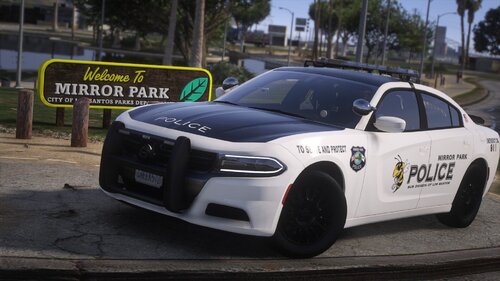 To ensure a seamless installation of this downloadable content (DLC) add-on pack, kindly follow these steps: * Locate the Designated DLC Folder: * Access your Grand Theft Auto V installation directory and navigate to the following path: Grand Theft Auto V\mods\update\x64\dlcpacks. * Place the DLC Files: * Carefully transfer the downloaded DLC add-on pack files into the designated DLC folder you located in step 1. * Update the DLClist.xml File: * Using an archive editor tool, open the update.rpf file found within the Grand Theft Auto V\mods\update\update.rpf directory. * Locate the DLClist.xml file within the archive. * Introduce a new line within the file, incorporating the following syntax, but be sure to replace "MirrorPark" with the precise name assigned to your DLC folder: <Item>dlcpacks:/MirrorPark/</Item> * After making the necessary modifications, save the DLClist.xml file. You can view all of my configuration files for all my mods, including the DLClist.xml by going to my LSPD profile.
- 32 comments
- 2 reviews
-
請嘗試檢查您下載的ELS文件中的PDF,裡面詳細介紹了所有按鈕和鍵位,這可能對您有幫助。看起來您可能在尋找 '['、']' 或 'L' 鍵。如果這對您有所指引,請讓我知道!
- 2,699 comments
- 240 reviews
-
-