



Officer Toshi
Insiders
-
Joined
-
Last visited
Everything posted by Officer Toshi
-
rename /mods/ to /_mods/ if it doesnt crash on load it means you've installed a mod incorrectly if it does you've installed rph and/or lspdfr incorrectly either way it'll narrow the problem down 🙂 let us know
-
do the numbers in here (specifically intensity=xx.xxxx) control how bright they reflect, and which line would control the distance?
-
EUP has been installed incorrectly, reinstall EUP
-
weird. this suggests its a compulite problem: but your folder looks ok. re-download compulite: https://www.bejoijo.com/post/compulite and overwrite all files with the downloaded ones then update RageNativeUI: https://github.com/alexguirre/RAGENativeUI/releases/tag/1.9.2 then try
-
-
can you screenshot your entire GTAV root folder (where the exe is), the '/plugins/' folder and the '/plugins/LSPDFR' folder youve incorrectly installed one or more plugins
-
update RageNativeUI: https://github.com/alexguirre/RAGENativeUI/releases
-
try updating SuperCallouts, its been updating since your version: be sure to put the latest depencies in the root folder too:

-
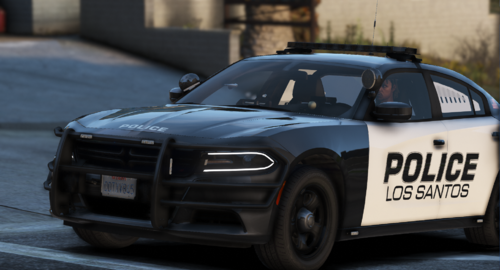 very nice. i seem to have a problem where the 'police' text seems very jagged and almost liquidy-fluidy when zoomed a lil out at angles. not sure how to fixes
 -
use you dont have to use its vocal function, it comes with a radio too similar to the old policesmartradio, just press c.
-
 **updated review** super excellent high quality callout pack. huge quantity of selection of calls without sacrificing any quality, each callout played seems well thought out. impressive and definitely my favourite callout pack to date! featured in S3E3 of LSPDFR Ocean-05 my cop show:
- 316 comments
- 60 reviews
-
-

- 1
-
-
 good callouts, nice variety. become one of my favourite essentials. thanks for making these 🙂
- 201 comments
- 18 reviews
-
- rph
- lspdfr callout
- legacy
- rph
-
Tagged with:
-
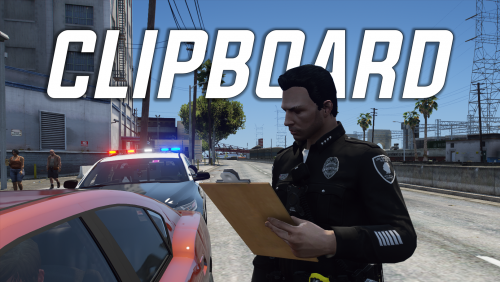 super cool idea!
 -
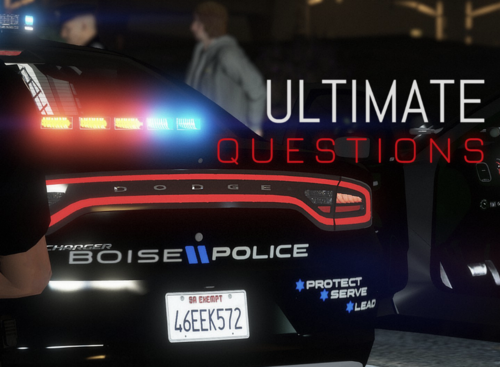 installed this recently, love it so much. havent learned to navigate it very quickly yet or figure out a use for a lot of it but definitely adds a little more realism to your questionings as seen here:
- 184 comments
- 72 reviews
-
-

- 1
-
-
 sorry for the delayed reply but sure: however, Enhanced Native Trainer has an option that does the same as this script so i no longer need it, just giving you the ini contents incase anyone else has similar problem so you can see any correlation 🙂
 -
 is there a way to move the position of the cam overlay? i'd like it to be a little further down 🙂
- 168 comments
- 35 reviews
-
hi, can't seem to get it to work. i've tried changing the key to no avail, theres no error messages. it just.. doesnt do anything? RagePluginHook.log
-
 is there a way to call air overwatch now heli assist updated? air.xml is just for the ordinary pursuit bird right? i seem to remember I:D having an air overwatch thingy file i seem to have lost it
- 1,360 comments
- 85 reviews
-
-
 is there a way to adjust the damage? seems a bit silly i keep dying in one shot before i can even unholster. i'm literally wearing a bullet proof vest?
- 631 comments
- 56 reviews
-
-
post your ragepluginhook.log
-
my specs are much worse than yours believe me, there's a reason my vids are 30fps xD but seems to run fine. you just may have to be choosy about which plugins you use. but the only thing i'd look at changing as others have mentioned is getting an additional SSD to install GTA on
-
I actually can't see anything in particular in your RPH causing it but I do notice you're using some outdated plugins. My best suggestion is to take take all your plugins out of /plugins/ and /plugins/lspdfr then put them back in one at a time. load the game, play for half an hour, unloaded LSPDFR, put another plugin in, reload LSPDFR and play for another 30 minutes. Unitl you start crashing, then you'll know which plugin is the culprit. I will suggest you download the most up-to-date versions of those plugins though rather than just using your old files so be sure to check each plugin's respective pages.
-
absolutely zero complaints, this is just perfect. was struggling a little at first until I realized my custom.ini was set wrong, nice little thought you had there including en-IMMERSIVE. thanks!
- 1,360 comments
- 85 reviews
-
-
- 1
-

.thumb.png.9d0943161b37f863c291d6d6664edefb.png)
