aerodynic
Members
-
Joined
-
Last visited
Everything posted by aerodynic
-
-
-
 This is probably the best animation modification I've seen in my 15 years in the community. It fits so seamlessly as if it were included in the base game. I really look forward to seeing what you have planned for the radio walkie talkie animations! :)
- 87 comments
- 19 reviews
-
 This is a really useful mod and it has good customization. I was able to remove the key fob animation and link it with an animation through SimpleEmotes to have a key entry animation for my 1980s setup that works flawlessly.
 -
-
-
 20260611200916_1.jpg
-
 20260611200842_1.jpg
-
 20260611200803_1.jpg
-
 20260611200642_1.jpg
-
 20260412220225_1.jpg
-
 20260412220054_1.jpg
-
 20260412215636_1.jpg
-
 20260412215258_1.jpg
-
 20260405214924_1.jpg
-
 20260405214833_1.jpg
-
 20251224232027_1.jpg
-
 20251207223539_1.jpg
-
 20251207223234_1.jpg
-
 20251207223158_1.jpg
-
 20251207221744_1.jpg
-
 20251129220049_1.jpg
-
 20251128215458_1.jpg
-
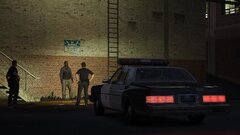 20251128213547_1.jpg
-
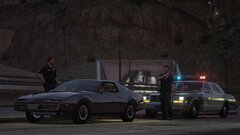 20251128211222_1.jpg
-
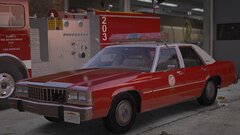 20251127220609_1.jpg
-
-
From the album: aerodynic's workshop
-
From the album: aerodynic's workshop
-
From the album: aerodynic's workshop
-
From the album: aerodynic's workshop
-
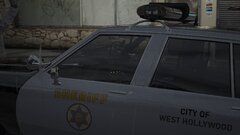
 Hi I don’t do fictional/film based vehicles, but I will be releasing more California agency cars in the near future.
 -
If you’re insinuating that the belt is ripped, can you please DM me and let me know who it came from. I was sent the model a few months ago from a fan, but I’m not aware who the original creator is. I only made a few edits of my own to it, but if it’s a ripped model I’ll gladly remove the photos including it. ***Edit: I’ve tracked down who the creator is. I’m going to shoot them a DM and follow up with them. Thanks for bringing this to my attention.
-
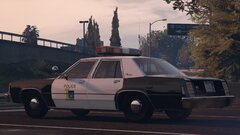
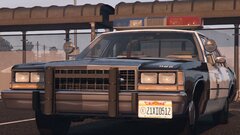
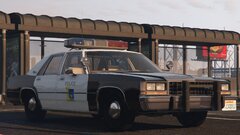
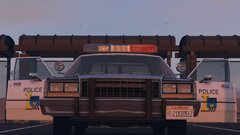
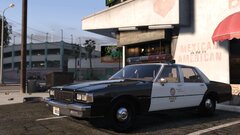
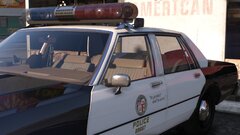
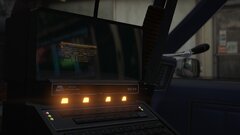
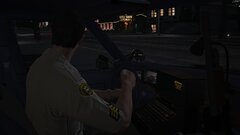
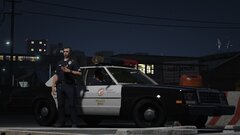
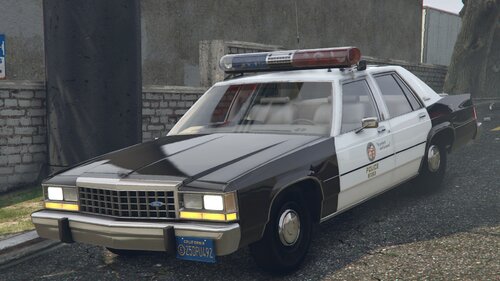
This vehicle is an exact replica of how a patrol shop would've been outfitted by the Los Angeles Police Department from 1984-1987. This is only a taste of what else is to come! Also if you’re wondering why there isn’t a division number included on the trunk lid or roof, it’s because LAPD didn’t start adding the aerial division numbers until around 1988. After 1988 or so, this vehicle would have been equipped with the division numbers on the trunk lid, but I chose to make this true to the period (1984-1987), so I didn’t include them. Thank you to the LoreHub community for all their help with reference documentation and period photos! This vehicle has multiple extras for variety and are set to spawn with variation! If you wish to toggle extras yourself, please see the below list for which extras are used, as some of them may be hard to spot if you do not look closely! (Extras 1-6 for division numbers on light bar feet) extra_1: Division 01 (Central) extra_2: Division 02 (Rampart) extra_3: Division 06 (Hollywood) extra_4 Division 12 (77th Street) extra_5 Division 14 (Pacific) extra_6: Division 24 w/push bar (Central Traffic) extra_11: Handheld spotlight extra_12: Floor mounted shotgun If extra 6 is spawned, you will not be able to see any of the other division numbers. This is intentional as the only vehicles equipped with push bars were traffic units. I have a lot of upcoming work that I can't wait to share with y'all! Please check out my Ko-Fi page if you wish to follow what's going on! https://ko-fi.com/pcodecreatives Required or else siren lights won't function "Sirensetting Limit Adjuster" (SSLA) DiscordJoin the Chiheb Bacha Discord Server!Check out the Chiheb Bacha community on Discord - hang out with 4495 other members and enjoy free voice and text chat.You will need to join this Discord server to get the latest functional version of SSLA. Sorry there is no other version available publicly aside from here. Recommended for working dials and windshield wipers: https://www.gta5-mods.com/scripts/vehfuncs-v
-
-
-
-
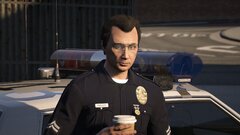
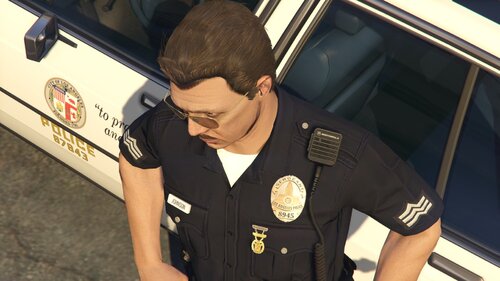 This is modeled after what appears to be some version of the Motorola NMN6250A microphone. I used a reference photo of an LAPD officer and multiple other photos which show it to have been a fairly popular choice for police officers in the 1980s and 1990s. I've removed the antenna screw and the little toggle button that are supposed to be at top as it appears in period photos, they are not present on the radio. This can replace pretty much any EUP radio slot and you should be able to rename it to a slot of your choosing. You can toggle between 3 different textures which switch between the different configurations. Standard on the shoulder, front chest mount, and over the shoulder chest mount. Feel free to edit the model to your liking if you have specific belt setups, but please give appropriate credits and please don't redistribute as a paid asset by itself, as it is free for anyone to use.
 -
These are amazing! Have you ever thought of making new police radio animations? It would be great if we could have left handed animations for the shoulder mic, handheld radio, etc. so we can utilize our weapon in our right hand and radio animation at the same time.
- 87 comments
- 19 reviews
-
-

- 2
-
-
Tried all of these, still no luck :/
-
Hi, doesn't seem to make a difference unfortunately. I do have all 4 of those plugins.
-
No difference.
-
Hi, looks like it hasn't changed anything. Here's another log. RagePluginHook.log
-
Exactly as the title says, I have this issue where the log file will be populated constantly with "LSPD First Response: Could not find game window.". I also noticed that I can not launch the game and then load RPH, or else my RPH console will not work. The only way to get RPH to work properly is to load the game through launching RPH itself. Here's my log file as well. RagePluginHook.log
-
From the album: aerodynic's workshop
-
From the album: aerodynic's workshop