BadBrad134
Members
-
Joined
-
Last visited
Everything posted by BadBrad134
-
They would be missing out on a lot of money if they didn't. Unfortunately, there won't be a PC port on release day.
-
If you have a trainer, I always activate super run to make myself go faster.
-
Try reinstalling LSPDFR
-
Did you use the uninstall file in the NVE fold that you downloaded?
-
Your best bet is just uninstalling NVE. It's very unstable in my experience.
-
You have to add your downloaded cars in the NVE_vehicle file on OPEN IV
-
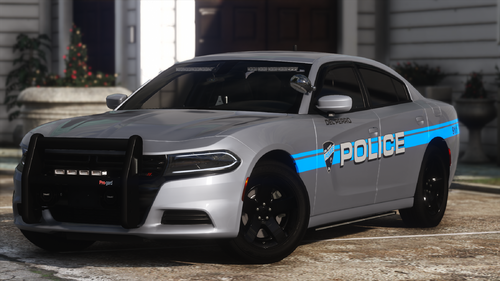 Sharp! 👍
 -
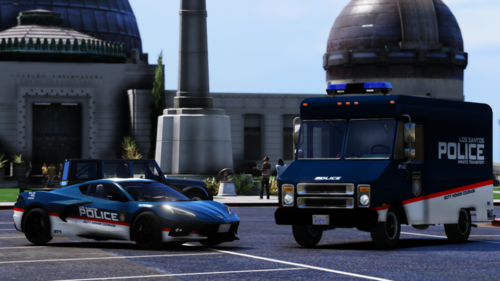 I love this pack great work!!! I don't know how you did it, but I love that the dashboard lights don't blind me.
- 72 comments
- 12 reviews
-
-
So NVE has a vehicle file as well when using OpenIV. You have to replace the files in there as well. Thats how i got it to work.
-
Are you using NVE by chance?
-
-
-
-
From the album: Randoms
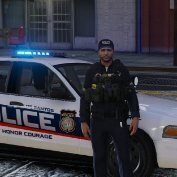
Don't stop even in the rain -
-
-
-
-
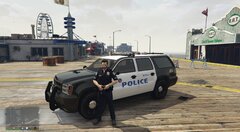
From the album: Randoms
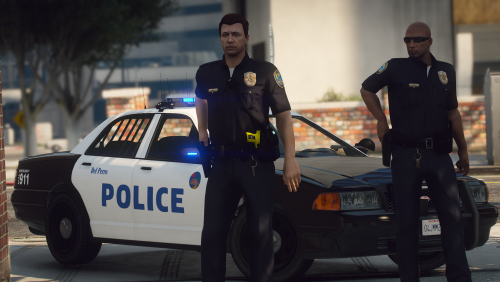
Keeping Del Perro safe -
.thumb.png.8d67435baf4bb6a877f71817163f62ad.png) Anyway of getting a lore friendly skin? Looks awesome either way 😀
Anyway of getting a lore friendly skin? Looks awesome either way 😀 -
 Oh ok I was wondering if I needed to download it. I used simple trainer to get there. Thanks.
 -
What is the the purpose of this mod? I can teleport to the island without it, i'm just curious.
-
-
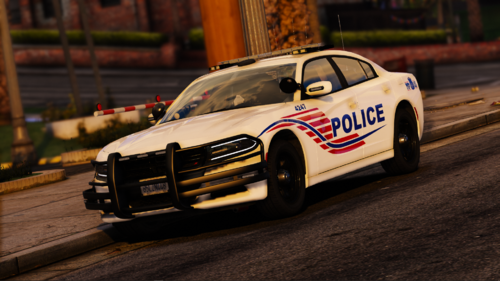
I use all of Bejoijo stuff


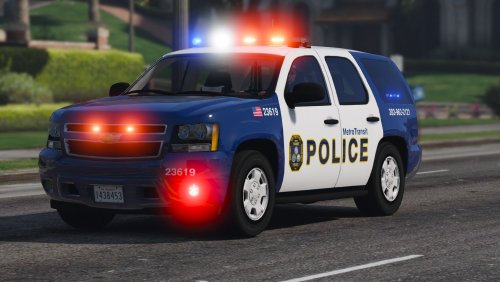
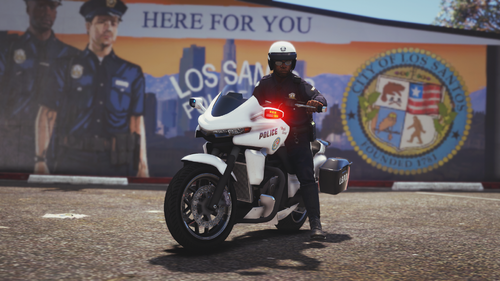
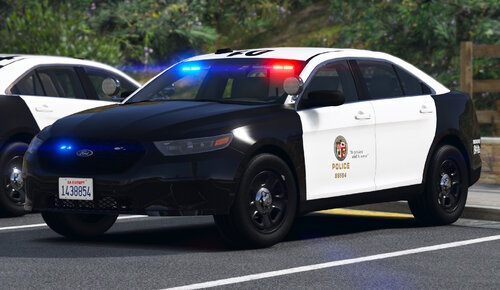
.thumb.png.66f17676ab5e9fd0590220ce1a02f7b6.png)
_B8SQBS.thumb.png.73754ee839d30c157ea4236ec745469a.png)
.thumb.png.8d67435baf4bb6a877f71817163f62ad.png)