
X.Gona.Git.Ya
Members
-
Joined
-
Last visited
Everything posted by X.Gona.Git.Ya
-
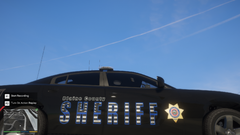
From the album: BCSO Livery Thin Blue Line
-
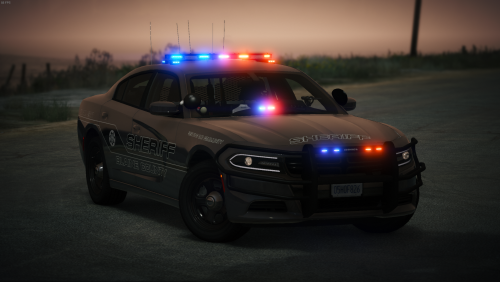
Just trying out some Thin Blue Line liveries. I tried it in white and black. The black makes it pop a bit more. Still not happy with it. WIP
-
Grand Theft Auto V Screenshot 2020.03.09 - 21.34.08.67.png
-
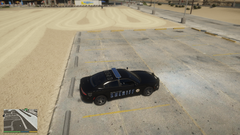 Grand Theft Auto V Screenshot 2020.03.09 - 21.33.59.44.png
-
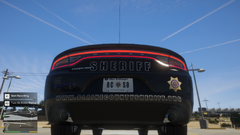 Grand Theft Auto V Screenshot 2020.03.09 - 21.33.46.70.png
-
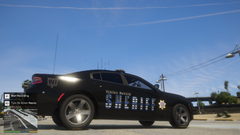 Grand Theft Auto V Screenshot 2020.03.09 - 21.33.38.92.png
-
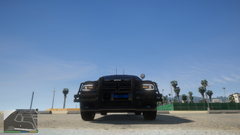 Grand Theft Auto V Screenshot 2020.03.09 - 21.33.28.79.png
-
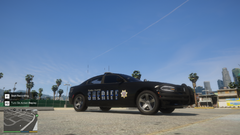 Grand Theft Auto V Screenshot 2020.03.09 - 21.33.18.71.png
-
-
From the album: BCSO Livery Thin Blue Line
-
From the album: BCSO Livery Thin Blue Line
-
From the album: BCSO Livery Thin Blue Line
-
From the album: BCSO Livery Thin Blue Line
-
From the album: BCSO Livery Thin Blue Line
-
 No problem. Just was curious. I know people use different templates for the same model. thanks
- 127 comments
- 24 reviews
-
I was wondering what template you used for your 2018 charger? I'm asking because I used the one provided to make my own skin and my graphics don't fit. I thought it was an error on my part (it can happen) but then I imported your original livery directly from the model from openiv and it does not line up at all. Do you have a different template you use for the 2018 model? Thanks
- 127 comments
- 24 reviews
-
i use photoshop and set my image size to 4096x4096 and mine come out smooth
-
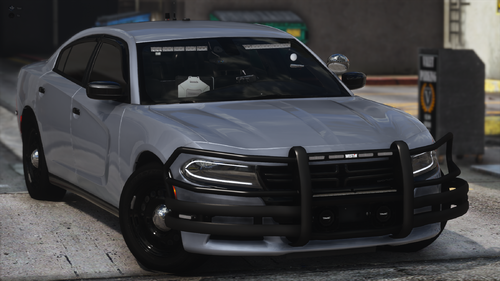 i actually used a custom template for mine so i can use custom plates and didnt have that issue
- 175 comments
- 25 reviews
-
edit the reflections in the els. find the one for the amber traffic advisor, they will say blue or red and change it to amber
- 175 comments
- 25 reviews
-
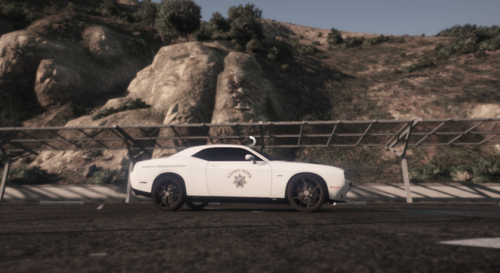 SAHP Slicktop Challenger Liveries. These are juat a few liveries I made to go with FROST88's Challenger, I created several Liveries . 1) Lore Friendly Black and White Variant 2) Solid White Lore Friendly Variant 3) Black Texas DPS variant 4) Lore Friendly White over black variant 5) Lore Friendly White Texas DPS variant https://imgur.com/wtcSD5I https://imgur.com/9YHyI2D https://imgur.com/Vto3KCy https://imgur.com/E8agvat
 -
I could. But I fixed it. I kept messing with my setting and re calibrated my monitor and set my setting to directx 10.1 and they disappeared
-
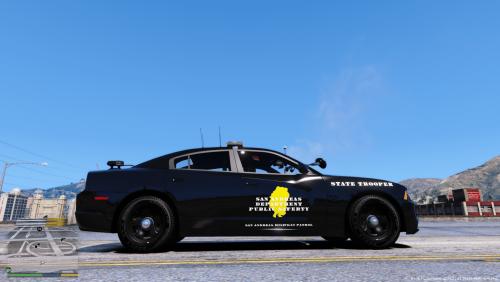 I know it is not the correct text font. 🙂 I was just using one I thought looked good. I wasn't trying to get that detailed. lol
 -
Please let me know if this is any better. Thanks for the constructive criticism. Let me know if this is any better
-
-
San Andreas is in California
-
I liked the look of the Texas DPS and wanted to make a variant of them for the SAHP for my game Original Model here: Custom License Plates here:
-
hmm. It just depends on how you installed your stuff. U didn't use a mods folder?
- 175 comments
- 25 reviews
-
Depends on what your carvation is for that vehicle. If you open up carvations.meta and search for whatever car this is ( e.g. Sheriff) look at the set of 4 number near the beginning. The first row of three defines the color of the car, the second set of three defines the color of the interior, etc. Change the first set of three number to whatever color you would like. Here is a link to the three digit color codes https://wiki.gt-mp.net/index.php/Vehicle_Colors
- 175 comments
- 25 reviews
-
usually H on the keyboard turns headlights off and on
-
Looks good so far. U should consider adding unit number or BCSO to the roof for helicopter to see from the air. also, both suv's have BC-30 and the charger has bc-90/ I don't know if that is intentional or not. Also, the sheriff badge on the Tahoe is about the same size as the sheriff letters and looks good, the others, it appears bigger than the letters and out of proportion. The rear plates look very generic compared to your nice models. I just posted some custom BCSO plates if u want to use them. Same badge and everything. The tahoe rear door is green and the others are white. The others the door is white and the edging is green. Overall pretty sweet skin.
-
-
-
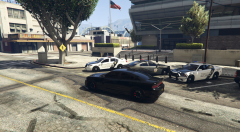
my 2019 hellcat out in front of the LSPD. Got a few LSPD cruisers and 2 BCSO, including the new 2017 Colorado BCSO 4x4