


De'wolf
Members
-
Joined
-
Last visited
Everything posted by De'wolf
-
it has more to do with how you arrest a ped. do you use the default lspdfr arrest by pressing and holding (e) or do you use the STP menu to arrest the ped(or any other plugin that takes over). using the default arrest works if you transport the prisoner yourself or have the prisoner transported. with transport, again you should use the default backup menu to ask for transport (B) if you use smartradio and you have Ultimate backup installed it will again use a different system i think(still need to test) but using the (B) menu to call for transport works like a charm. so only the default LSPDFR arrest, frisking, transport etc. is synced to your profile. if you have Stoptheped installed make sure you open the .ini file and set takeoverallarrests=no when you get to the point you want to arrest the ped just don't click "arrest ped" but instead press and hold (e) to arrest after which you can do another frisk by holding (Q) when you call for transport with (B) make sure you put the ped on it's knees by pressing (Q)otherwise transport is not available. for alcohol and drugtest when already arrested, I use traffic policer keys (Lshift+O for alcohol / Lcontrol+O for drugtest) otherwise if not arrested I use the STP menu as I feel it is more user friendly. hope this helps.
-
Yes exactly, so only lspdfr default arrest (E) counts as an actual arrest. I have stoptheped installed and i have it set to take over all arrests so none of them are synced to my profile. if i turn it off and make sure none of the other plugins interfere with the default arrest system, it works. sucks because that basically means most members will never use it much. I hope they will expand on it.
-
Hi, I have difficulties trying to understand why my arrests are not synced with my activity page. the mods i have running are as followed: stop the ped ultimate backup lspdfr+ computer+ interaction+ traffic policer policesmartradio ALPR Lite i tried several ways to arrest; using the lspdfr default arrest/frisking (E) Using the stoptheped menu using the interaction+ menu 1 one of them seemed to have worked and is shown on my activity page and i guess it's the first one. my question is, is this normal or am i missing something? One would assume that it should not matter which way you arrest a ped. also there is the (interaction)computer which can be used with Y or the computer+ which is the only one linked to courtcases. can you please guide me through this maze because i really feel i'm missing something here and it's ruining my immersion 😛 thank you, love the mod!
-
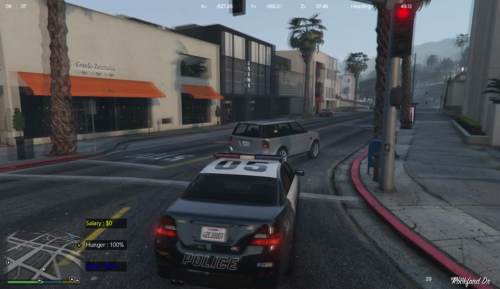 I think what you are asking for is ELS(emergency light system) that plugin basically gives you advanced options/modes to use for your emergency lights . not sure if this is what you men't but I hope this helps.
 -
I am having the same problem. should this be fixed by now or is this ongoing? I think this is a really cool feature especially if this links back to a ranking system in-game. Ranks based on the lspdfr statistics that will give you access to certain uniforms and cars for example. The court system was nice but this can really contribute to that massively as the weight of the conviction could influence statistics and eventually rank. this gives players a reason to thoroughly do their jobs to get a higher conviction and get that promotion 😉 keep up the good work!

