


trewq34
Members
-
Joined
-
Last visited
Everything posted by trewq34
-
-
-
-
-
-
-
-
-
-
-
-
-
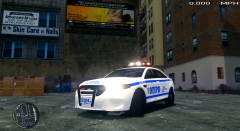 Is it the ones used in an accurate NYPD interior?
 -
.jpg.965d98d451b844cb12f0c080e3f937fc.jpg) See below Thank you for partaking in a social experiment and for pointing out that you can spot the obvious grammar mistake, but not the one that requires even a slight education to notice.
See below Thank you for partaking in a social experiment and for pointing out that you can spot the obvious grammar mistake, but not the one that requires even a slight education to notice. -
that models no sense
-
I use Microsoft Paint for all of my textures. Works great.
-
Step 1: Get permission to convert the lightbar Step 2: Convert it Step 3: Figure out how to map the lights for V Step 4: Map the lights Step 5: Place the lightbar on a car Step 6: If the person you got permission from lets you release the lightbar, release the car (if you want) Sorry I can't be any more helpful than that. There is very little known about how lights work in GTA V at the moment, so either wait for F5544 to release his car so you can investigate, use his tutorial thread (which is very complex) or investigate current V lightbars to see how to map the lights.
-
it's in x64e.whatever I believe
-
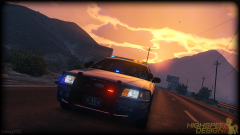 You what? Yes it did. Maybe you just don't know about it, but bypassing a lock is easy..... just need a piece of software that is readily available on the internet that most people use to install car mods.... Also, why would there be a need to rip an unlocked model?!?!?!?!?!?!?!?!?!?!?!?! That's one of the stupidest things I've been unfortunate to read
 -
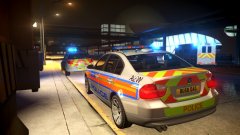 until you start getting shot at by a granny in a car
 -
Welcome to Los Santos
-
It doesn't really make a difference where he posted this, since it most certainly shouldn't have been posted. It sounds more like something that something that should have been PM'd to FinKone.
-
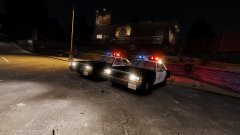 That's where you're wrong.... ...this is how a car mod is supposed to look: http://www.gta4-mods.com/vehicles/crown-victoria-undercover-beta-01-f32365
 -
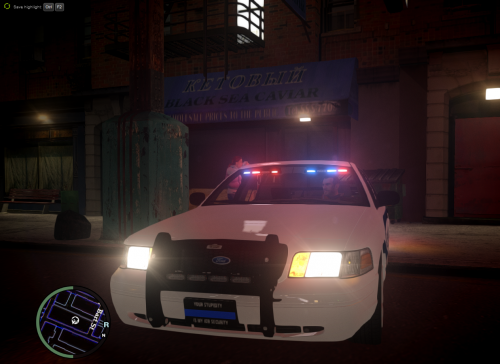 Not bad. Just one thing though: Ford don't make PPVs. They make PIs (Police Interceptor). Chevy are the ones that do PPVs.
- 5 comments
- 1 review
-
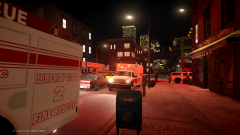 "Modeled by: Downcoldkiller"
.jpg.965d98d451b844cb12f0c080e3f937fc.jpg)

